How To Generate Branded Product Mockups in Minutes with Seedream 4 on Scenario
Learn how to quickly generate professional branded product mockups using Seedream 4 in Scenario. This guide covers how to create consistent visuals for packaging, apparel, and accessories in minutes, utilizing features like Sequence Mode for batch generation. Ideal for marketers and designers, it simplifies the process of producing high-quality mockups tailored to your brand identity.
Brand Identity in Minutes: How To Generate Product Mockups with Seedream 4 in Scenario
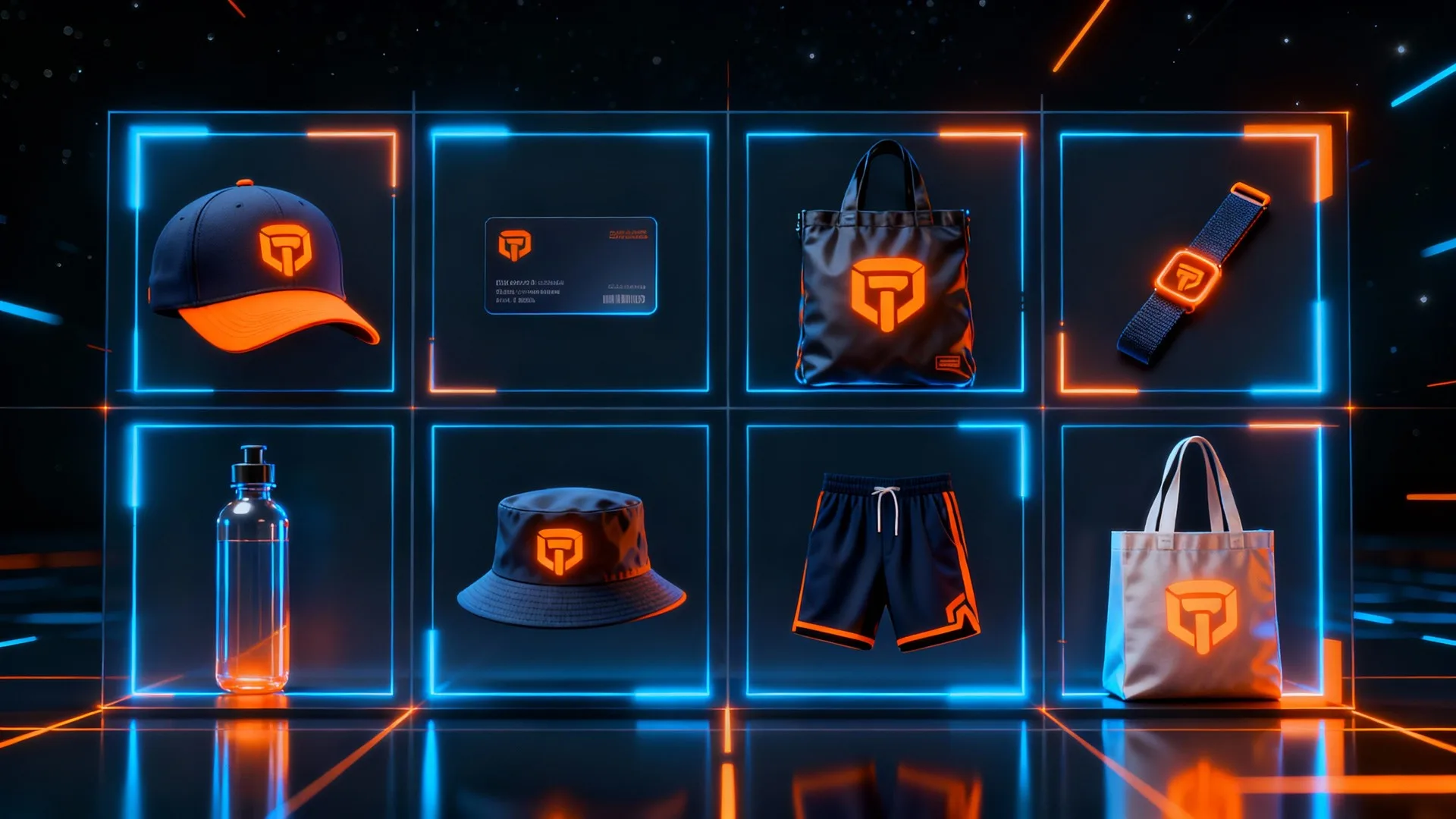
If you've ever needed a full set of branded product visuals without spending hours on manual design, you're not alone. With Seedream 4 in Scenario, you can automatically generate consistent product mockups from packaging and apparel to accessories all from a single image. This guide shows how to create professional, logo-driven mockups in just a few minutes.
Seedream 4 is one of Scenario's top editing models, capable of transforming a single logo into a cohesive set of branded product mockups and marketing visuals. Instead of building every mockup by hand, you can create a complete identity system in minutes.
The secret is Sequence Mode, which generates a series of outputs from a single run, sharing the same style, colors, and logo placement. Whether you need packaging, apparel, or promotional assets, Seedream delivers professional and consistent results fast.
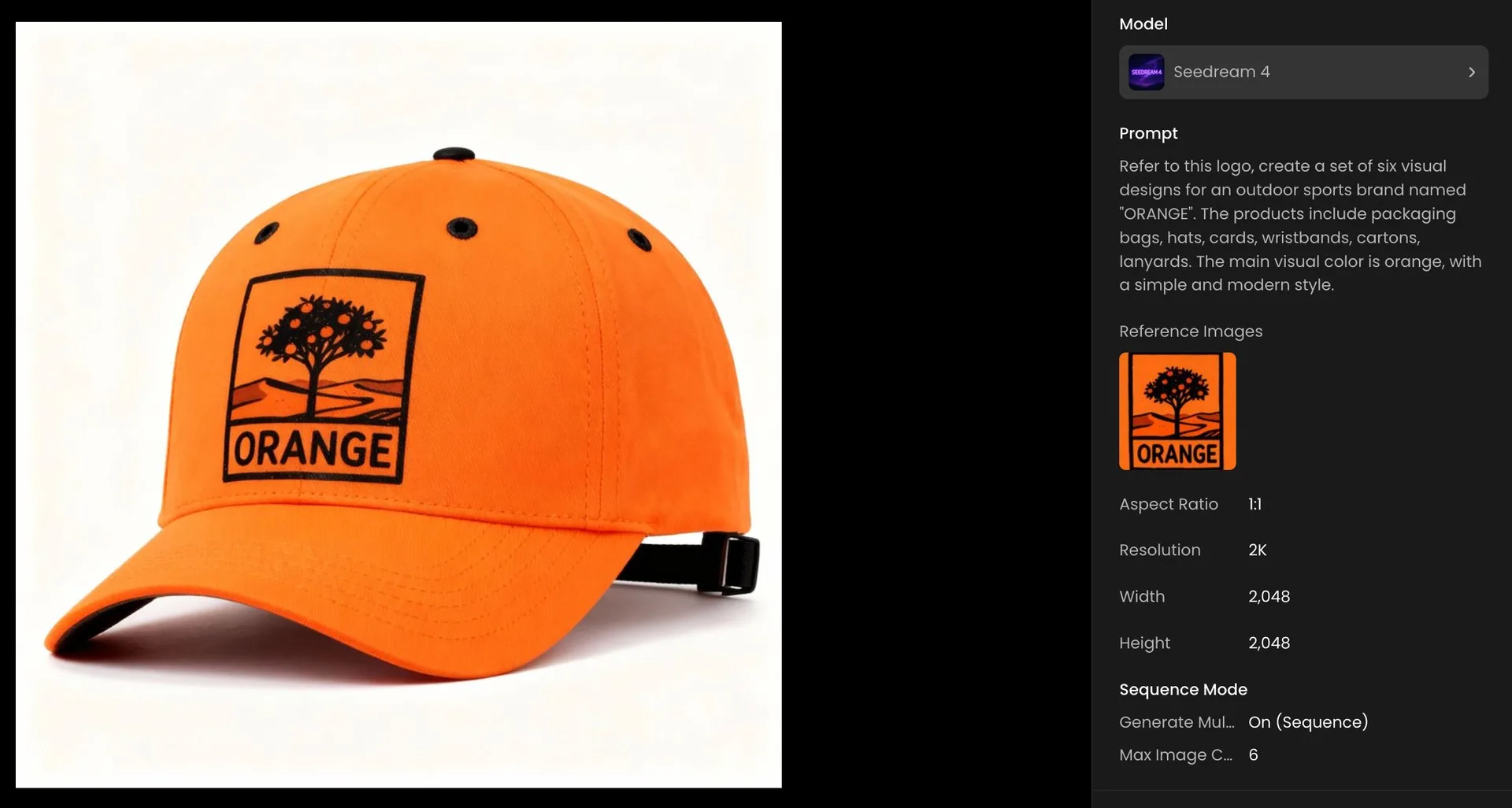
Seedream 4 in Scenario: hat mockup generated from reference logo.
Clean Inputs Beat Clever Settings
Simple prompts work best. Keep your inputs clear and direct:
- Input Setup: Upload a single reference image of the brand's logo.
- Focus your request on the specific products you need in your sequence.
What Works
To get polished results across multiple products, stick with a simple, consistent setup:
- Use one logo reference to anchor identity across all images, but you can also experiment with a few additional reference images of the logo in various setups.
- Enable "Sequence Mode: ON" to generate a batch directly from one prompt
- Set Image Count to 6 (or fewer/more if needed)
Output
- A complete set of on-brand product mockups and visual assets, ready for design pitches or marketing campaigns.
Alternative: Sequence Mode OFF - Single Grid Image
If you prefer a single image showing all the products at once instead of multiple outputs, a similar process applies with Sequence Mode OFF.
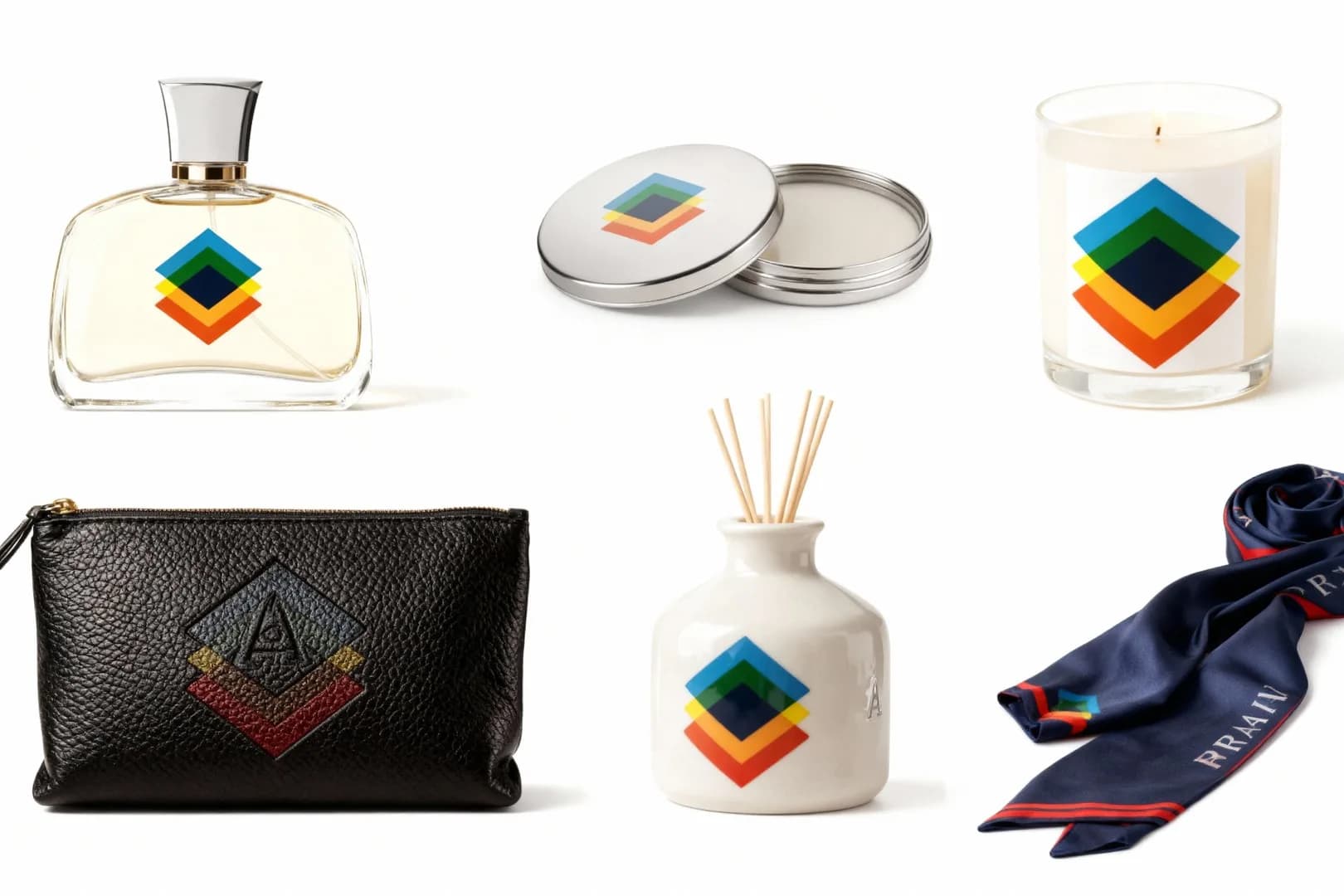
Seedream 4 single-grid output featuring six branded Scenario products.
Setup
- Set Sequence Mode: OFF
- Choose Aspect Ratio: 16:9 or 4:3
- Generate one image that presents a grid of options
What to Produce
- Up to six fully visible products in a clean, catalog-style grid on a solid background
- Each product should be unique and tailored to the inferred brand identity
- Ensure the logo is seamlessly integrated on each product, following folds, seams, curves, and textures realistically
- Maintain variety and coherence so the result looks like professional merchandising or marketing visuals
Prompt Starter
"Recognize the logo and infer the perfume brand’s identity. Generate up to six fully visible products that fit the brand’s style and industry. Seamlessly integrate the logo on each product, following folds, seams, and textures. Arrange the products in a polished catalog-style layout on a clean white background, ensuring variety, coherence, and professional merchandising quality."
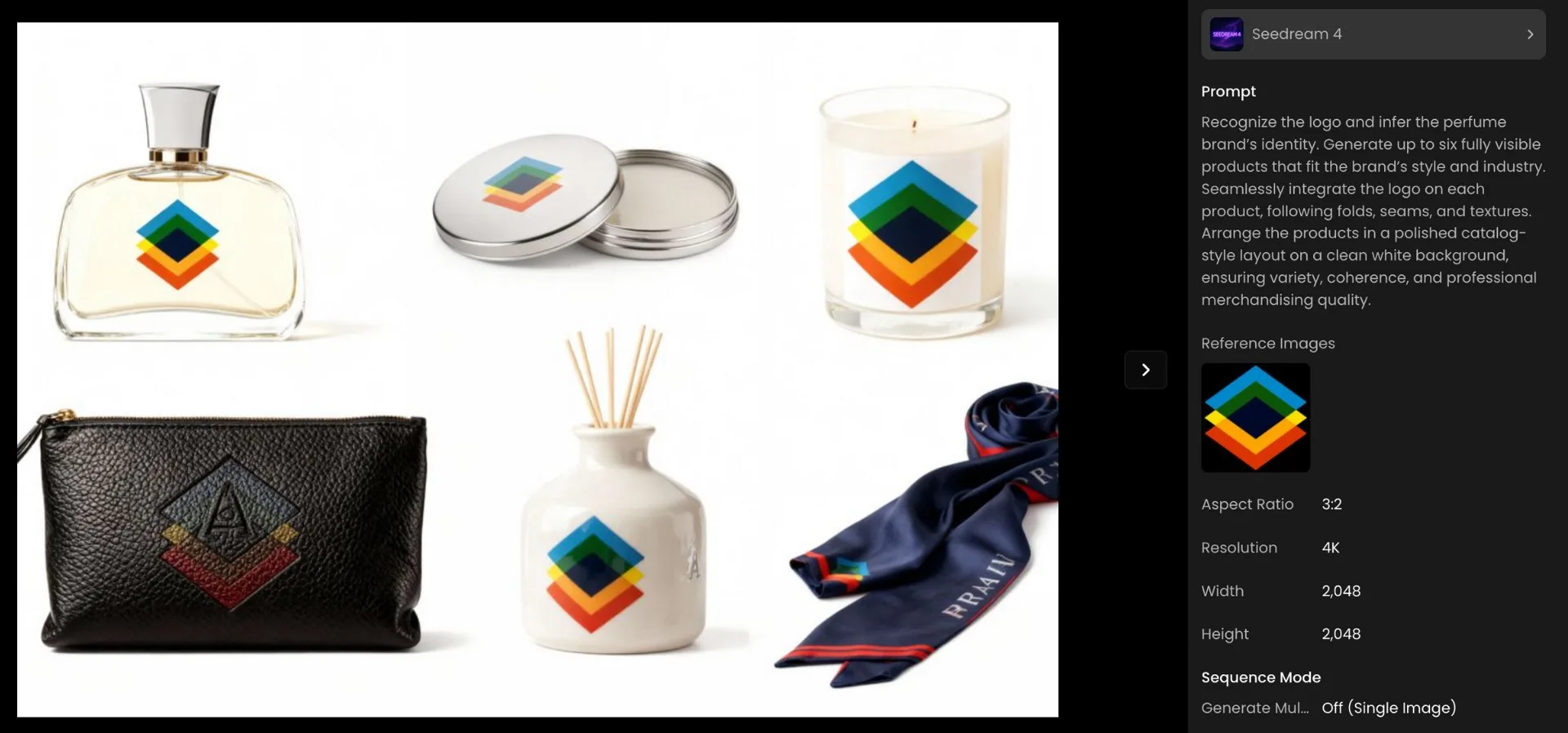
Seedream 4 single-image output displayed in the Scenario interface.
Conclusion
Start with one clean logo in Seedream 4. For multiple deliverables, use Sequence Mode ON to generate a focused batch that shares style and color. If you want one visual that shows options at a glance, use Sequence Mode OFF to create a single 16:9 or 4:3 grid with fully visible products on a clean background, each tailored to the brand identity. In minutes you can produce professional, on‑brand mockups suitable for pitches and campaigns.
Ready to Create?
Open Seedream 4 in Scenario and generate your set now: Start creating
Frequently Asked Questions (FAQ)
1) How do I create product mockups with Scenario?
Upload a logo, select Sequence Mode, and enter a short prompt listing the products you want (bags, hats, cards, etc.). Scenario generates a consistent set in minutes.
2) Can Seedream 4 generate consistent branding assets?
Yes. Using Sequence Mode ensures all visuals share the same style, color palette, and logo placement.
3) What products can I mock up with my logo?
Common options include packaging bags, apparel, caps, cards, wristbands, tote bags, and more. You can specify any product type in your prompt.