How to Craft Good Prompts for Gemini 2.5 and Seedream
Learn how to craft effective prompts for AI image generation with our comprehensive guide on Gemini 2.5 and Seedream. Discover tips for writing clear, specific instructions, utilizing high-quality inputs, and iterating for improved results. Master the art of prompt engineering to enhance your AI image editing projects today!
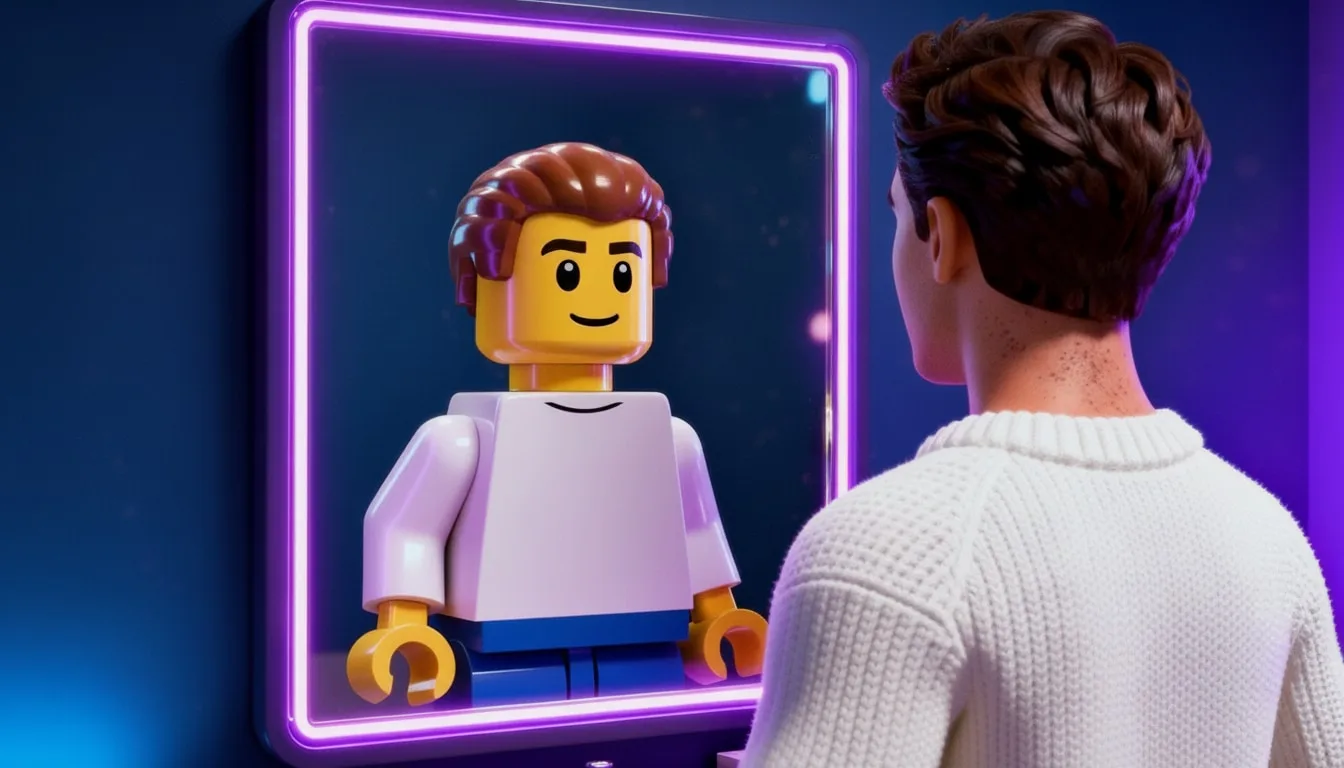
How to Craft Good Prompts for Gemini 2.5 and Seedream
In the rapidly evolving world of AI image generation, creating effective prompts has become an essential skill. Whether you're using Google's powerful Gemini 2.5 (also known as Nano Banana 🍌), Bytedance Seedream, or Flux Kontext, the quality of your results depends significantly on how well you craft your instructions. This guide will walk you through the art of prompt engineering specifically tailored for these cutting-edge AI models.
Understanding AI Image Editing Models
Before diving into prompt crafting techniques, let's briefly understand what makes these models special:
Gemini 2.5 (Nano Banana 🍌): Google's advanced image editing model excels at making precise edits while maintaining speed, fidelity, and consistency. It's particularly effective for targeted modifications that preserve the original image's integrity or style.
Seedream: Bytedance’s innovative image generation model specializes in creating high-quality, consistent visuals with exceptional detail. It's known for its ability to take up to 10 input (reference) images and generate up to 15 output images.
Flux Kontext: Another powerful editing model that strikes a balance between creative transformation and maintaining the original image's core elements
Writing Effective Prompts for Editing
When editing with prompts, the clarity and structure of your instructions directly influence the quality of the results. Use the following guidelines to optimize outcomes across all models:
a. Focus on One or Two Changes
Keep each prompt to one or two edits (e.g., "change the sky to stormy gray" or "transform the character into LEGO style"). Multi-step runs produce more predictable results and set you up for iteration (see g).
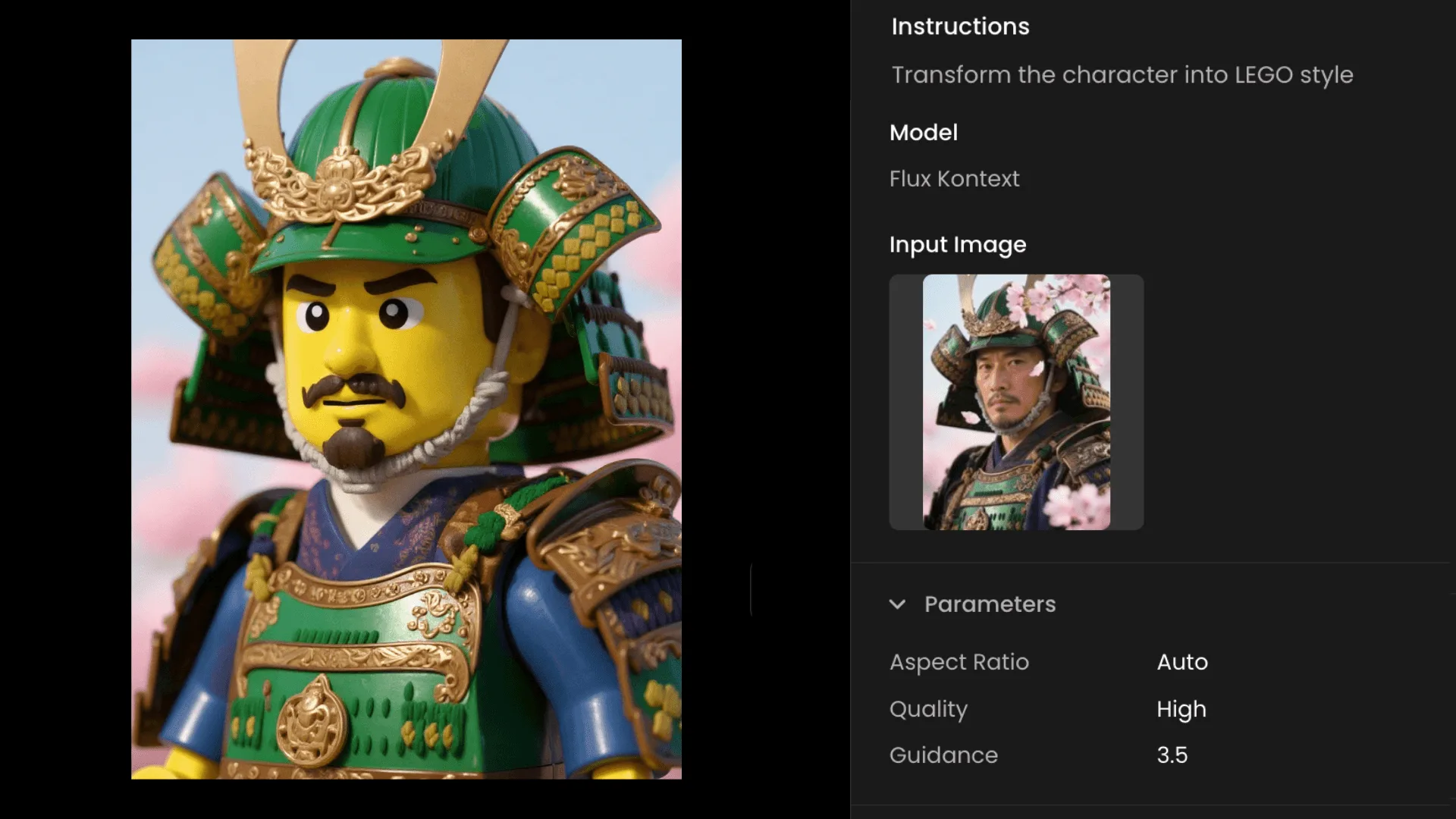
Scenario Interface Showing Character Transformation to Lego Style with Flux Kontext
b. Be Clear and Specific
Avoid vague asks like "make it better." Describe the outcome precisely: "add a glowing blue aura around the character" or "apply an aged wooden texture to the table."
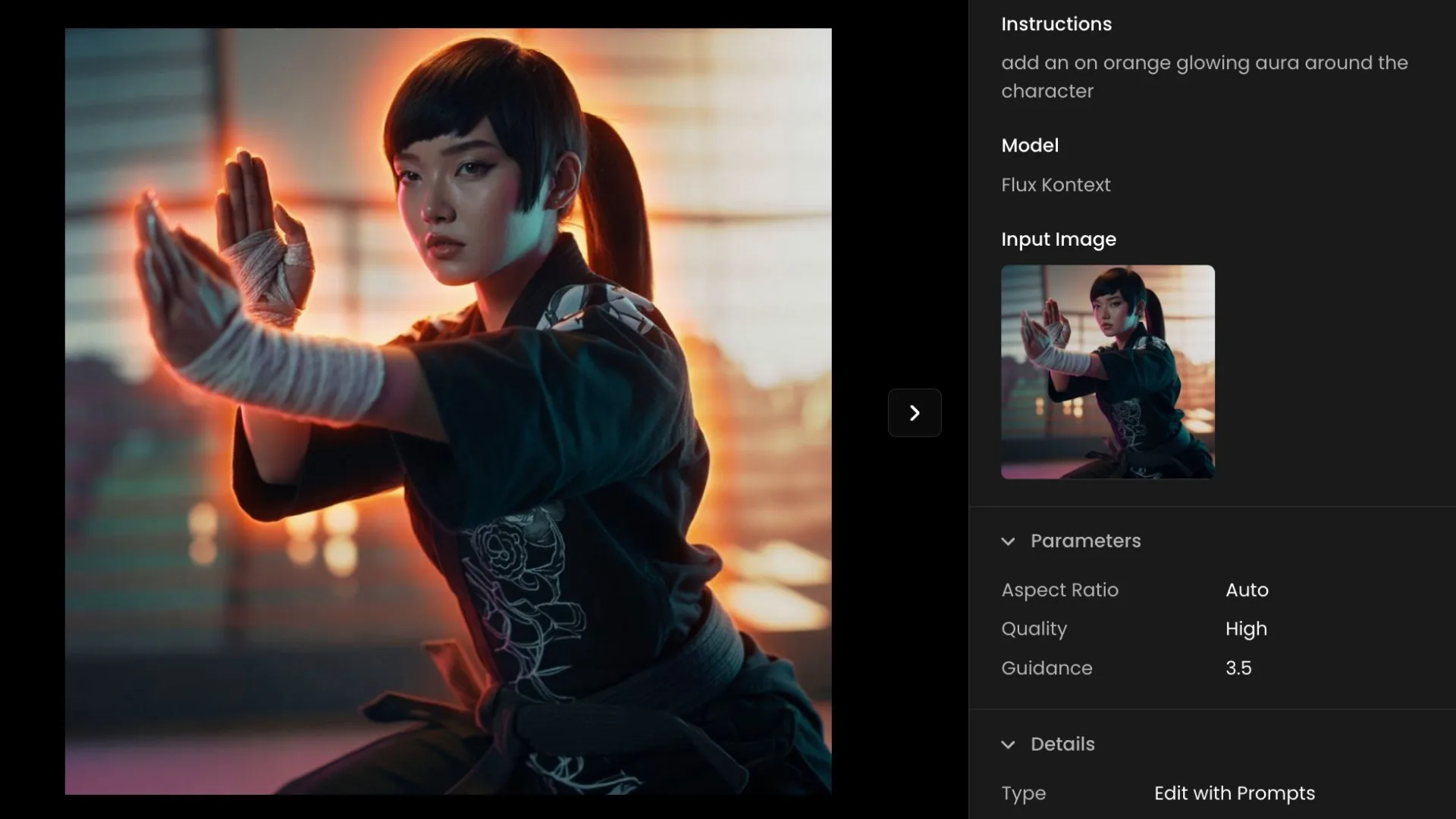
Scenario Interface Showing Character Editing with Flux Kontext
c. Use Descriptive and Contextual Language
Include style, texture, mood, and feature details.
Explore the editing models to make an informed choice: you may have to use Seedream when creative aesthetics are the priority; use Gemini 2.5 when style or character consistency matters most. Or combine them—for example, use Seedream to refine individual elements, then Gemini 2.5 to merge them consistently.
d. Use High-Quality Inputs
Provide clear, high-resolution references; low detail can cause hallucinations. Fewer, richer references beat many weak ones.
e. Target Elements Precisely (Labels or Numbers)
When giving instructions, point out the exact parts of the image you want to edit. You can do this by describing their position (e.g., "the character on the left" or "the red apple in the bowl").
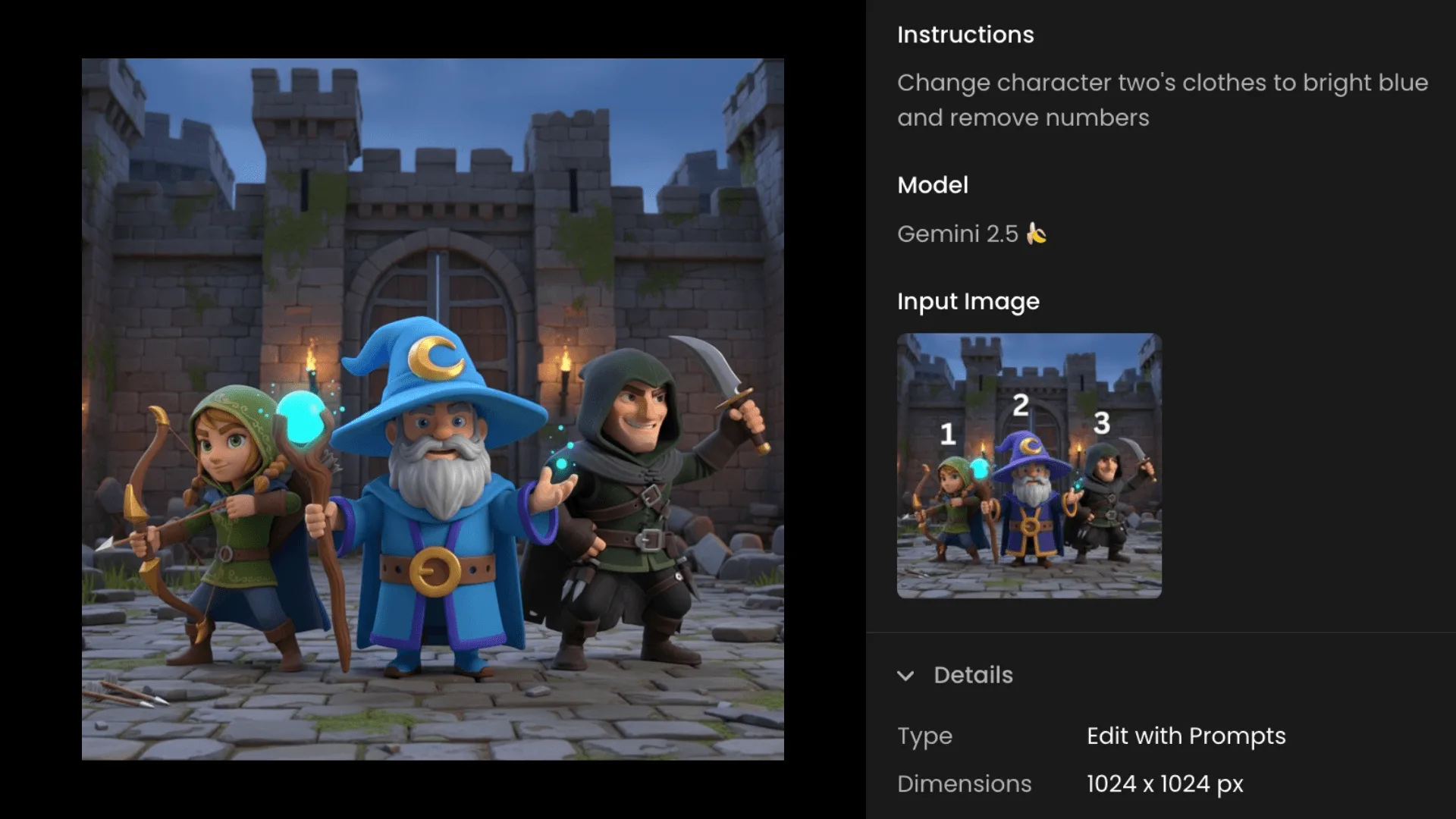
Scenario Interface Showing Character Editing with Gemini 2.5 (Nano Banana 🍌)
If possible, label your images by adding text/numbers on the images. Example: If you have multiple characters, add names or labels onto the images or labels like "Character 1", "Character 2" etc. That way you can mention them directly in prompts which is super useful when working with complex prompts involving multiple characters and objects. It makes it easier for the editing model to interpret and apply edits correctly.
f. Manage Multiple Reference Images
When you use additional images, state each image's role and influence: "Apply the Van Gogh painting's style to the background." or "Use this fabric swatch for the jacket texture." Add brief annotations on references when helpful, and keep label names consistent across runs.
g. Iterate and Refine
If the first pass isn't perfect, tweak: add missing details, rephrase, or simplify, then run again. Multiple focused runs reliably improve quality.
Practical Examples
Let's examine some effective prompt examples for different scenarios:
Character Modifications
Good prompt: "Change the character's casual sweater to a formal navy blue blazer with subtle pinstripes. Maintain the exact same facial features, hairstyle, and pose."
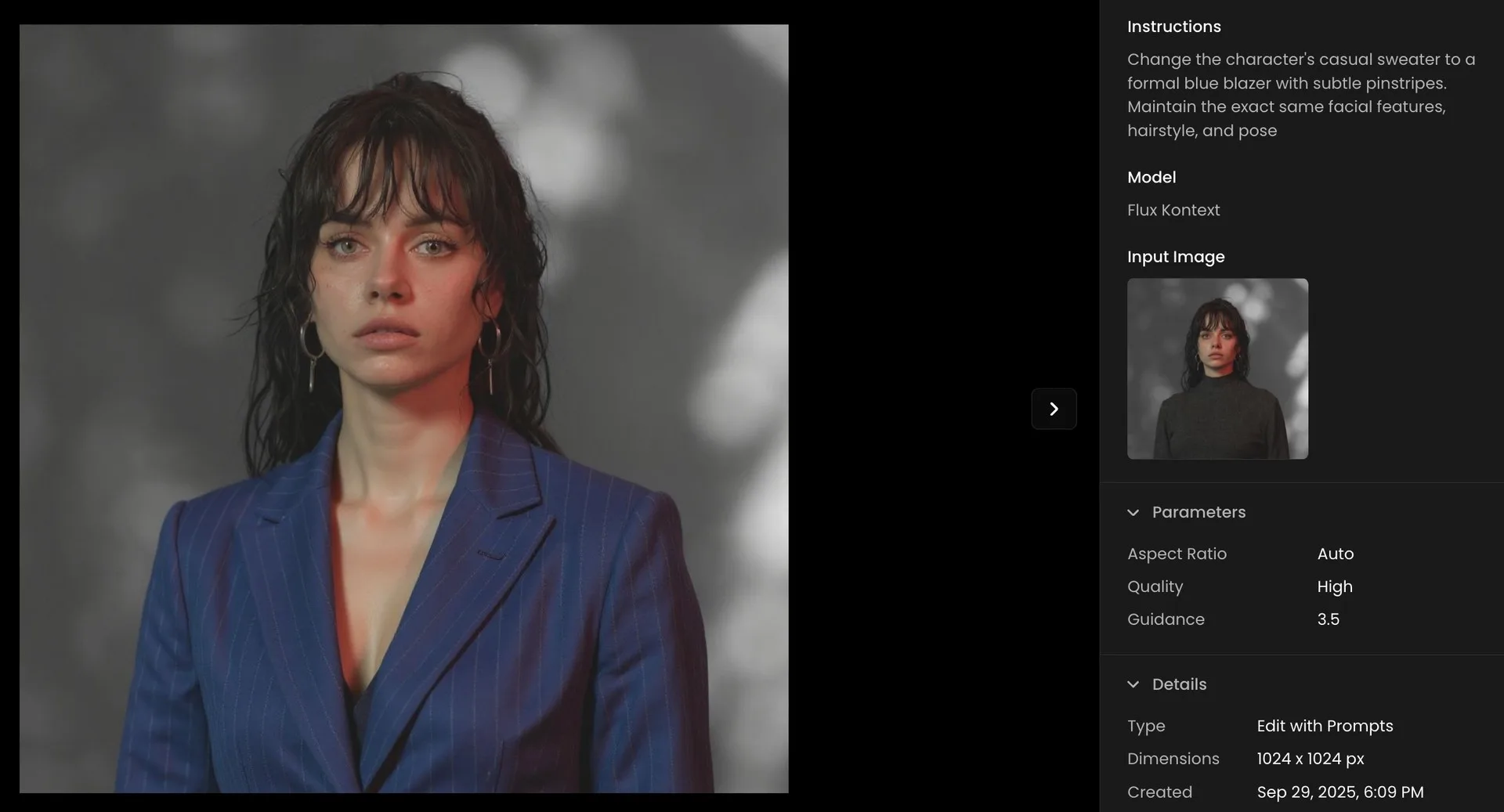
Scenario Interface Showing Character Modification with Flux Kontext
Background Changes
Good prompt: "Replace the background with a serene beach sunset scene. Keep the warm lighting tone but shift from city lights to natural golden sunset glow."
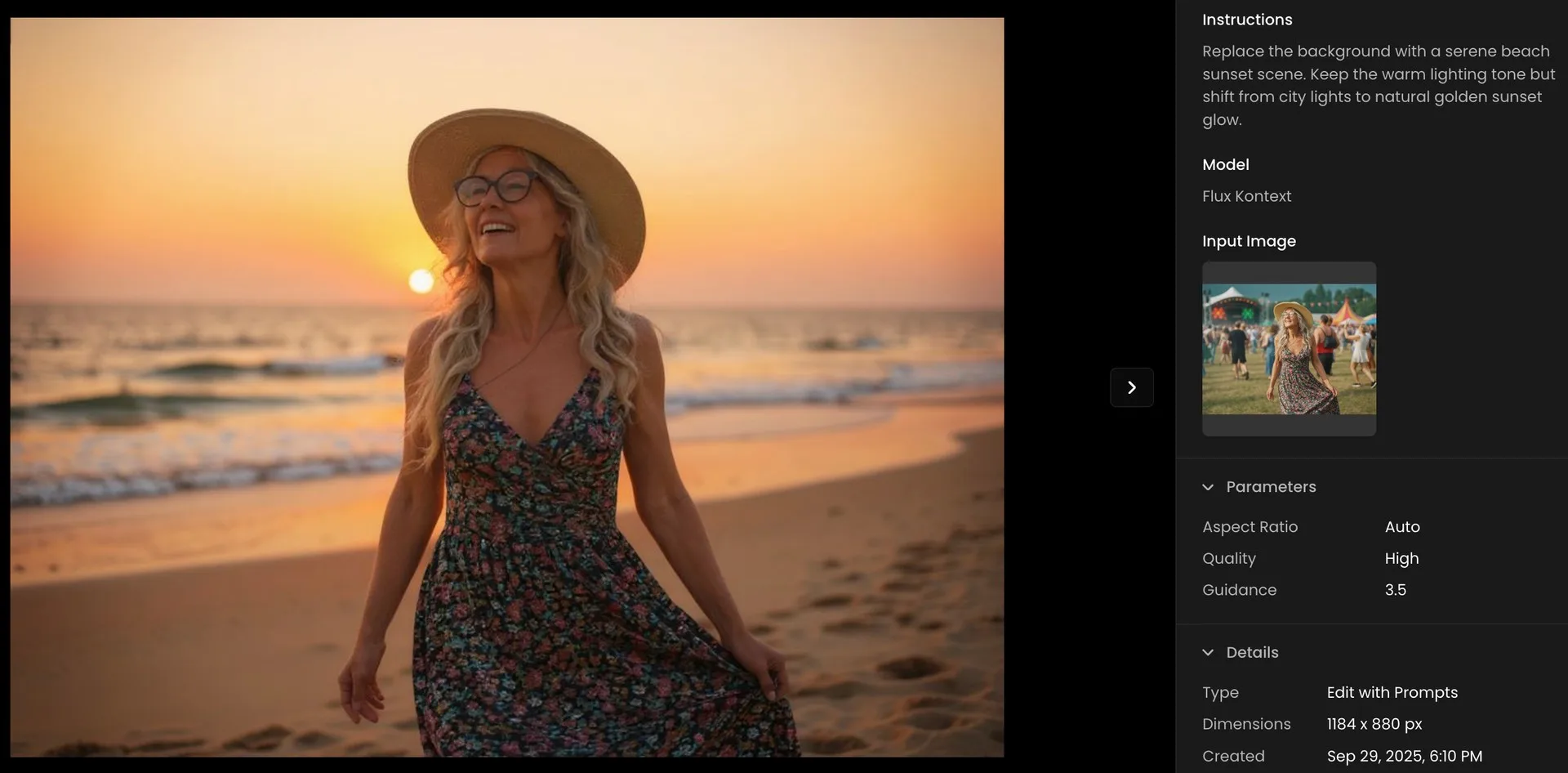
Scenario Interface Showing Background Changing Result with Flux Kontext
Style Transformations
Good prompt: "Transform this realistic photograph into a watercolor painting style, with soft edges, visible brush strokes, and slightly saturated colors. Maintain the original composition and subject matter."
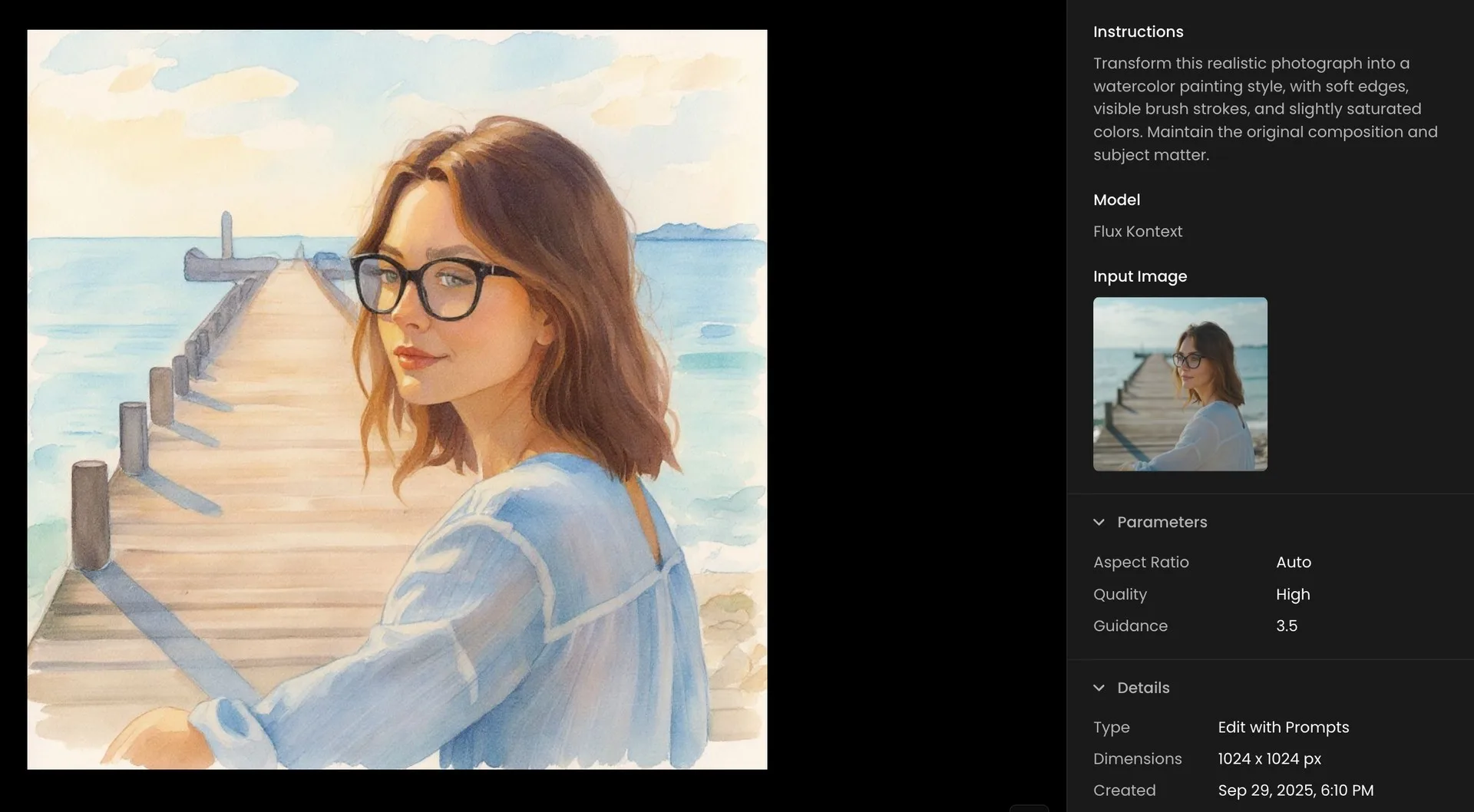
Scenario Interface Showing Style Transformation Result with Flux Kontext
Model-Specific Considerations
While the core principles apply across all models, these considerations may help you choose the right tool for specific tasks:
Gemini 2.5/Nano Banana 🍌: Best for precise edits while maintaining the highest fidelity to the original image. Excellent when consistency is paramount.
Seedream: Shines with creative transformations and style changes. Consider this when the aesthetic quality is your top priority.
Flux Kontext: Offers a good balance between transformation capability and consistency with the original.
Using Scenario's Prompt Spark
Scenario offers a specialized tool called Prompt Spark to help you generate or refine your prompts. This feature can significantly improve your workflow by providing AI-assisted prompt creation that's tailored specifically for image generation tasks.
Prompt Spark feeds on your model training dataset captions and pinned images prompts, offering four main capabilities:
- Generate a New Prompt: Creates a fresh prompt from scratch, influenced by captions and pinned images (if any are associated with your model).
- Rewrite Your Prompt: Type a few words, and the Rewrite feature will expand them into a comprehensive prompt matching the recommended structure.
- Translate: Write your ideas in your preferred language, then use Translate to instantly convert them to English. You can further refine the translated prompt using the Rewrite function.
- Image-to-Prompt: Import or drag and drop an image into the prompt box, and Prompt Spark will automatically generate a descriptive, ready-to-use prompt based on the uploaded image.
This tool is especially valuable when working with models like Gemini 2.5 or Seedream, as it can help structure your prompts in ways that these advanced models respond to most effectively.
Conclusion
Mastering prompt crafting for AI image editing models is both an art and a science. It requires clear communication, attention to detail, and an understanding of each model's strengths. By applying the strategies outlined in this guide, you'll be able to achieve more precise, consistent, and impressive results in your AI image editing workflows.
Remember that effective prompting is an iterative process—don't be afraid to experiment, learn from each result, and refine your approach based on what you discover. With practice, you'll develop an intuitive sense for communicating your creative vision to these powerful AI tools.