Outpaint Characters in Scenario: Turn Cropped Art into Full, Consistent Shots
A practical guide to turning cropped character images into full-body shots or wider frames without compromising style.
Outpaint Characters in Scenario: Turn Cropped Art into Full, Consistent Shots
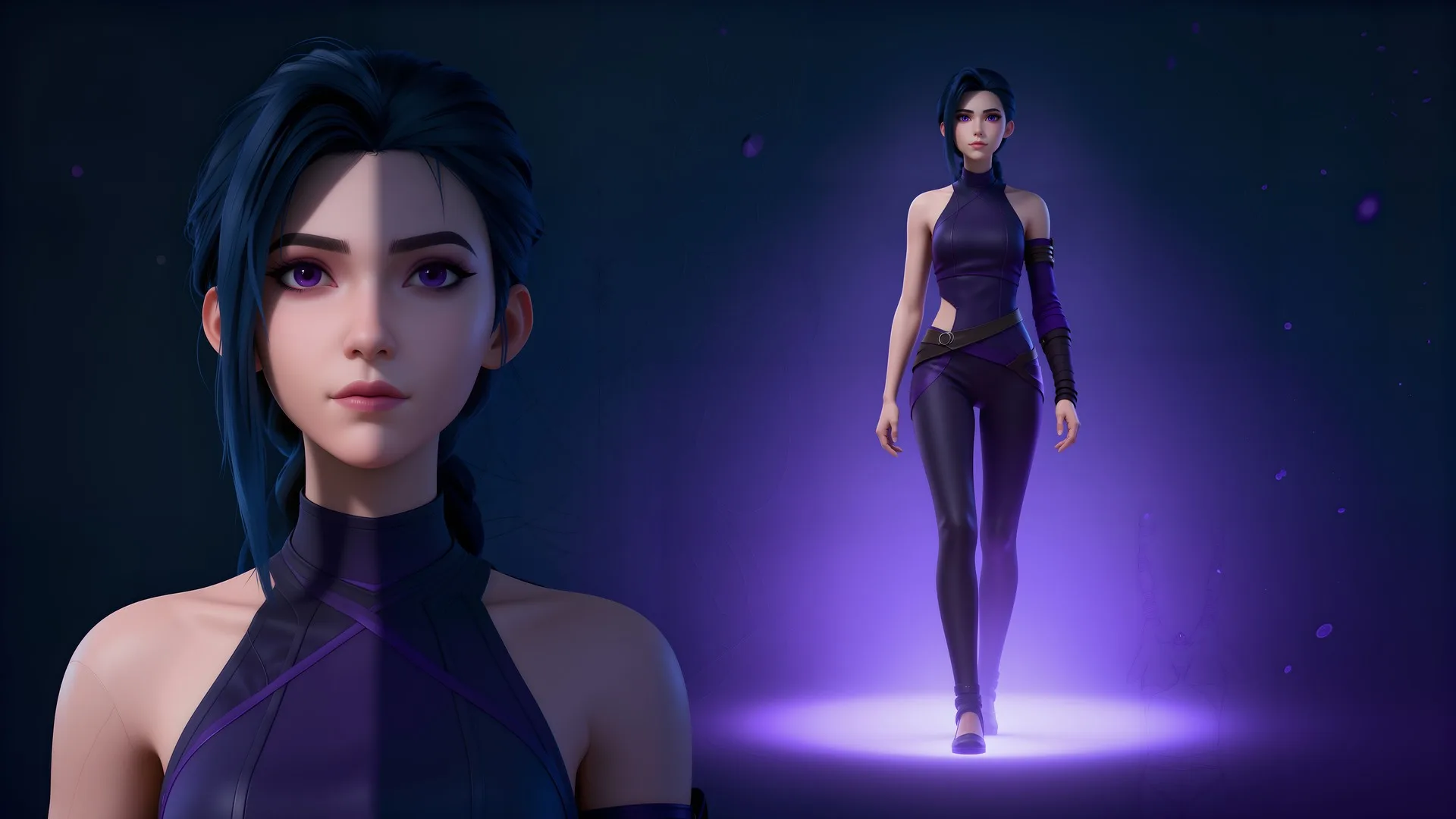
Creating full-body character frames used to mean redrawing limbs, guessing poses, and hoping the style held up. With Scenario’s Expand, you can extend tight crops into clean, on‑style full‑body shots or wider compositions in minutes, no redrawing, no guesswork.
Why Expand

Great character art deserves room to breathe. Expand is Scenario’s outpainting tool, designed to extend an image beyond its original bounds while preserving consistency. It is ideal for finishing cropped characters, filling in missing details, or adapting the same asset to different aspect ratios for mobile, tablet, and desktop. Instead of re‑generating from scratch, you keep what works and grow the canvas with control.
Expanding A Character On Scenario
How Expand works
Load any image, then open Expand from the three‑dot menu or from the top main menu under Create then Expand.
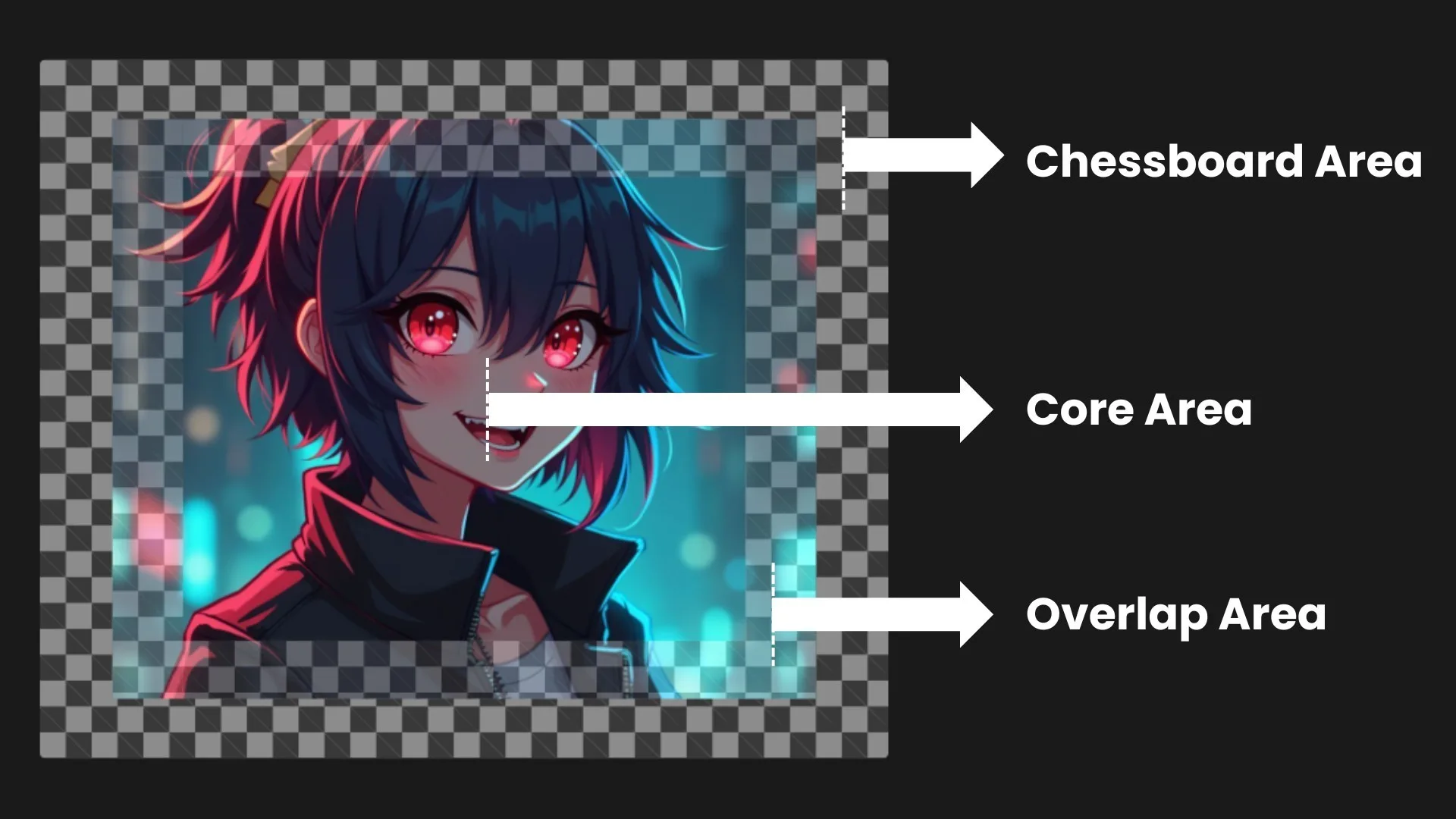
Your canvas divides into three functional zones: the Core Area, which keeps your original image intact; the Chessboard Area, where new pixels are generated; and the Overlap Area, a soft blend that makes transitions feel seamless.
With these pieces in place, Expand adds context where you need it while keeping the character’s identity and style stable.
Scenario Expand: Key Features
Set up your first outpaint
Begin by deciding where the image needs room. Choose an Input Location (top, bottom, left, or right), and set an Output Scale that matches how much you want to add.
Pick an Aspect Ratio early if you are retargeting for a platform; it’s the simplest way to avoid awkward crops later. Then tune Overlap. Higher overlap increases the blending margin, which is helpful when clothing, hair, or props cross the expansion boundary.
Prompts guide what appears in the new area. You can reuse the original prompt, let Scenario infer one from the image, or write a short instruction to define pose or background tone. Keep it specific to the extension. Mention legs, footwear, weapon placement, or scene cues so the outpaint continues the story already present in the core.
Click Expand and assess the result. If edges feel abrupt, raise Overlap and try again. If the composition feels cramped, increase Output Scale or shift which side you are expanding. Iterate until the new space feels native to the original.
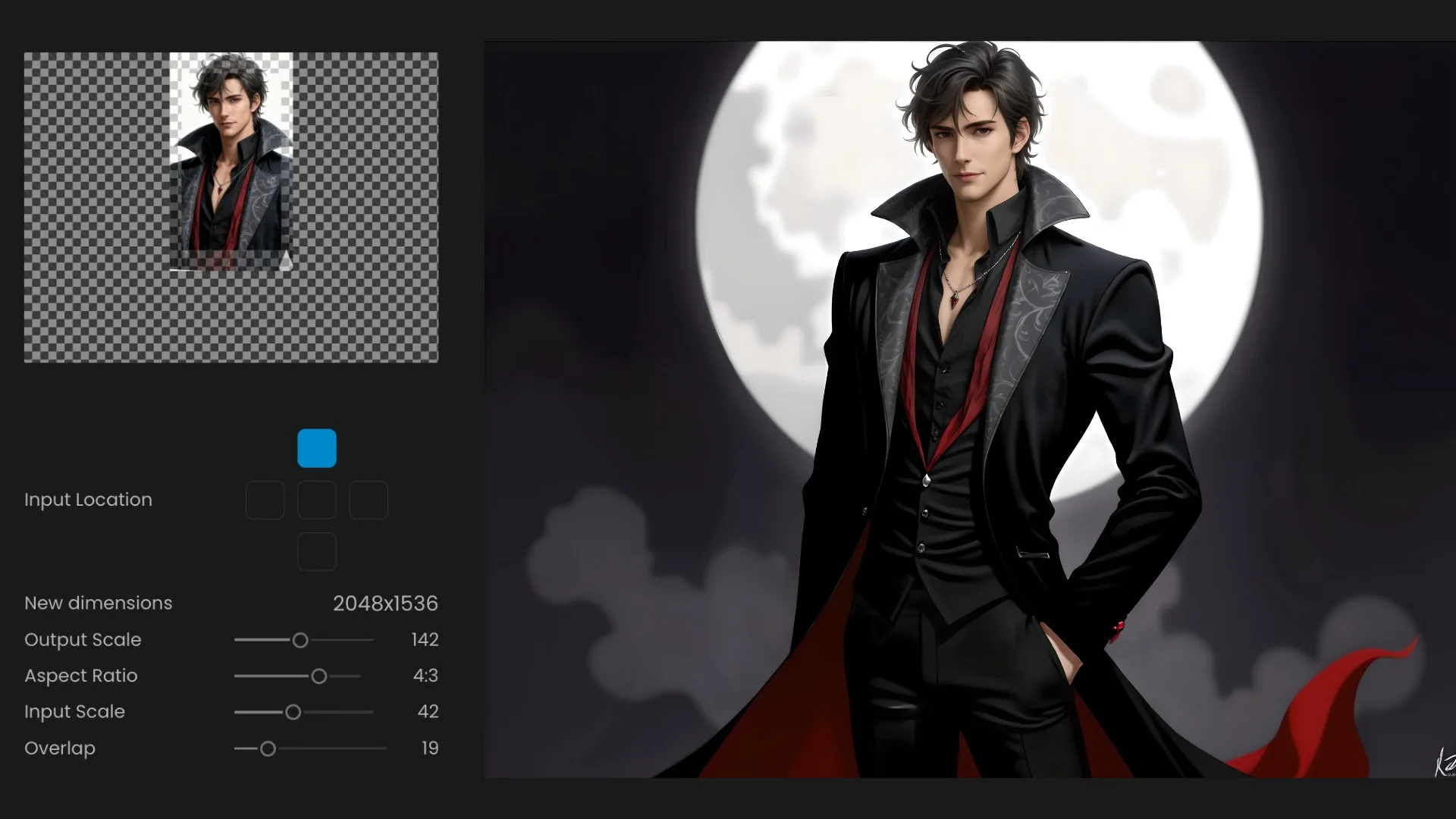
Result of Using Expand On A Character In Scenario
Working across formats
If your goal is multi‑platform consistency, plan the aspect ratio first, then Expand toward it. For portrait‑first experiences, 2:3 or 9:16 keeps characters legible on mobile while leaving room for UI. For desktop banners, a wider frame adds environmental context without shrinking the subject. Expand is reversible across edges, so you can iteratively nudge composition until typography and UI have natural placement.
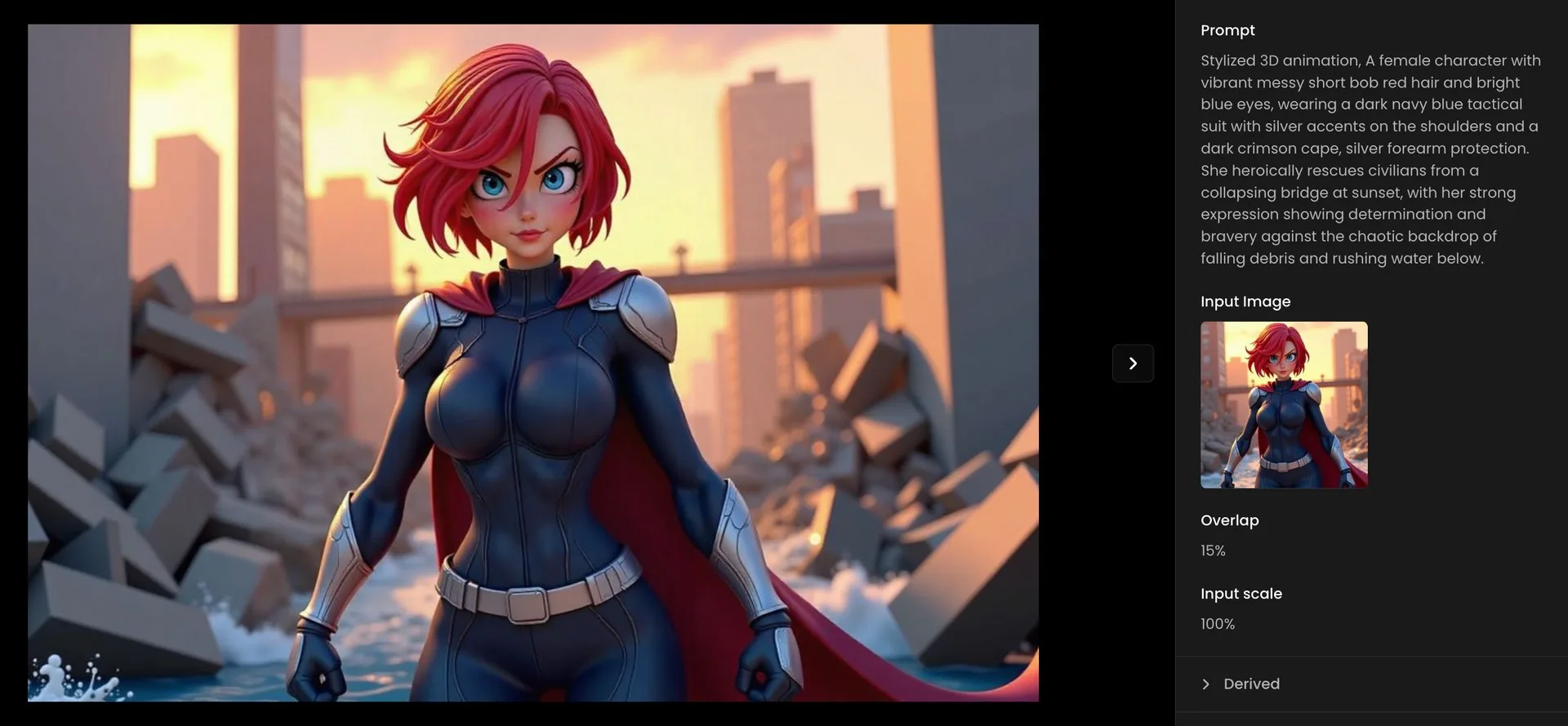
Square Image Of A Female Character Expanded Into Landscape Format
Finishing touches
When transitions look too sharp, increase Overlap. When extended areas drift off‑style, strengthen your prompt with clear material and lighting cues, or reuse the original prompt to anchor the look. Once the frame is complete, you can take it further in Scenario: Enhance for resolution, Remove Background for clean cutouts, or open in Retouch for targeted editing.
Conclusion
Expand turns a strong crop into a complete composition. By choosing direction, scale, aspect ratio, and guiding the extension with a focused prompt, you can finish characters, fit formats, and keep visual continuity across your project. From there, upscale, retouch, and export for wherever your art needs to live.
Try it now and see how far your characters can go. Start Expanding On Scenario.
Frequently asked questions (FAQs)
When should I change Overlap?
Increase it when seams are visible or when details like hair, capes, or straps cross the boundary. More overlap means a gentler blend.
What is the best way to keep the same style?
Anchor your prompt to the original image’s materials and lighting, or reuse the source prompt. If drift appears, reduce Output Scale slightly and regenerate.
How do I target a platform aspect ratio?
Set the Aspect Ratio first, then Expand toward the missing edge. This guards composition and saves rework later.
Can I keep transparency for layout work?
Yes. After outpainting, use Remove Background to create transparent cutouts, then export for engines or design tools.
What if I need lots of variants?
Save your prompt and numeric settings. Reapply them across a batch via the API for consistent, repeatable results.