Turn Simple Cutouts into Finished Shots with Qwen Edit
Transform simple cutouts into stunning finished shots without the need for additional shoots, using Qwen Edit.
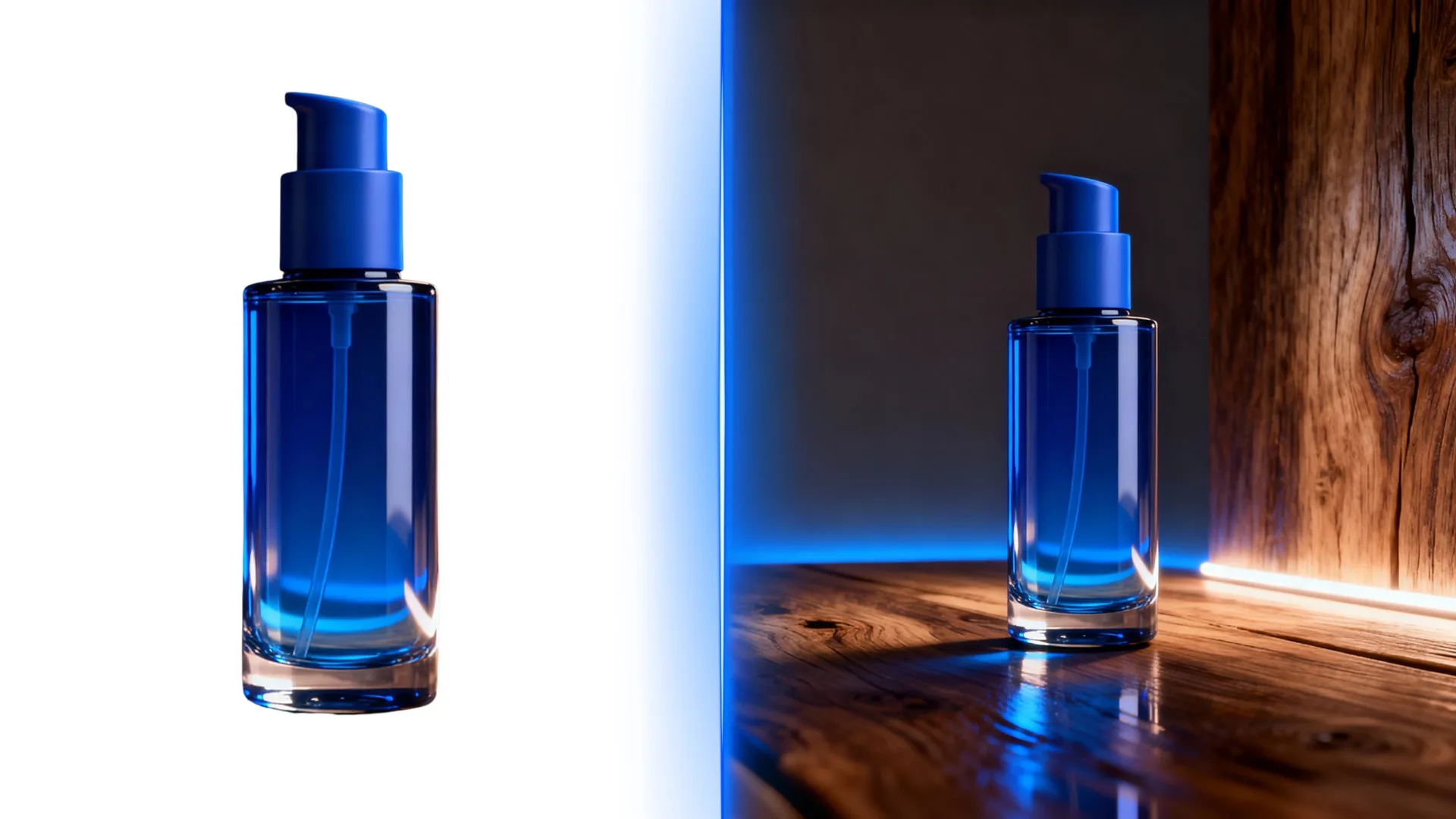
Turn Simple Cutouts into Finished Shots with Qwen Edit
You know the drill. Your studio or 3D pipeline sends over pristine packshots on white. Or you have a beautiful character render, perfectly lit… and floating in a blank void.
Those assets are great for catalogs and internal reviews. But for ads, landing pages, key art, or in‑game promos, you need the same subject living inside a real scene, with believable lighting and atmosphere. That gap between “clean reference” and “finished shot” is where most of the manual work lives.
This is exactly one of the problems Qwen Edit is built to solve.
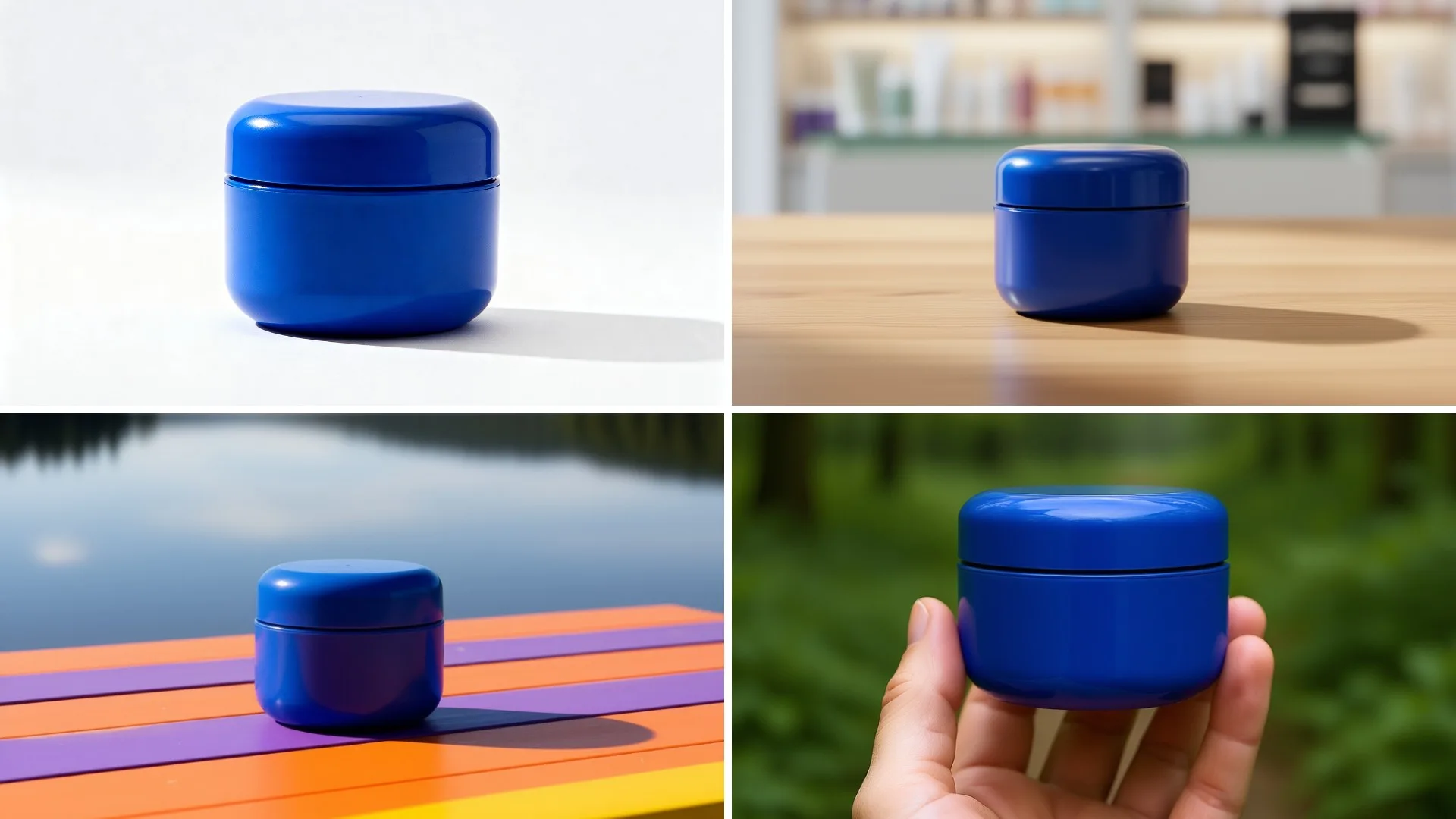
Multiple shots of the same product in different scenes using Qwen Edit.
Instead of jumping into external tools, masking by hand, and nudging shadows for hours, you can take your white‑background references and drop them straight into finished environments. You upload the image, tell Qwen where it should live, and iterate until it looks like it was shot on location.
In this article, we will walk through how to turn “white on white” into production‑ready scenes with Qwen Edit, and where it fits in your existing Scenario workflow.
Why Qwen Edit
Teams already rely on Edit with Prompts to change poses, outfits, moods, or details without rebuilding pipelines. Qwen Edit goes after a very specific, very common pain: all the work required to turn clean cutouts into believable scenes, especially when you need dozens or hundreds of variations.
Think about a typical day. Products and characters arrive on white backgrounds because that is how photography studios and 3D teams like to work: controlled lighting, consistent angles, no distractions. Then the marketing or game team needs those same assets in a bathroom, on a city rooftop, in a fantasy market, or inside a cozy living room. Every new scene usually means more masking, more comping, more time lost.
Qwen Edit keeps the part of your pipeline that already works - the white‑background sources - and takes over the expensive middle. It aims to keep the subject’s silhouette, logos, and key details intact while adapting lighting, shadows, and colors so the subject feels integrated instead of pasted on top. From a single reference, you can move through different scenes without redoing the groundwork.
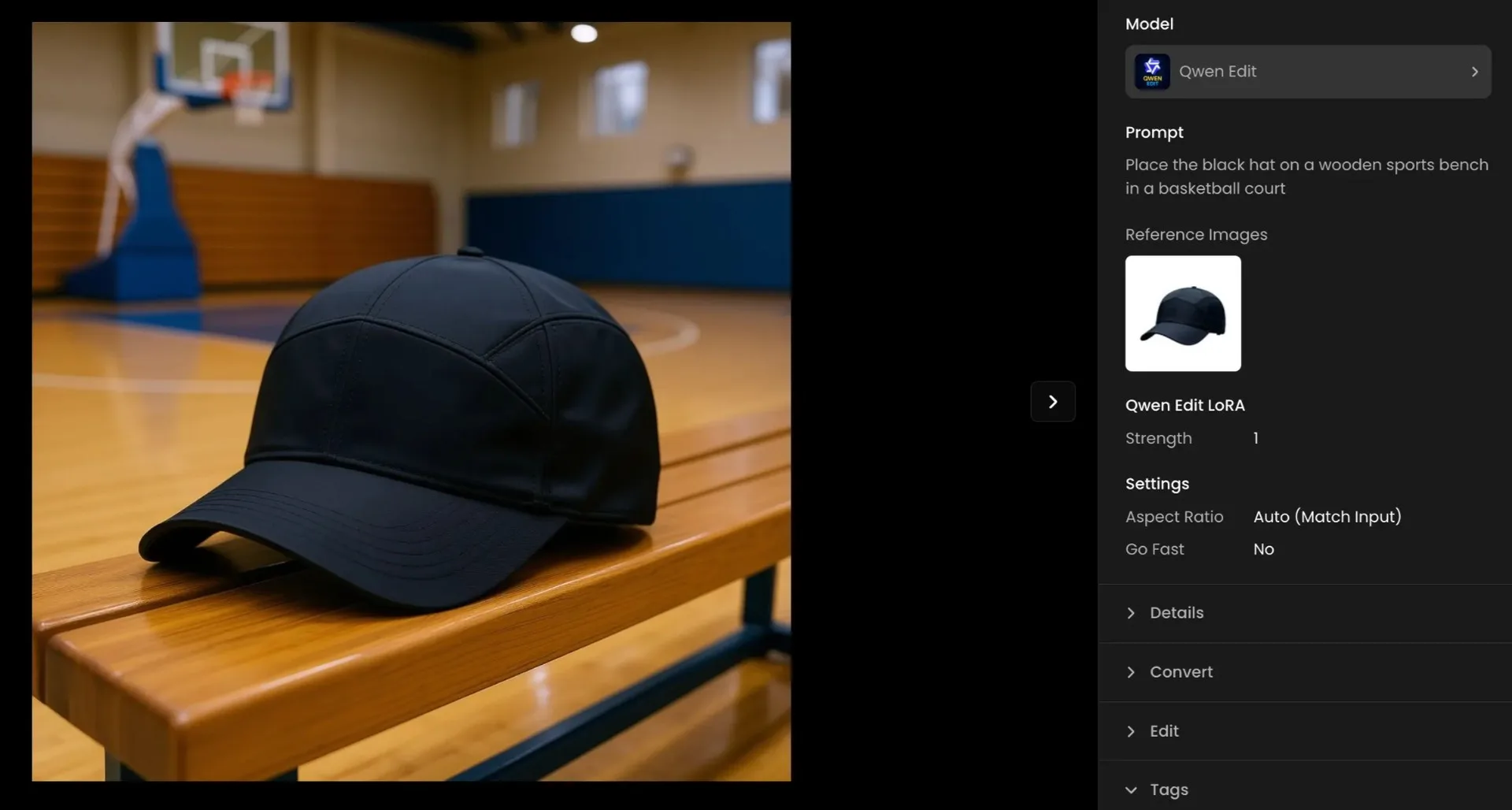
*Qwen Edit workflow: turning a plain white-background cap photo into a sports-scene shot.*
If you already invest heavily in white‑background photography or renders, Qwen Edit essentially turns those assets into a “scene‑ready” library you can keep reusing.
The Workflow
You start inside Edit with Prompts and select Qwen Edit as your model.
Then simply upload your product or character image as the primary reference. If you have several angles, it is usually best to begin with the cleanest hero shot so the model can lock onto what really defines the subject.
Qwen Edit is powerful, but it still depends on what you feed it. The better your reference, the more natural your scenes will look.
The heart of the process is your instruction. Instead of thinking in “edit steps,” you describe the final scene you want. For example: Place the bottle on a table next to headphones inside a cozy house interior
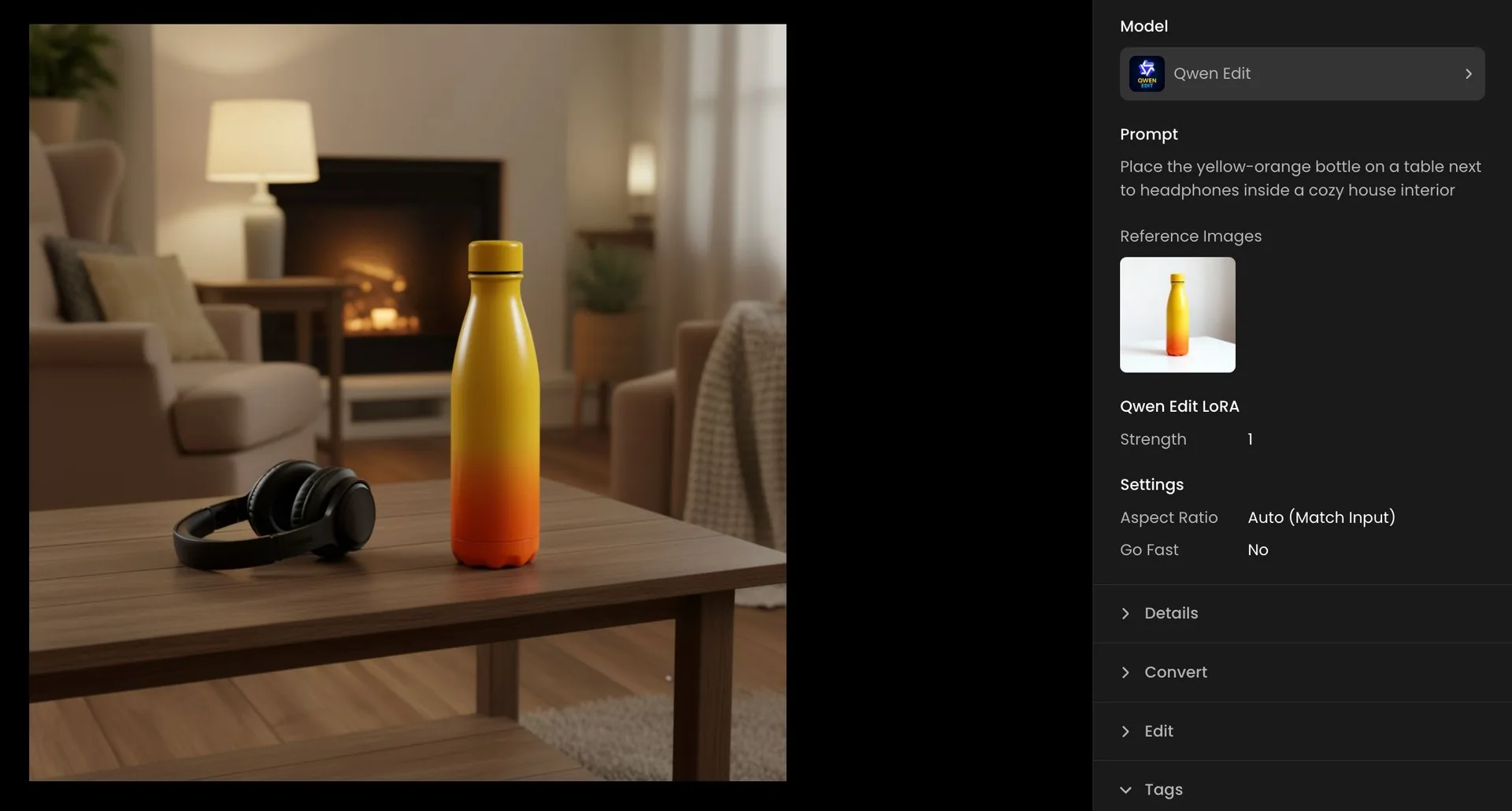
Qwen Edit workflow: turning a plain white-background bottle photo into a cozy shot.
When You Need More Control: Add a Background Reference
Sometimes you know exactly which environment you want: a specific room or landscape that already exists as a photo or a generated image. In those cases, you can pair Qwen Edit with a background reference.
The workflow stays the same, but now the subject and the background are two separate inputs. You upload your white‑background subject as usual, then add the environment image you want to match. In your prompt, you explain that the character or product should be placed into that space, and you ask Qwen to keep the subject consistent while aligning lighting, perspective, and overall mood to the background.
The model then uses your subject as the hero and the background as context. The goal is not just to replace a backdrop, but to make the composition feel like a single photograph or render. That includes small details like the direction of shadows, the softness of the light, and the relative scale of elements in the frame.
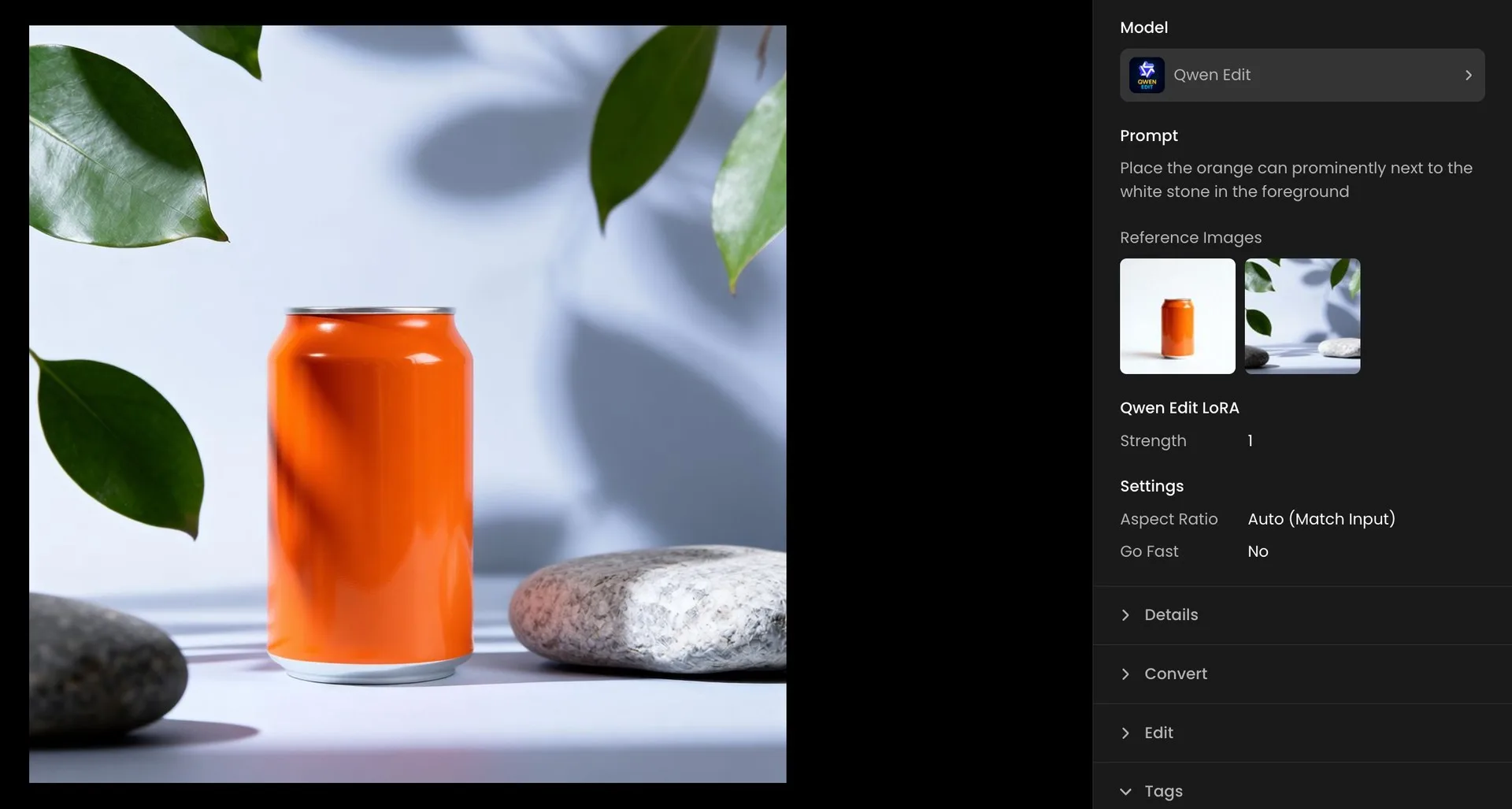
Qwen Edit workflow: placing a can in an existing background shot.
Real‑World Examples: Products and Characters
For product teams, it is a way to move from raw shots to lifestyle imagery without spinning up a new shoot for every channel.
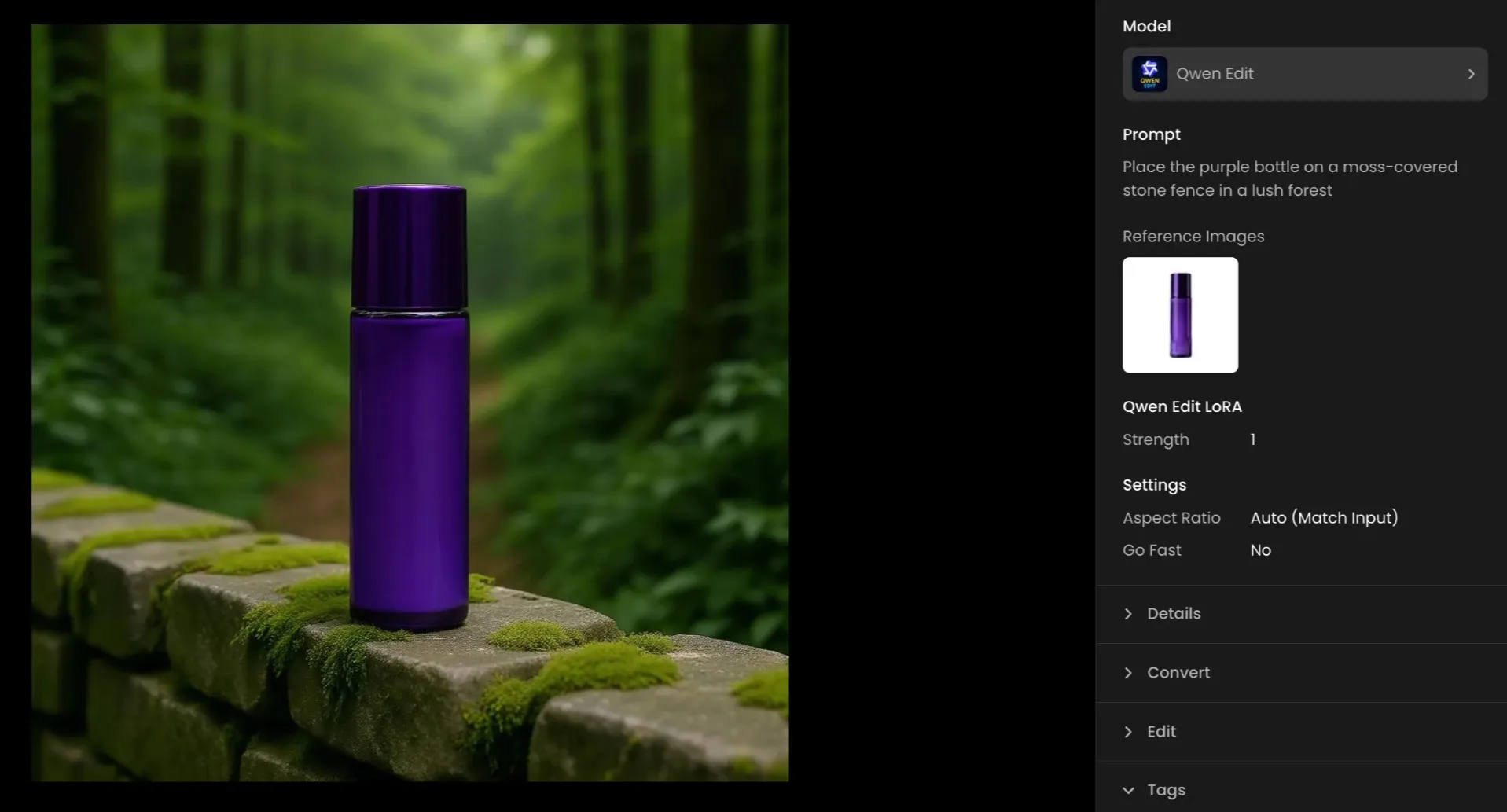
Qwen Edit workflow: turning a plain white-background skin care product photo into a nature shot.
For game and entertainment teams, Qwen Edit is a bridge between character turntables or key art and the in‑world scenes you need for trailers, posters, and store assets.
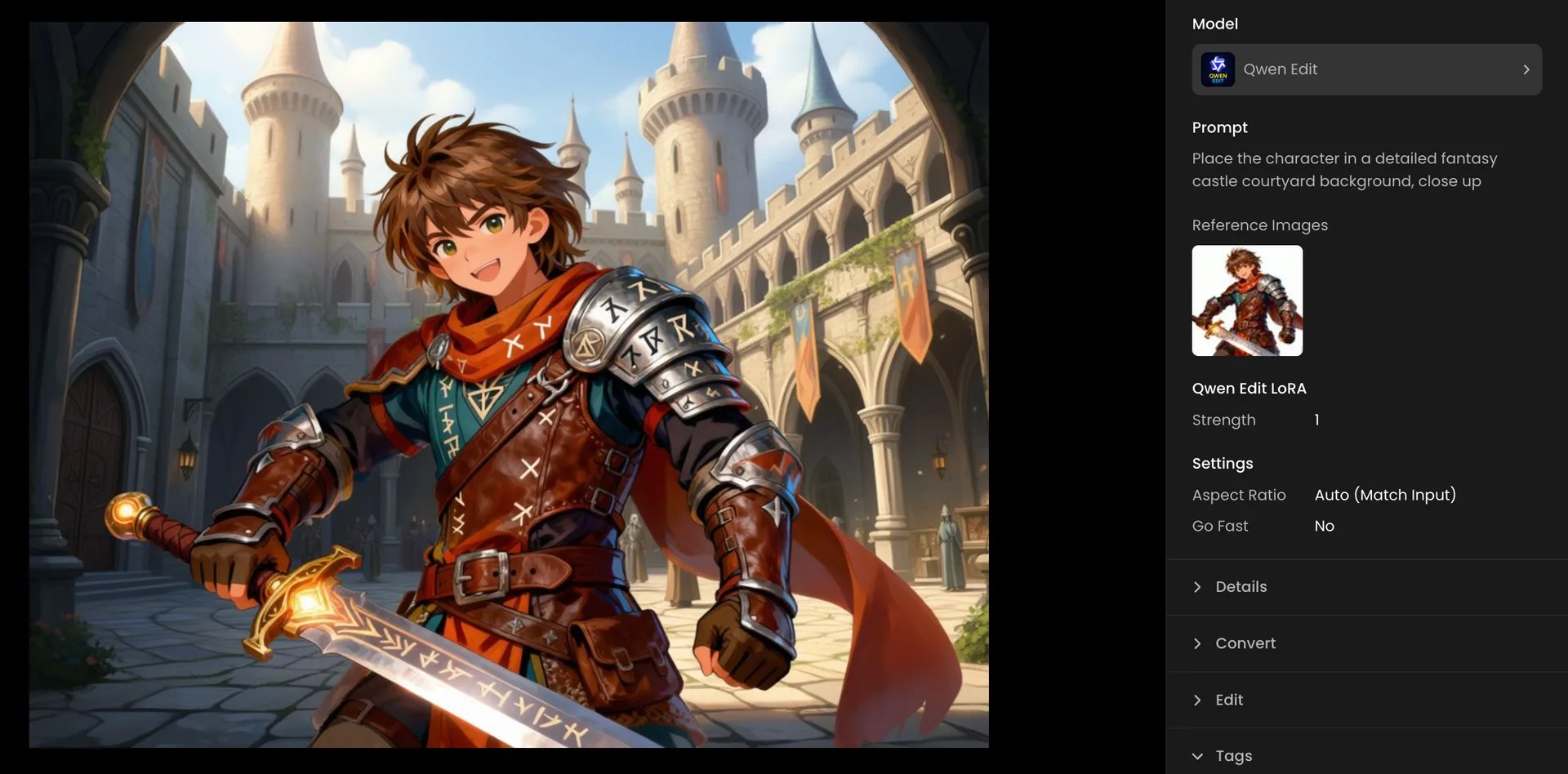
Qwen Edit workflow: turning a plain white-background charactert photo into an in-game shot.
The common thread in all of these examples is simple: Qwen Edit lets you reuse the assets you already have, instead of recreating them from scratch for every new scene.
Conclusion
Qwen Edit does not replace the rest of your tools; it slots into the same Edit with Prompts flow you already know. You can still switch to models like Seedream 4, Gemini 2.5, GPT‑Image, or others in the same interface.
The loop stays familiar: pick a model, add your references, describe what you want, and iterate. The difference is that with Qwen Edit, you give more weight to subject preservation and scene integration, especially when your starting point is a simple white cutout that needs to live in many different worlds.
See how Qwen Edit fits into your workflow and start building scene-ready visuals!
Frequently Asked Questions (FAQ)
What is Qwen Edit in Scenario?
Qwen Edit is a model option in Edit with Prompts focused on transforming and composing images through natural language. In the White to Scene workflow, it takes a clean white‑background subject and blends it into new environments while preserving identity and detail.
Do I need perfect cutouts for this to work?
You do not need pixel‑perfect Photoshop masks, but cleaner inputs will always help. Subjects with strong edges and consistent lighting tend to integrate more naturally into new scenes.
Can I use Qwen Edit with more than one white reference?
Yes. You can experiment with multiple products or characters in a single scene. For best results, keep them lit in similar ways and shot from compatible angles so the composition feels coherent.
How is this different from simply swapping backgrounds?
Qwen Edit goes beyond basic background replacement. It aims to adjust lighting, shadows, perspective, and overall composition so the subject feels physically grounded in the new environment rather than pasted on top.
Where can I use Qwen Edit?
You access Qwen Edit inside Edit with Prompts in the Scenario web app, alongside models like Seedream 4, Gemini 2.5 (Nano Banana), GPT‑Image, Flux Kontext, and Runway Gen‑4. It follows the same “pick a model, add references, prompt, iterate” workflow, with a specific focus on turning white‑background assets into finished scenes.