
Scenario Is Now Available Directly in Your AI Agent
Scenario's MCP server integration lets you generate images, video, 3D models, and audio directly in Claude Desktop or any compatible AI agent - no tab-switching required. Access your full creative toolkit, custom models, and assets through conversation, transforming how you work within tools you already use daily.
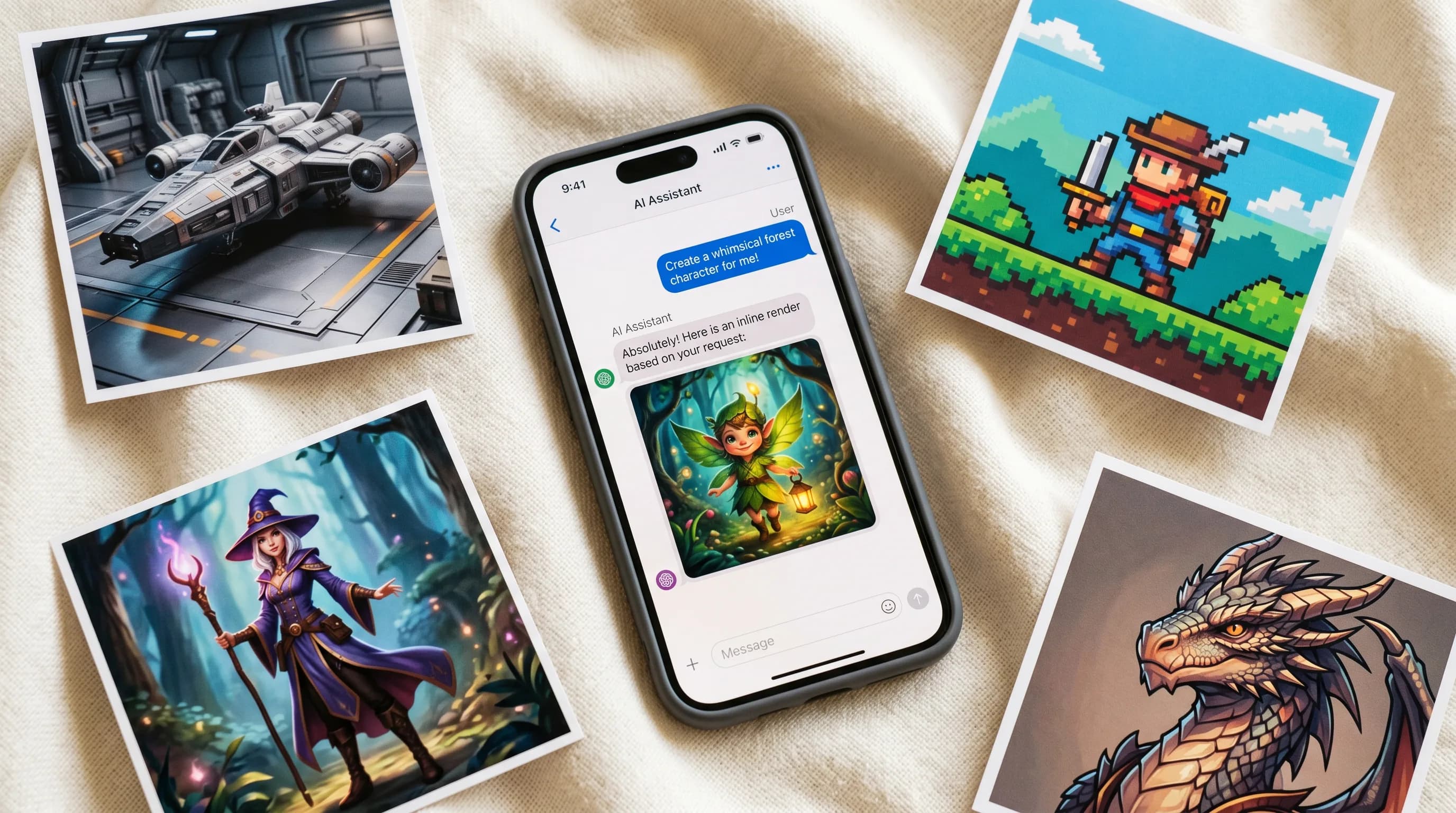
You can now use Scenario without opening Scenario.
Yes, you read that right.
We launched our MCP server, which means you can connect Claude Desktop, Claude Code, Cursor, VS Code, Windsurf, Zed, Warp, and more directly to Scenario's full generation stack. Images, video, 3D, audio, hundreds of models, your trained custom models, your assets, your workflows - all of it, accessible straight from wherever you're already working.
What's connected
The Scenario MCP server gives your AI assistant 19 Scenario tools covering the full creative pipeline.
It can generate images, videos, 3D models, and audio by running any of the 500+ models available on Scenario. It can recommend the right model for what you're trying to make, check the schema for any model before running it, and poll job status so you don't have to.
It can display assets inline so you see results without leaving the chat. It can analyze images, describe styles, detect edges, generate prompts. It can upload assets, manage your library, tag and organize, search by text or visual similarity. It can create and run Workflows, manage jobs, and pull usage stats. The whole deal.
And it works with your custom trained models too. Train a model on your own references and it becomes part of what your AI assistant can reach.
What that actually looks like
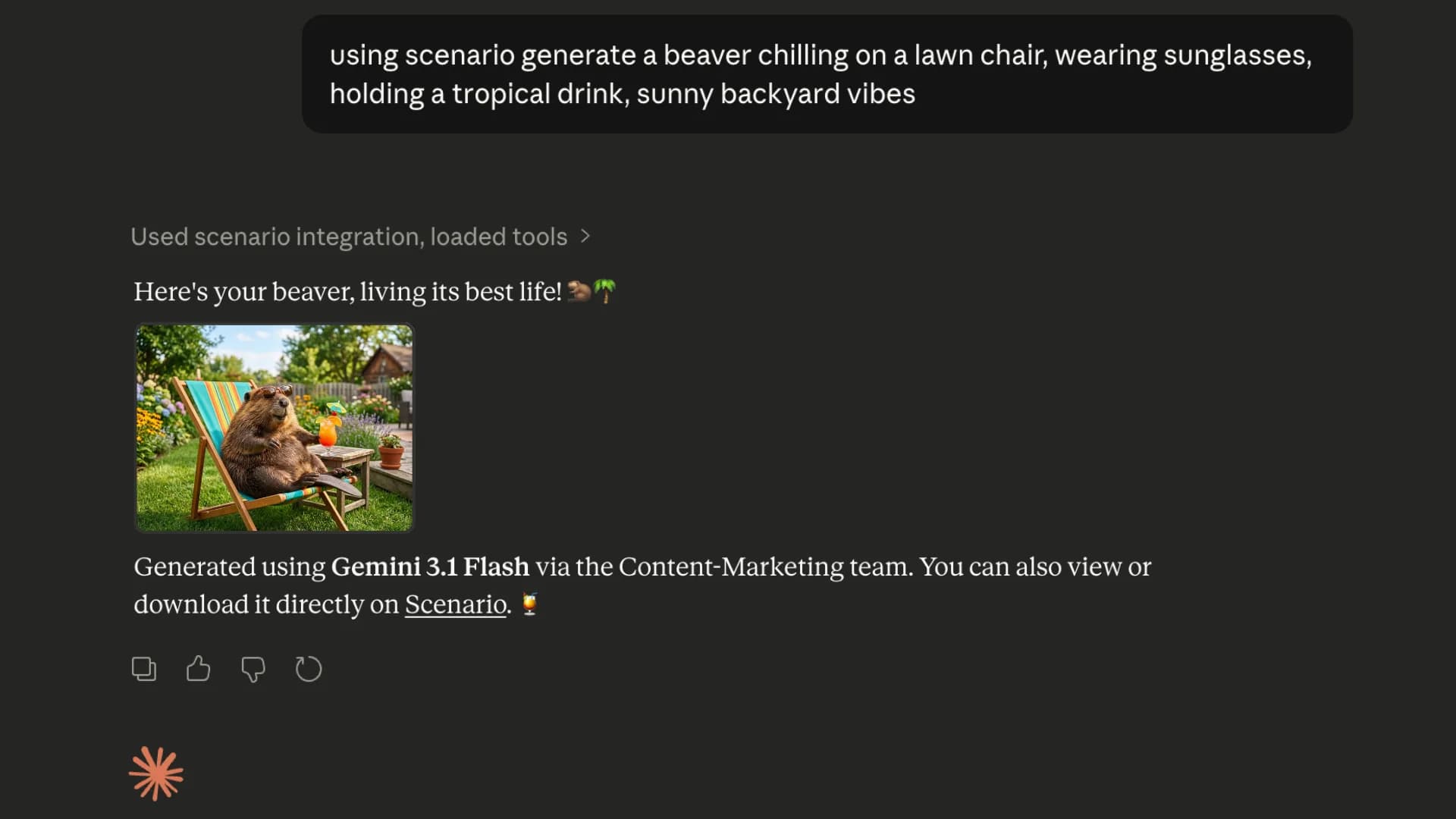
You're in Claude Desktop. You type "generate a beaver chilling on a lawn chair, wearing sunglasses, holding a tropical drink, sunny backyard vibes." Your AI assistant picks the right model (unless one was specifically chosen by you), runs the generation, and displays the result.
You didn't switch tabs or open another browser. You didn't even copy an asset ID anywhere.
Or you have a 3D model sitting in your Scenario assets. You ask your assistant to display it. It renders inline with display mode controls, lighting sliders, wireframe toggle, a capture button.
You ask it to use a specific asset as a reference image and place it into a specific-style world. It does.
That's the kind of thing that can be done simply by having a conversation with your AI.

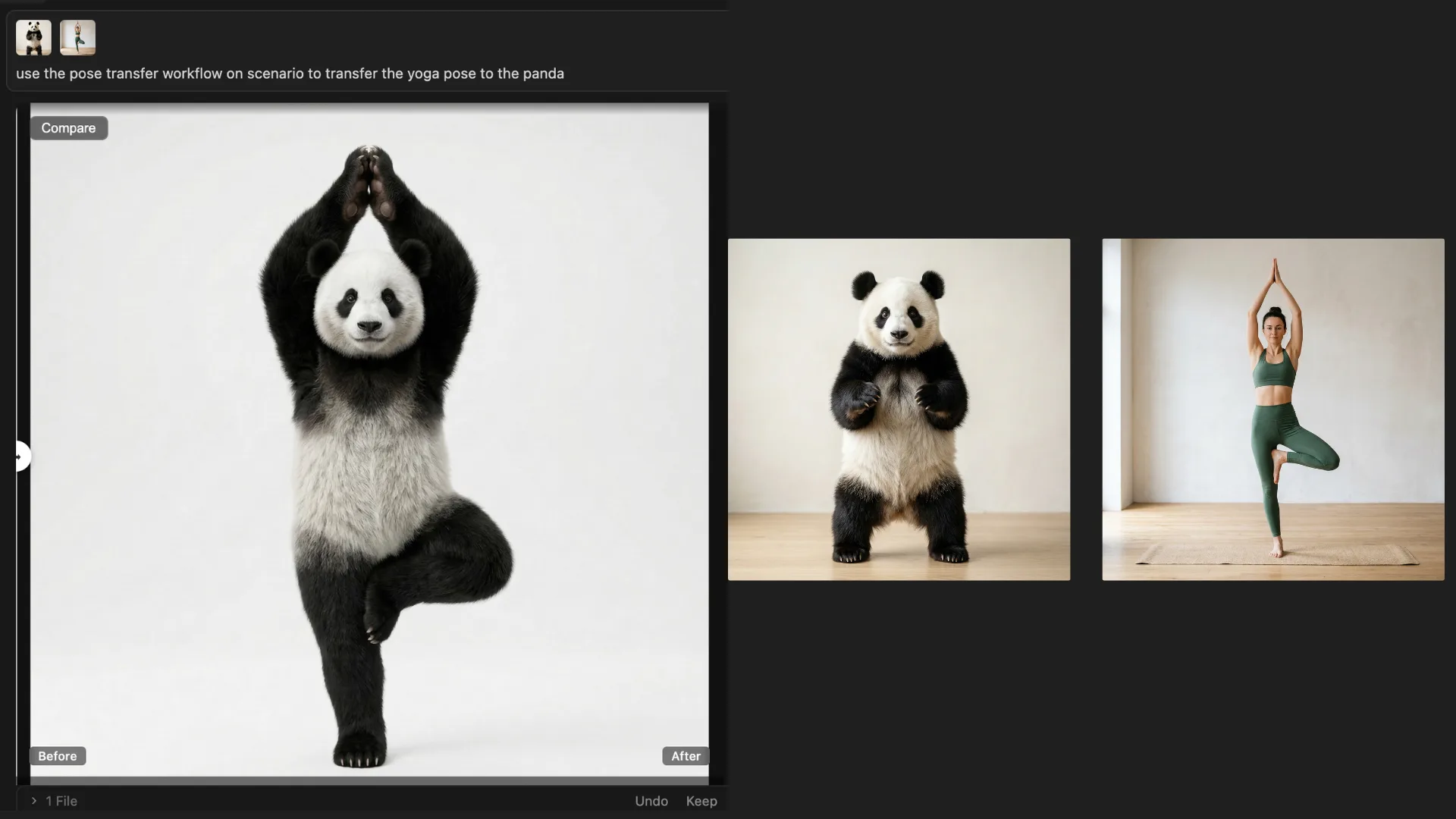
You can even trigger your existing Scenario Workflows directly from the chat. Say you have a pose reference image and a character image and you want to transfer the pose onto the character. You just tell your assistant to use the Pose Transfer Workflow, upload both images, and it runs the whole thing and returns the result inline. No opening Scenario, no configuring anything manually. Just describe it and go.
Why this matters
The friction in most AI creative workflows isn't generation. Generation is fast. The friction is everything around it: finding the right model, switching between tools, tracking outputs, feeding results from one step into the next.
The MCP server collapses that. Your AI assistant becomes the interface for the whole pipeline. You describe what you want, it figures out how to get there using Scenario's models and tools, and you stay in one place the whole time.
It's available now. Head to mcp.scenario.com to install and connect your AI assistant.
Frequently asked questions
What is an MCP server? MCP stands for Model Context Protocol. It's an open standard that lets AI assistants like Claude connect to external tools and services. The Scenario MCP server is what makes Scenario's generation stack available directly inside compatible AI environments.
Which AI assistants does it work with? It works with Claude Code, Claude Desktop, Cursor, VS Code, Windsurf, Zed, Warp, Gemini CLI, OpenCode, Amp, Codex, and any other MCP-compatible AI assistant. Setup instructions for each are available at mcp.scenario.com.
Do I need a Scenario account? Yes. The MCP server connects to your Scenario account and uses your models, assets, and workflows. You can log in at app.scenario.com.
Can I use my custom trained models through the MCP server? Yes. Any model you've trained on Scenario is accessible through the server alongside the full library of 500+ platform models.
Can I run Workflows through it too? Yes. The server includes a tool for creating and running Workflows, so you can trigger your existing pipelines directly from your AI assistant.