Your Scenario Workspace Just Got a Brain. Meet the Scenario Genie.
Scenario Genie sits inside your workspace on every page. Describe what you want and it handles the execution: model selection, prompt writing, parameter setting, generation. It knows your assets, your custom models, and your project context. No setup. No navigation. Just describe and go.

Forget the tab switch.
For as long as AI tools have existed, the workflow has been the same: figure out which tool to use, navigate to it, configure it, run it, come back, repeat. The assistant helps you think. You do the actual work.
Scenario Genie is different. It lives inside every page of the Scenario web app, in a side panel that stays open as you move around. You are on the Assets page, browsing your library, and it is right there. You are reading a model page, and it is right there. You are on the Create page running a generation, and it is right there. One click from anywhere. You describe what you want. It handles what happens next.
What It Actually Does
Genie drives the form: picks the model, writes the prompt, sets the resolution, aspect ratio, and parameters, and runs the generation when you ask. It also answers questions, recommends models, and navigates you to the right tool. If something needs the Workflows editor, it takes you there. If something needs the Training page, it takes you there. It does not pretend to do things it cannot do inline. It gets you where you need to go instead.
The practical effect of this across a full production day is significant. No model research. No settings panel. No navigating between tools. You describe the output. Genie handles the execution.
Here is what that looks like across three different tasks:
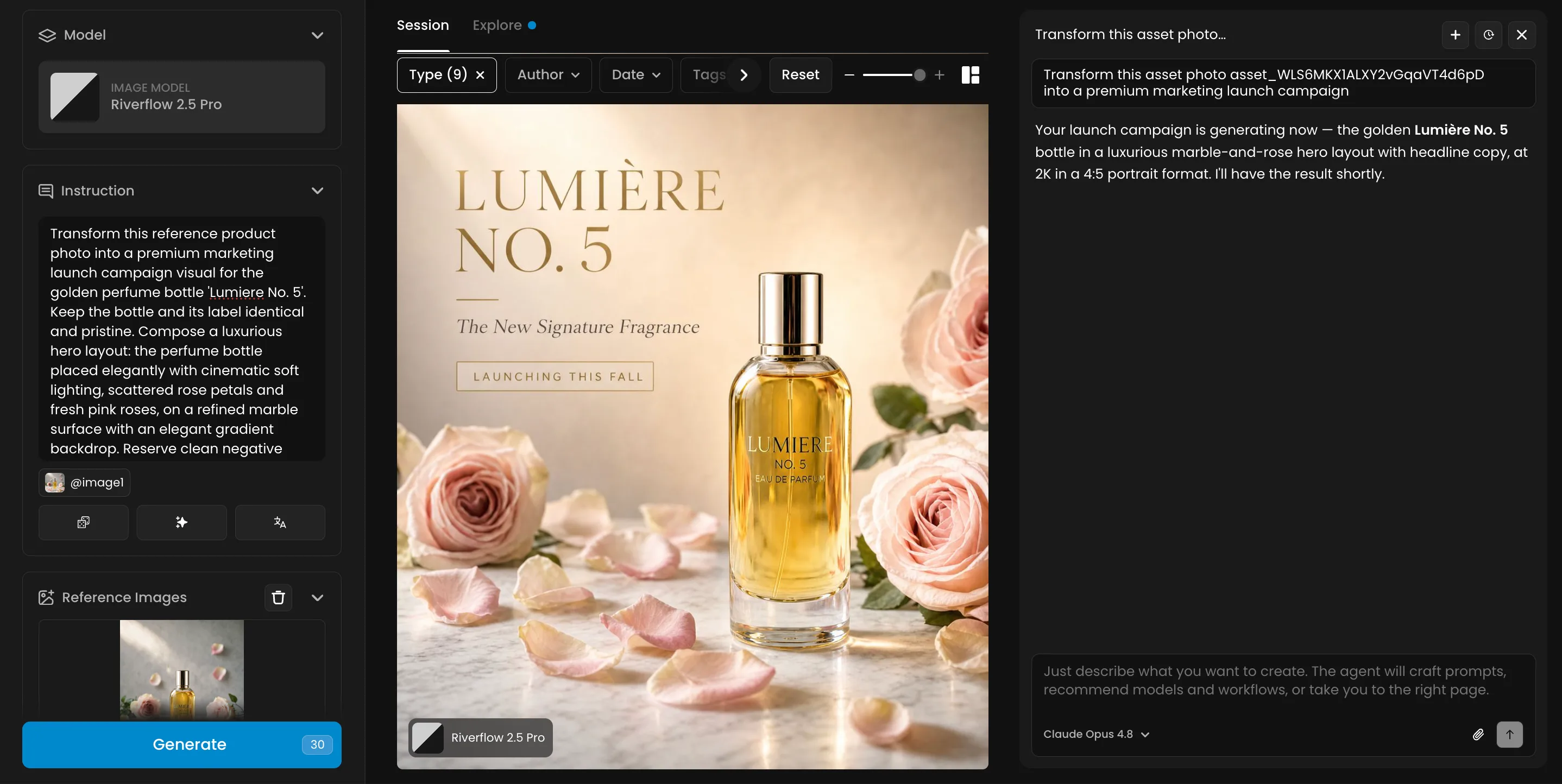
Marketing ad from a single prompt
Ask Genie to design a product. Then ask it to place that product in different lifestyle settings. Then ask it to turn the best one into a video ad. It handles each step in the same conversation, keeping the product consistent across every scene, from the first image to the final cut.
3D model from a multi-view sheet
Genie can create product sheets or character turnarounds, pick the right multi-view 3D model, set HD quality and PBR texture output, and run it. Multi-reference angles become a production-ready mesh without you touching a single parameter.
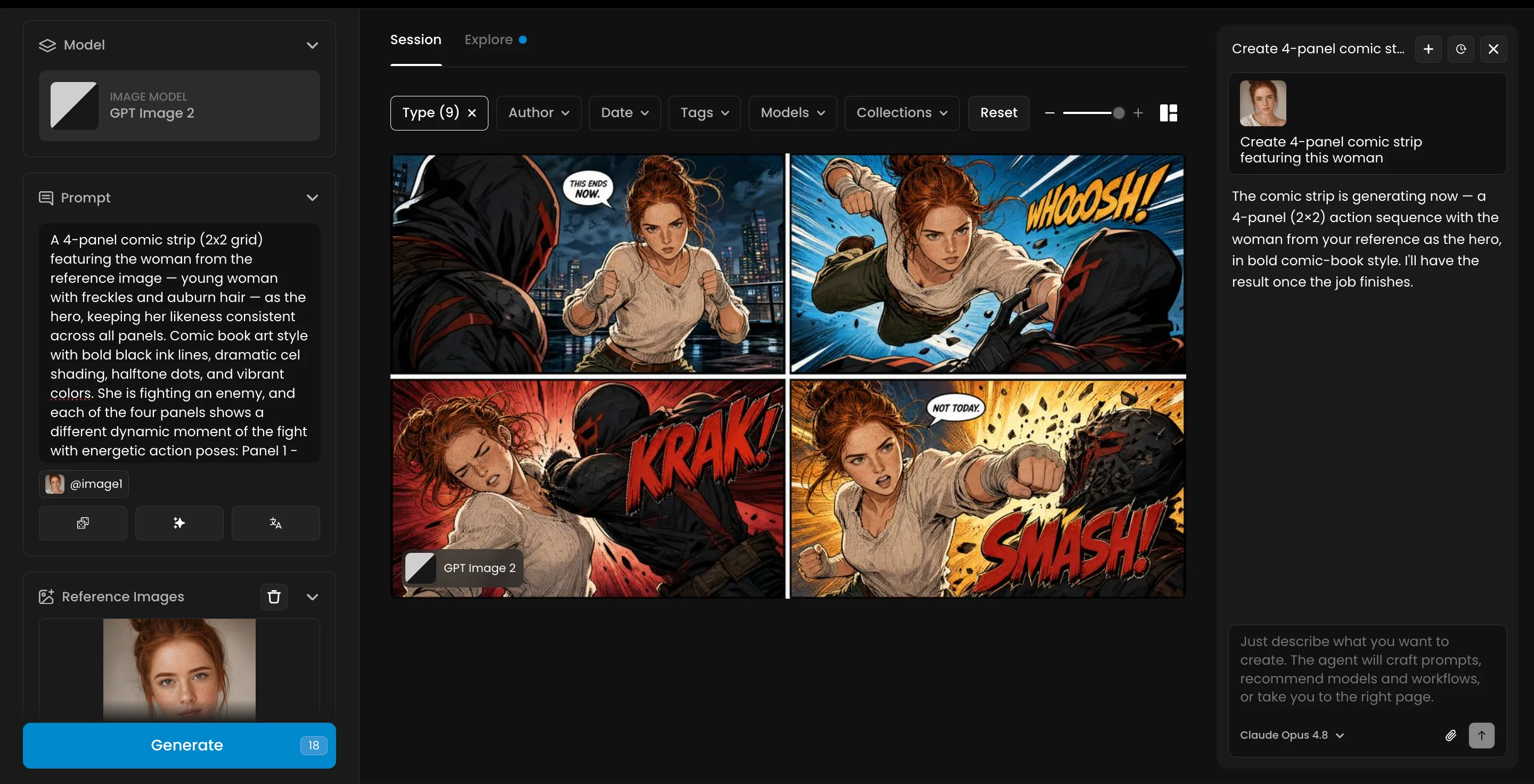
Comic panel from an uploaded image
"Take this character and put her in a 4-panel comic strip, comic book art style, she's fighting an enemy, dynamic action poses, bold ink lines, each panel a different moment in the fight."
Genie sets your uploaded character image as the reference, rewrites the prompt for comic panel layout, picks the right model, and runs it. What would have taken ten minutes of prompt iteration, model research, and reference setup took one sentence.
Isometric buildings for a game village
Ask Genie to generate an isometric building in a specific art style. Then ask it to make variations for a full village. It keeps the style, scale, and palette consistent across every asset. By the end of the conversation you have a complete village set.
Cinematic video from a text description
"Generate a punchy 10-second landscape clip of a track shot of a spaceship through meteors, dynamic camera, 16:9"
Genie picks the right video model for cinematic quality, sets the duration, aspect ratio, and parameters, and runs the generation. You did not need to know whether Seedance 2.0, Kling V3, or Veo 3.1 was the right call for this. Genie made that decision based on your context and current model rankings.
Genie checks your plan tier before recommending anything and will not select a model you cannot use. If better options exist on a higher plan, it tells you.
For creative teams onboarding new members, this matters a lot. A new hire does not need to spend weeks learning which model is best for which task. They describe what they need and Genie makes the right call.
It Knows Your Work
You are not limited to text. Give Genie something that already exists and it will look at it, pull it in, and use it as a starting point.
An image, an asset ID, a piece of text: hand it the raw material and describe what you want to do with it.
You can attach a character reference and a style reference via the paperclip, or drag and drop them onto the panel. Genie looks at both, understands the visual relationship between them, and generates output consistent with both. You did not write a prompt from scratch. You did not configure the model. You handed it the assets and described the outcome.
Genie can also look at an attached image and reason about it before generating: suggest edits, describe what is there, identify what could change. Drop in an asset ID and it pulls the asset directly. The reference does not have to be something you describe in words. It can be something you already made.
Memory That Carries Forward
Genie does not start from zero every session.
It reads shared context at the start of every conversation and remembers useful things about how you work. Memory operates at three layers: organization, project, and personal. Brand rules set at the org level apply across every project. A character's visual identity defined at the project level is available to every team member working in that project. Personal preferences you set apply to your own sessions without affecting anyone else.
Tell it once: "Remember that our characters are always stylized, never photorealistic." It applies that going forward without being reminded. You can save things explicitly, review and edit what is saved, and pause memory when you want a clean session.
For a game studio: the art director defines the visual language in one session. Every team member who opens Genie after that gets outputs consistent with that language without needing to understand how it was built.
For a marketing team: a campaign brief described once becomes the context for every asset produced that quarter. The consistency that used to live in one person's head now lives in Genie and is available to everyone.
Templates to Start From
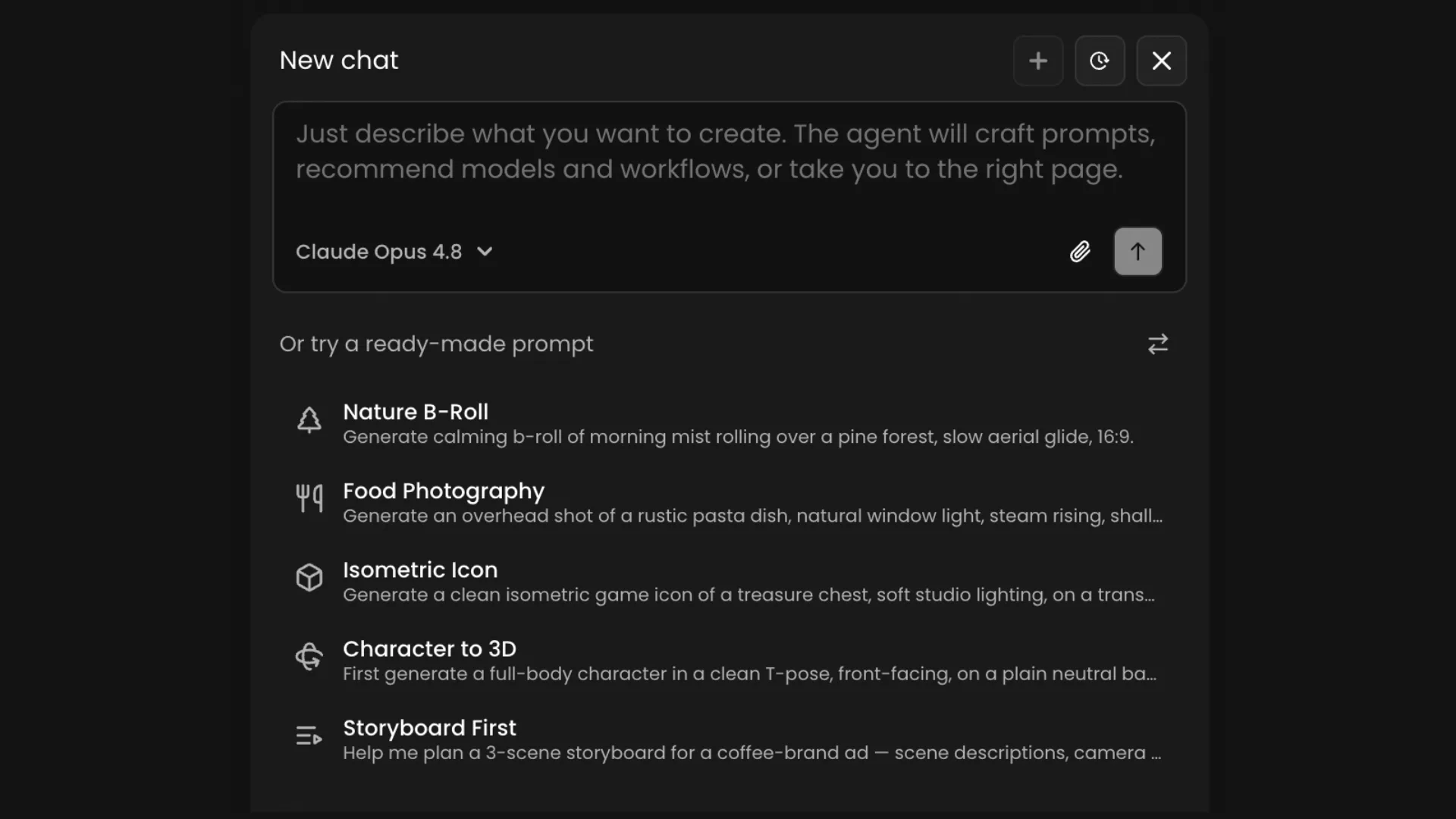
Not sure how to phrase what you want? The template gallery is the fastest way to see what is possible.
Templates include starting points like Hero Product Shot, Character Reference Sheet, Seamless Texture, Character to 3D, and Turnaround to 3D. Pick one and tweak it in plain language. They are also a good way to learn how well-structured prompts are built: you can see exactly what Genie fills in and understand the structure behind it.
A shuffle button surfaces more templates when the defaults are not quite right.
Web Search Built In
Genie can browse the web directly.
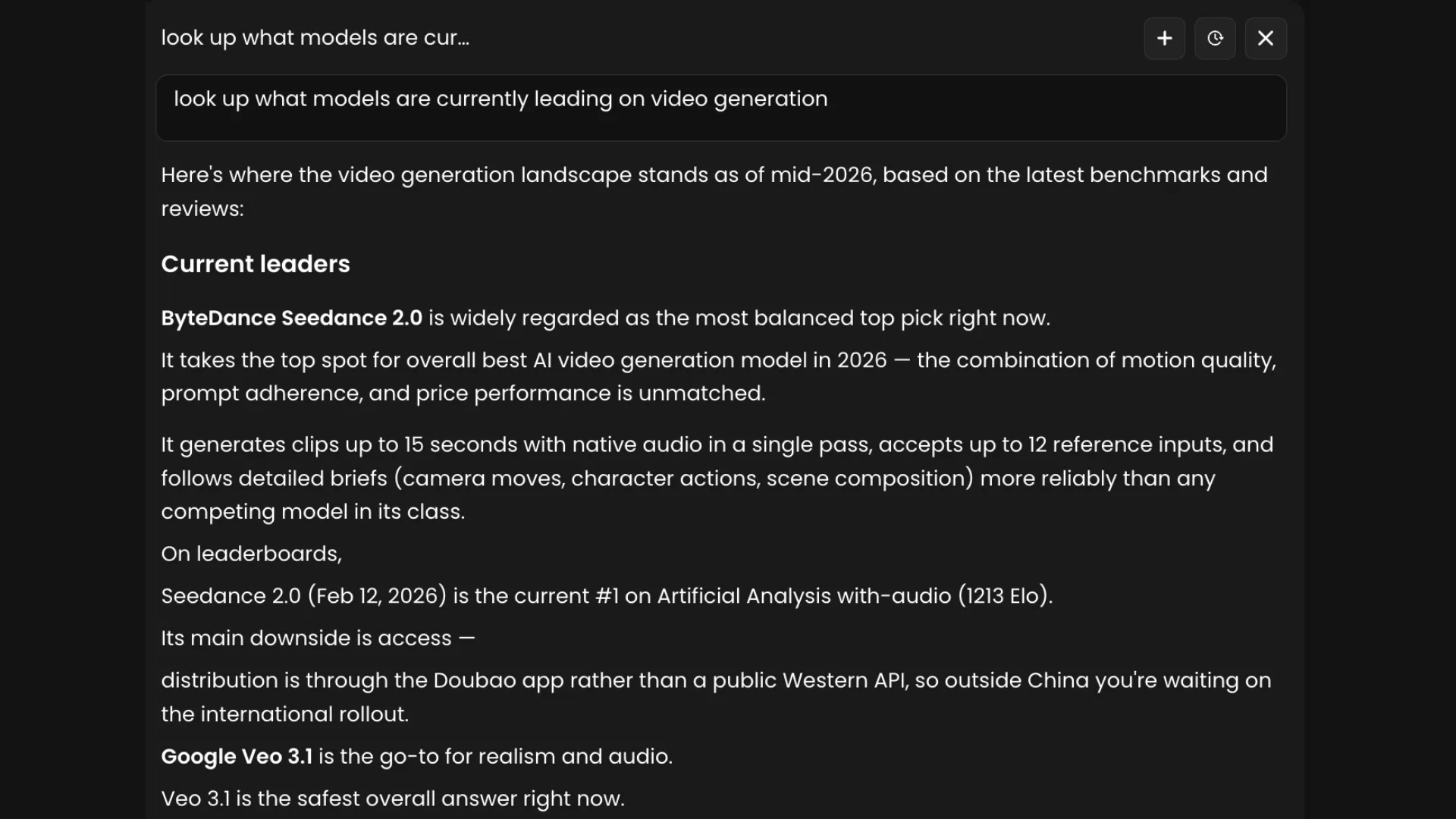
Ask it to find reference images, research a visual style, or pull context for a brief from external sources. It incorporates what it finds into its generation guidance rather than just returning a link.
Get Started
The Scenario Genie generates images, video, 3D, and audio through conversation. It knows your asset library, your custom trained models, your workflows, and your full production history. It picks the right model for the task, writes the prompt, sets the parameters, and runs the generation.
Memory persists across sessions so brand rules, character identity, and style context carry forward without re-explanation. Five hundred models, one conversation.
Your workspace context is already there. We just made it easier for you to use it.
To Access it:
- Click the Blue "Genie" button (the sparkles icon) in the top bar.
- Press Cmd+K (macOS) or Ctrl+K (Windows/Linux) to toggle it from anywhere.
FAQ
What is the Scenario Genie?
An AI assistant built directly into your Scenario workspace with access to every generation model, your asset library, custom models, workflows, and full production history. You describe what you want and it produces it, using the right models and your actual assets.
What makes it different from other AI assistants?
Most AI assistants answer questions. The Scenario Genie does things. It has access to the full generation platform and your workspace history, so it can run generations and find assets rather than just describing how to do them.
What can it generate?
Image, video, 3D, and audio across the full Scenario model catalog. 443 models from 54 providers, all accessible through conversation.
Does it know my past work?
Yes. Your full asset library, custom trained models, previous generations, and workflows are all available to it as context.