
Scenario Now Lets You Set Hard Usage Limits on Every Member, Project, and API Key. Here Is Why That Matters.
Most AI platforms tell you how much you spent after the fact. Scenario now lets you decide how much anyone can spend before they start. Hard caps per member, per project, and per API key. Auto-refill when the balance drops. Cost preview before every generation. Here is what that actually means for teams.

There is a problem that every team using AI at scale runs into eventually.
Someone runs a large batch generation. An API key gets misconfigured in a workflow and fires thousands of requests. A new team member does not realize how expensive a particular model is and burns through the monthly budget in an afternoon. An automated pipeline hits an unexpected loop. By the time anyone notices, the damage is done and the only thing left to do is figure out how to explain it.
Most AI platforms handle this with alerts. They will tell you when you have hit 80% of your budget. Some will send an email when you go over. A few will pause your account after the fact. None of that stops the bill. It just tells you about it.
Scenario now has hard spend limits. Hard caps that stop spending before it goes over, at every level of the platform where spending can happen.
What Compute Units Are and Why They Matter
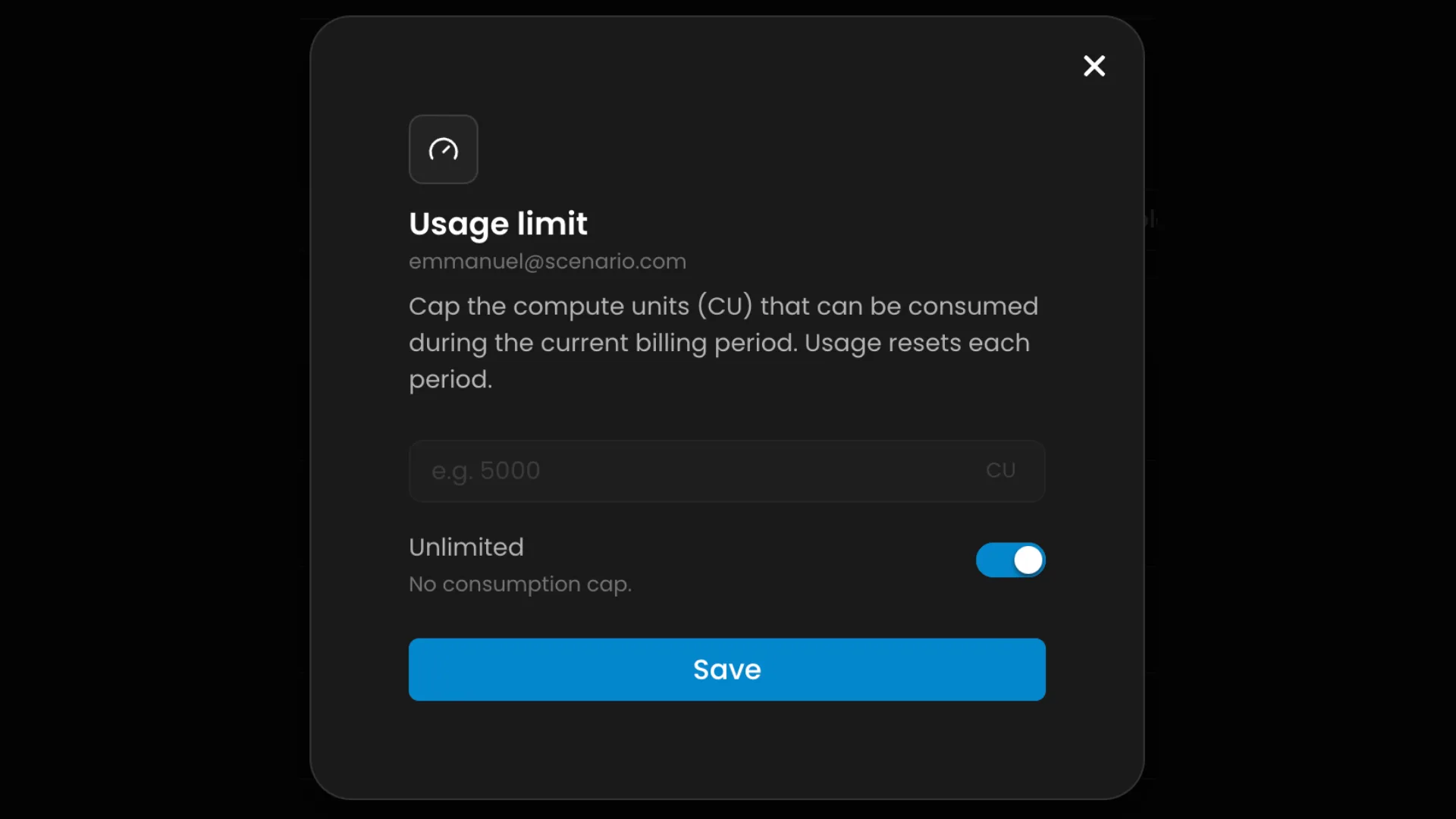
Every action on Scenario draws from a pool of Compute Units (CU): the platform's metering unit for AI compute. Image generation, model training, video generation, upscaling, background removal, agent messages: all of it measured in CU before it runs.
The cost of a generation depends on the model, resolution, number of steps, batch size, and whether a custom model or LoRA is involved. Scenario shows the CU cost on the generation button before you click. Unusually expensive generations are flagged as "High cost." There are no hidden charges and no surprises at the end of the month.
Your team has one pooled CU balance for the billing period. Spend limits layer on top of that pool to control how much of it any individual member, project, or API key can draw from.
Four Levels of Control
This is where Scenario is doing something genuinely different from other AI platforms. Spend limits are not just a per-account toggle. They apply at four distinct levels.
These are caps, not separate allotments: setting a limit on a member, project, or API key restricts how much of the team pool they can draw from. It does not grant extra CU beyond what the plan provides. You decide the ceiling, the platform enforces it.
1. Team plan allowance
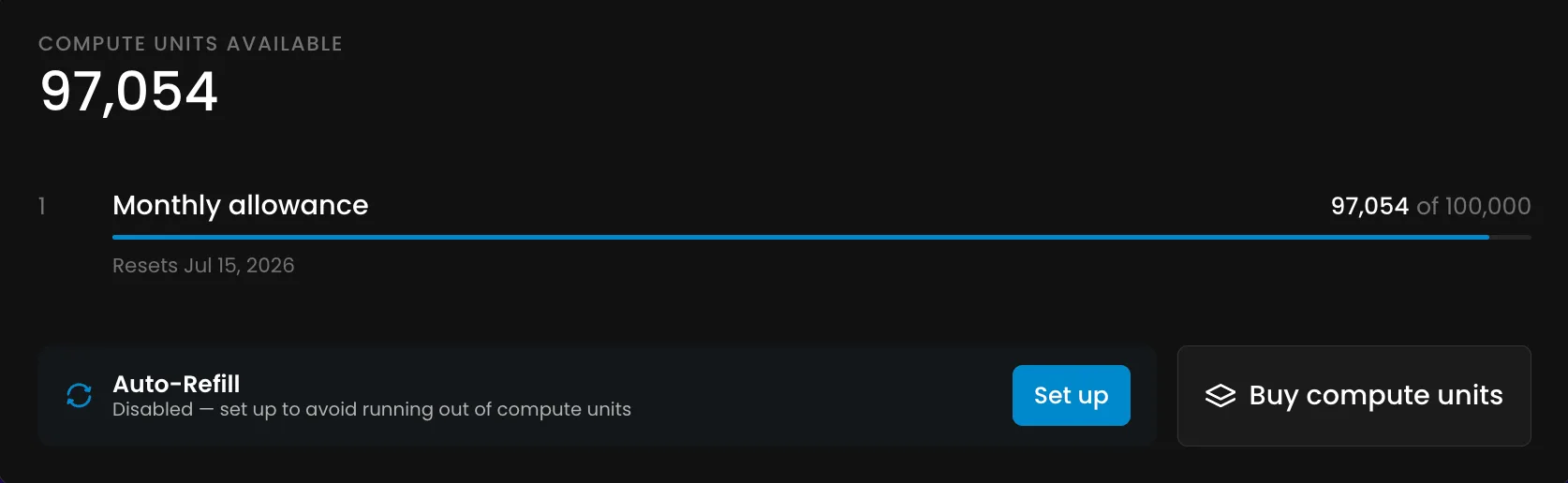
The monthly CU included in your subscription. The overall bucket everything else draws from.
2. Per-member limits
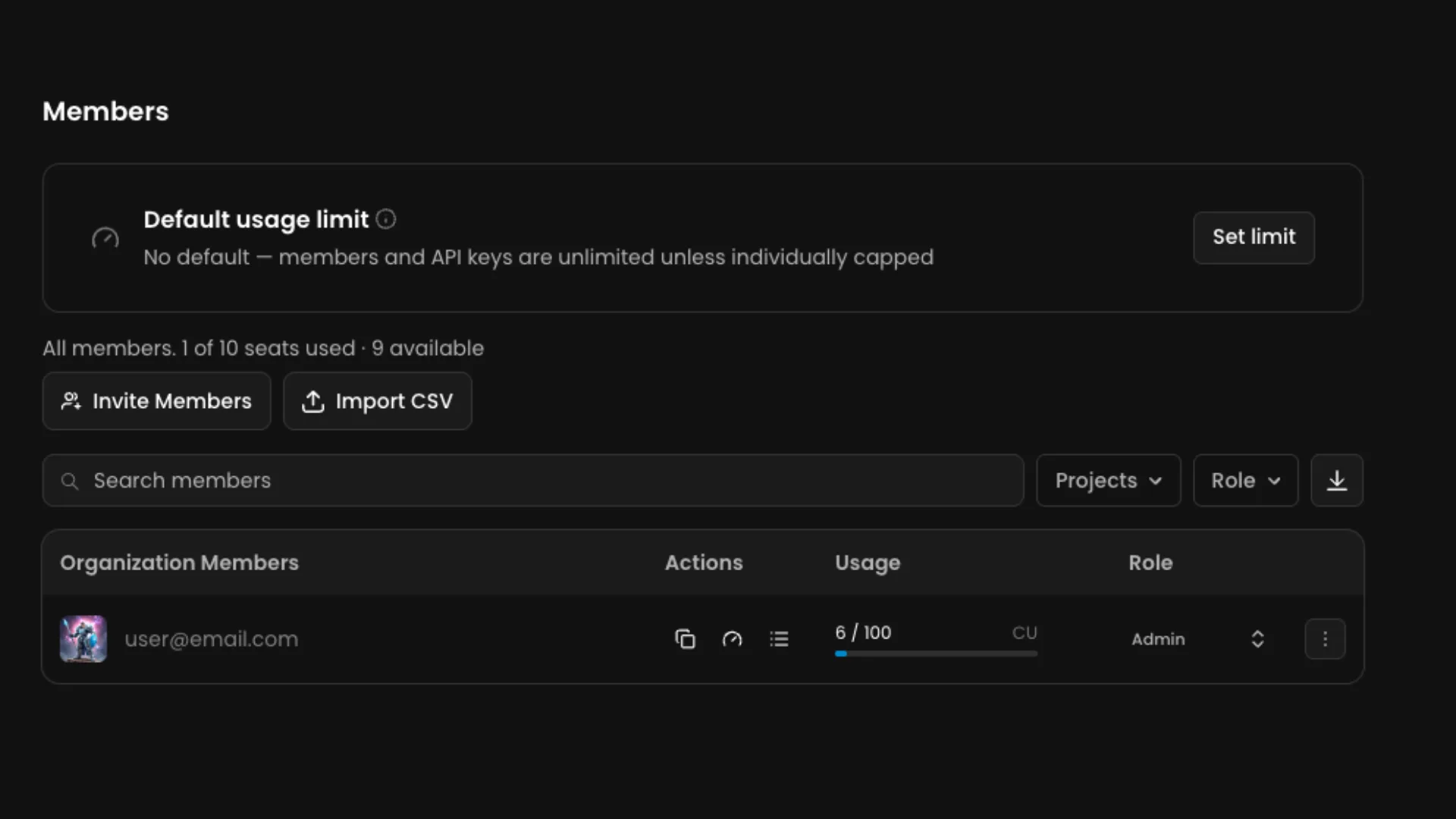
Set a CU cap on any individual team member. One person cannot consume more than their allocated share of the team's balance regardless of what they run or how many times they run it.
3. Per-project limits
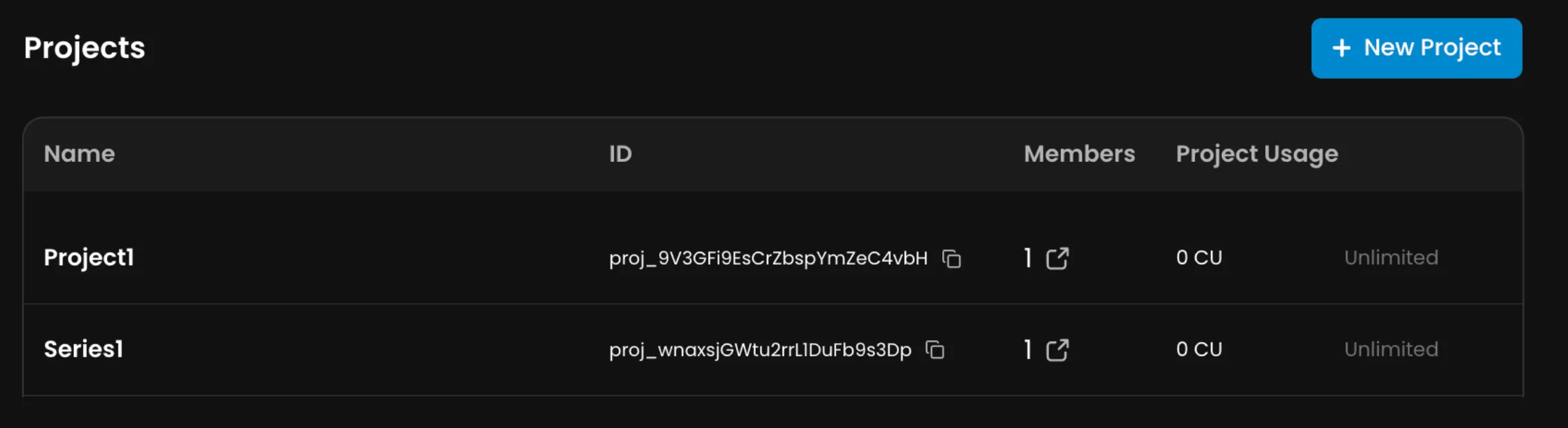
Set a CU cap on a specific project. One project cannot consume the whole team's balance. A game with three active campaigns, each with its own project, each with its own CU budget: the marketing campaign cannot accidentally drain the budget for the character pipeline.
4. Per-API-key limits
Set a CU cap on any individual API key. An automated workflow, an external integration, an agent running generations programmatically: each key has its own hard ceiling that stops it from spending beyond what you allocated.
Note that API keys are treated as members on the Members page. If you have set a global default limit for all members, that cap applies to your API keys too. Override it individually on any key that needs different headroom.
Why This Is a Different Category of Feature
Every other AI inference platform in this space tracks spending. A handful of them alert you when spending gets high. None of them offer hard caps at the member, project, and API key level simultaneously.
For a game studio with ten people, three active projects, and multiple automated pipelines running through the API, the ability to say "this project gets 5,000 CU this month, this team member gets 2,000, this API key gets 1,000" is not a nice-to-have. It is what makes AI viable as a line item in a real production budget rather than a wildcard that produces unpredictable monthly invoices.
For an agency running work across multiple clients on the same Scenario organization, per-project limits mean client budgets stay isolated. One client's campaign cannot consume another client's allocation. That is a basic requirement for professional services work that most AI platforms simply do not support.
For any team where a non-technical team member has access to the platform, per-member limits mean you can give everyone access to the tools they need without the risk of one person accidentally running a thousand-image batch generation and wiping out the month's compute budget.
Auto-Refill and Cost Preview
Two other spending controls worth knowing about:
Auto-Refill automatically purchases a set amount of CU whenever your balance drops below a threshold you choose. Set the threshold and the refill amount, and the platform handles the rest. For teams with predictable production volumes who cannot afford generation to stop mid-pipeline, Auto-Refill removes the operational risk of hitting zero at a critical moment without requiring someone to manually monitor the balance.

Cost Preview shows the CU cost of a generation on the button before you click it. Run the numbers before committing compute. For teams running large batches or testing expensive models, knowing the cost upfront changes how you plan your generation sessions.
Where to Find It
All spend limit controls live in Organization Settings:
Plans - Manage shows your current CU balance broken into monthly plan allowance and any purchased top-up CU, with their reset and expiry dates. Buy top-up CU and configure Auto-Refill from here.
Members shows each member's usage as a visual bar that turns amber near 80% and red at 100%. Click any member to set, raise, or remove their individual cap.
Projects shows the same usage bar per project, editable by team admins or that project's own admin.
API Keys lets you set an optional CU cap when creating a key or edit it from the key's row at any time.
Explore Scenario pricing and plans
FAQ
What is a Compute Unit?
Scenario's metering unit for AI compute. Every generation, training run, and AI tool draws from a CU pool. The cost of a generation depends on the model, resolution, batch size, and other parameters and is shown on the generation button before you run it.
Are spend limits hard caps or soft warnings?
Hard caps. When a per-member, per-project, or per-API-key limit is reached, generation is blocked. Not warned. Blocked. A team admin can raise or remove the cap from the relevant settings page.
Does setting a per-member or per-project limit grant extra CU?
No. Limits restrict spending from the shared team pool. They do not grant additional CU beyond what the plan provides.
What is Auto-Refill?
A setting that automatically purchases a set amount of CU whenever the balance drops below a threshold you choose. Configured in Organization Settings → Plans → Manage.
When does my CU reset?
On a paid plan, CU resets on your subscription's monthly cycle anchored to the date you subscribed or last upgraded. Your exact reset date is shown in Team Settings → Plans → Manage.
Do purchased top-up CU batches expire?
Yes. Top-up CU has its own fixed expiry date shown in settings, separate from the monthly billing cycle reset.