
This Is How You Animate Any Character Without a Rig or a Motion Capture Studio
You have the character. You have the movement you want. P-Video Animate transfers the motion from any source video directly onto your still image, so your game asset, mascot, or illustrated character performs exactly what the reference footage shows.
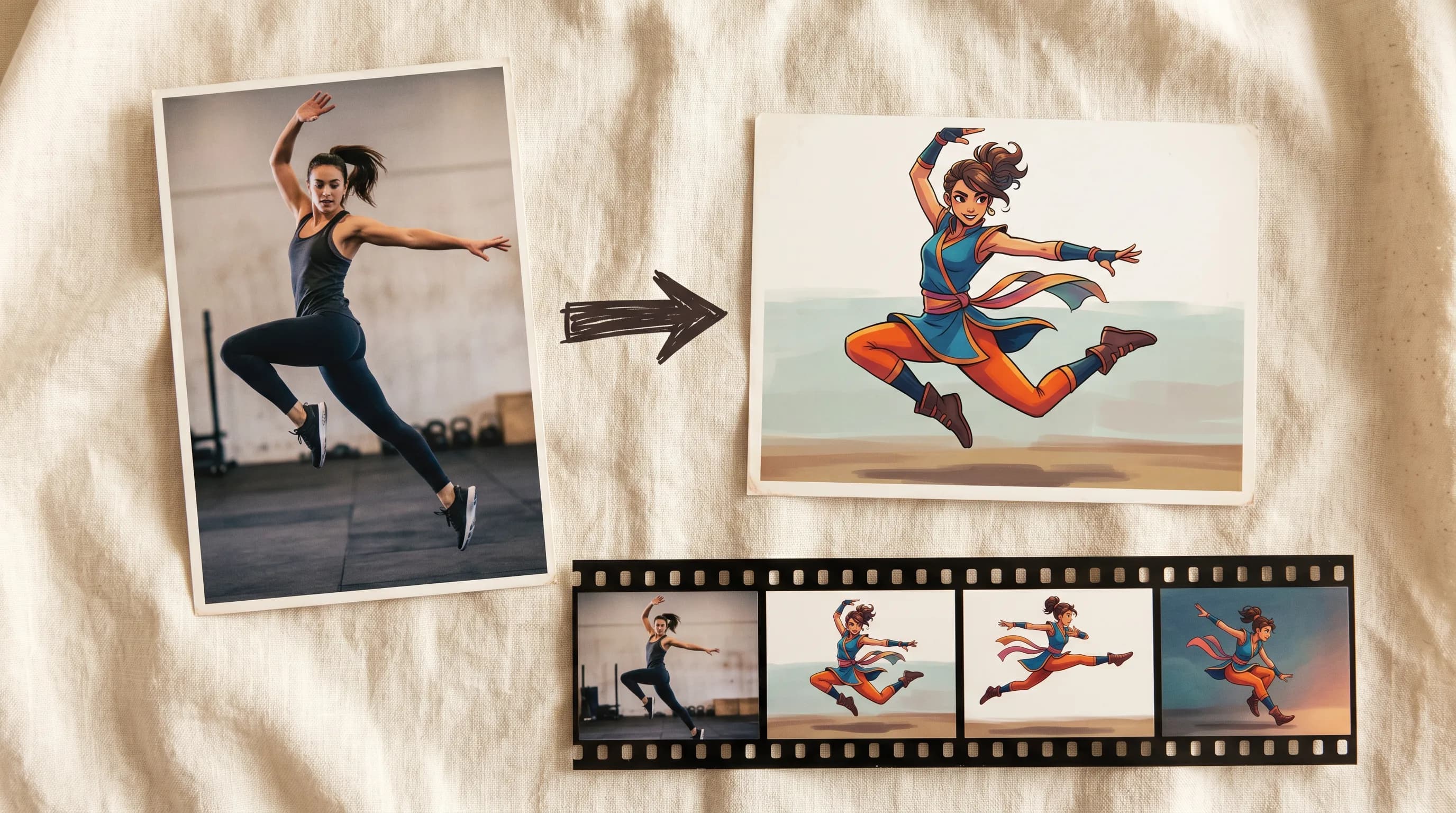
Getting a character to move convincingly requires either a skilled animator working frame by frame or a motion capture setup. For game studios with full production teams, this is manageable. For indie developers and small teams working with stylized or illustrated characters, it is often the step that determines how much animation actually makes it into the final product.
P-Video Animate by Pruna AI takes a different approach entirely. Upload a source video that contains the motion you want. Upload a still image of the character you want to animate. The model transfers the movement from the footage onto the character. Your character performs the action. In your visual style. Without a rig, without a motion capture session, and without a frame-by-frame animation pass.
What It Actually Does
The model reads the motion from your source video and drives the still character image to perform that same movement. The output is a video of your character doing what the source performer does: walking, jumping, dancing, fighting, gesturing, whatever the reference footage contains.
It works across a wide range of character types. Photorealistic people, illustrated characters, game assets, mascots, stylized avatars. The motion transfer adapts to the visual style of the character rather than requiring a photorealistic output. A pixel art character can inherit movement from a reference video. A cartoon mascot can perform a dance from live footage. A game asset can walk from a reference clip without touching the rig.
Getting the Best Results
The most important preparation step is matching the framing of your character image to the source video.
Extract the first frame of your source video. Use that frame as a reference for how your character should be posed and framed in the still image you upload. The character should be in roughly the same position, facing the same direction, with similar proportions in frame. The closer the initial framing matches, the more stable and accurate the motion transfer will be throughout the clip.
A few other things that produce cleaner outputs:
Single continuous shot: Source footage without cuts gives the model a consistent motion signal to work from. A clip that jumps between angles or has hard cuts introduces instability in the transfer.
Clean character image: A clear, front-facing, full-body image on a clean background gives the model the most to work with. Busy backgrounds and partial crops produce less consistent results.
Instruction Prompt: The optional text field lets you guide how the animation is applied. If the motion involves something specific, a sword swing, a specific type of walk cycle, a particular energy, describing it in the prompt helps the model interpret and apply the motion with the right intent.
Where This Fits in a Game Development Pipeline
NPC and character animation
A character concept that has no animation budget suddenly becomes animatable from reference footage. Film yourself performing a walk cycle, a combat idle, an interaction animation. Use P-Video Animate to transfer those performances onto your character. Iterate quickly across multiple animation states without a rigging session for each one.
Reusing a recorded performance across multiple characters
Record one good performance. Transfer it to every character in your roster. The motion stays consistent. The visual style adapts to each character. For games with large character rosters, this compresses animation production significantly.
Cutscenes and cinematics
For games that use still character art in cutscenes rather than full 3D animation, P-Video Animate gives those characters movement from real performance reference. A visual novel character that reacts to dialogue. A tactical game unit that has an entry animation. A story beat where a character physically responds to something. Live performance becomes character animation without the intermediate rigging step.
Mascots and brand characters
Outside game development, any illustrated or stylized character that needs to move benefits from the same workflow. A brand mascot performing a seasonal campaign animation. A streamer avatar that mirrors real movement from a webcam recording. An illustrated character reacting in real time to reference footage.
P-Video Animate vs P-Video Avatar
Both are from Pruna AI and both live on Scenario. They do different things.
P-Video Avatar drives facial animation: lip sync, head movement, and facial expression from audio input. It is the tool for making a character speak.
P-Video Animate drives full body motion from a video source. It is the tool for making a character move.
For a complete animated character that both speaks and moves, the two tools work in sequence: use P-Video Animate to give the character a motion, use P-Video Avatar to sync speech to the result.
Try P-Video Animate on Scenario
FAQ
What kind of source video works best? A single continuous shot with no cuts, filmed at a consistent angle with the subject clearly visible throughout. The subject in the source video should be in roughly the same framing as your character image for the most stable motion transfer.
Does it work with illustrated and stylized characters? Yes. P-Video Animate works with photorealistic people, illustrated characters, game assets, mascots, and stylized avatars. The motion adapts to the visual style of the character image rather than requiring a photorealistic output.
What is the maximum source video length? 120 seconds, up to 100MB, MP4 format.
Does the output include audio? Yes by default. The source video's audio carries through to the output. Toggle Save Audio off if you want a silent output.
What output resolution is available? 720p or 1080p. Default is 1080p.
What FPS options are available? Original (matches source footage), 24, or 48 FPS.
How is P-Video Animate different from P-Video Avatar? P-Video Avatar drives facial animation and lip sync from audio. P-Video Animate drives full body motion from a video source. They complement each other in a complete character animation pipeline.
What is the Instruction Prompt for? An optional text field that guides how the motion is applied to the character. Useful for clarifying intent when the motion involves something specific: a particular style of movement, a specific energy, or a nuanced action the model should interpret correctly.
Related models
P-Video 2 Pro
P-Video 2 Pro generates video from a text prompt or first/last reference frames, with native dialogue, music and sound effects, up to 15s at 480p or 768p, in Speed or Quality mode.
P-Video 2
P-Video 2 generates videos from a text prompt, an image or an audio track, with native audio (dialogue, music, sound effects), improved lip sync and sharper on-screen text.
P-Video Edit
P-Video Edit by Pruna AI edits an existing video from a text prompt, optionally guided by up to four reference images for identity or style. Draft mode for fast, low-cost previews.