
Cut, Split, Transcribe: The Audio and Video Editing Tools Now Built Into Scenario
Trimming a clip, splitting a voiceover, generating subtitles: basic edits that have always meant leaving your pipeline and opening a separate tool. Scenario's five new editing models handle all of it inside the platform with sample-accurate and frame-accurate precision.
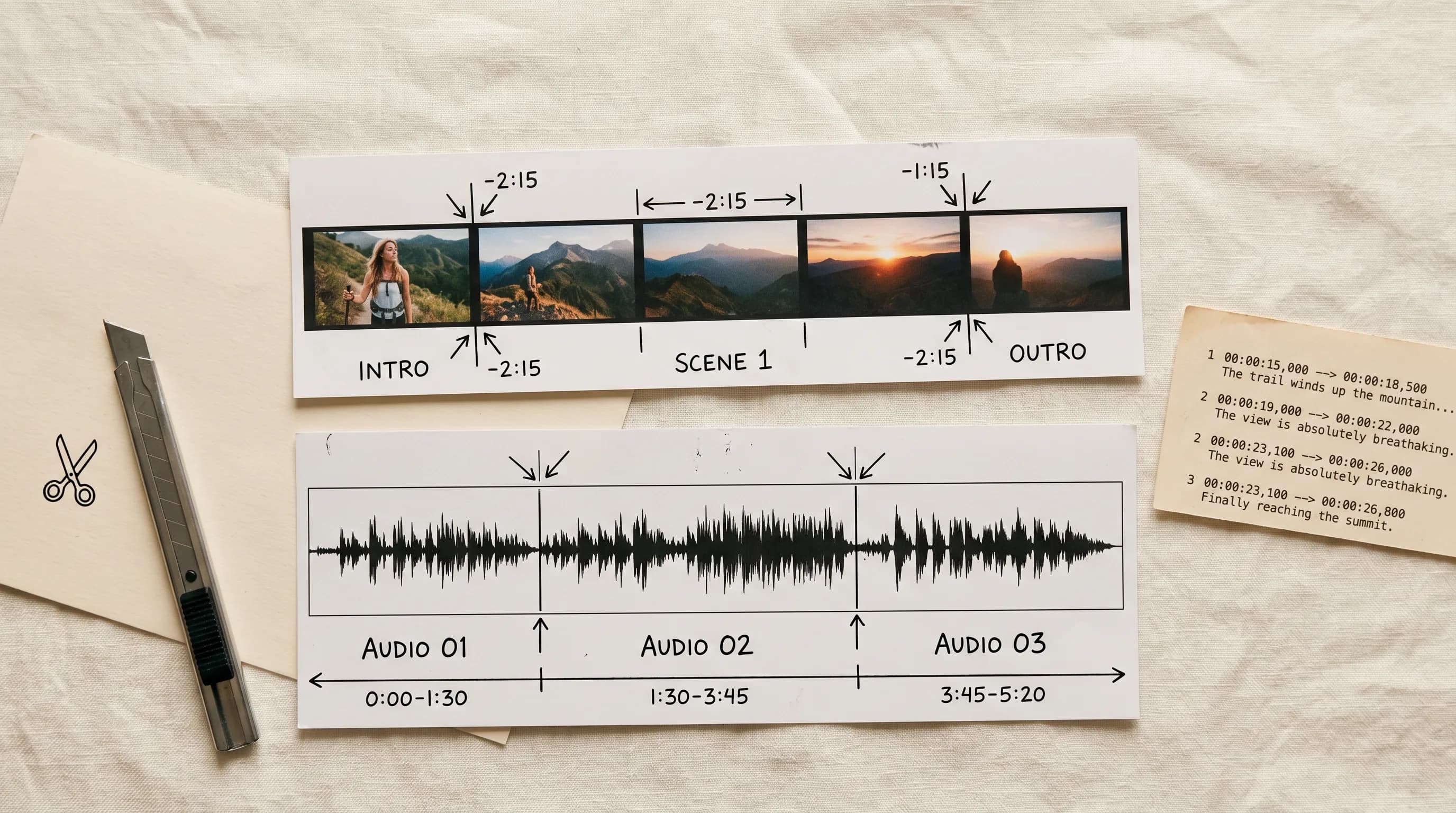
Most creative pipelines have a gap between generation and final output.
You generate a video clip. You need to trim the first three seconds. You generate a voiceover. You need to isolate a specific line. You produce a long audio recording. You need to break it into segments or pull an SRT for subtitles. Each of these is a simple task. Each one traditionally means exporting, opening a separate tool, editing, and importing back: breaking the flow of whatever you were building.
Scenario now has five editing models that close that gap. Audio Cut, Audio Split, Video Cut, Video Split, and Audio to Text run inside the platform alongside every generation tool.
Audio Cut: Sample-Accurate Trimming
Audio Cut trims an audio file to a precise time range with sample-accurate cutting. Set a start time and an end time in seconds, get back the exact segment you need.
Sample-accurate means the cut lands exactly where you set it, not rounded to the nearest frame or block. For music, sound design, and dialogue work where timing precision matters, this is the difference between a clean edit and one that is slightly off.
The use cases are anything where you need a specific portion of an audio file rather than the whole thing. A generated voiceover trimmed to the exact line. A music track cut to fit a specific scene length. A sound effect pulled from a longer design file. A dialogue recording trimmed before going into a lip-sync workflow.
Audio Split: Divide One File Into Multiple Segments
Audio Split divides an audio file at one or more timestamps into ordered segments.
The ability to set multiple cut points in one pass is what makes this genuinely useful for production work rather than just convenience. A full character dialogue session gets divided into individual triggered lines in one operation rather than a series of sequential cuts. A music track gets split at every section boundary simultaneously. A long generated voiceover gets divided into scene segments without running a separate job for each split.

Video Cut: Frame-Accurate Trimming
Video Cut trims a video file to a precise time range with frame-accurate cutting. Set start and end times in seconds, get back the trimmed clip.
Frame-accurate means the cut lands on the exact frame you specify. For any video work where timing precision matters, whether that is a motion capture output, a generated cinematic, or a sprite animation sequence, frame accuracy is what keeps your edit clean.
A Preserve Audio toggle keeps the audio track intact through the cut by default. Toggle it off when you want the video track only.
This is the most frequently needed edit in any video production workflow. A generated clip that runs five seconds but you only need three. A motion capture output with setup frames at the start. A cinematic with a tail that does not fit the edit. Set the in and out points, cut, move on. No Premiere. No DaVinci. No export cycle.
Video Split: Divide One Clip Into Multiple Segments
Video Split divides a video file at one or more timestamps into ordered segments.
For game development: a motion capture output that contains multiple animation states in sequence gets split into individual animation files in one operation. A generated cinematic gets split at all scene boundaries simultaneously before going into the edit. A long product video gets divided into individual feature segments for separate social posts.
In Scenario Workflows, Video Split is a powerful node for any pipeline that generates long clips and needs to divide them before downstream processing. Chain it with Video Cut to get precise segments from any generated output without leaving the automated pipeline.

Audio to Text: Whisper-Powered SRT Subtitles
Audio to Text transcribes speech from any audio or video file into SRT subtitles using Whisper. Upload the file, get back a subtitle file with accurate timestamps.
For game development: dialogue transcribed for subtitle generation, voiceovers converted to text for QA, recorded reference audio transcribed before localization. Combined with P-Video Avatar for example, the workflow is: generate voiced character dialogue, transcribe immediately with Audio to Text, use the SRT for in-game subtitles and localization handoff. All inside Scenario.
How They Connect
The five tools are most powerful inside a larger pipeline rather than used in isolation.
A game dialogue workflow: generate a full character voiceover session, use Audio Split to divide it at each line break into individual triggered audio files, use Audio to Text to generate SRT subtitles for each line, use Audio Cut to fine-tune any timing that needs adjustment. No external DAW, no third-party transcription service.
A video production workflow: generate clips with Seedance 2.0, use Video Cut to trim to exact duration, use Video Split to separate at scene boundaries, use Audio to Text to transcribe any dialogue for subtitles or localization. Everything in one platform.
In Scenario Workflows, all five models are available as nodes. Chain them with generation models, set timestamps programmatically, and build fully automated pipelines that generate, edit, and process audio and video without manual steps at any stage.
FAQ
What is the difference between Audio Cut and Audio Split? Audio Cut extracts a specific segment by setting start and end times. Audio Split divides a file at one or more timestamps into multiple segments simultaneously. N cut points produce N+1 segments in one operation.
What is the difference between Video Cut and Video Split? Video Cut trims a video to a specific time range with frame-accurate precision. Video Split divides a video at one or more timestamps into multiple segments. Same logic as the audio equivalents.
What format does Audio to Text output? SRT subtitles with accurate timestamps, powered by Whisper. Works with both audio and video input files. Video inputs have the audio track extracted automatically.
Does Audio to Text support languages other than English? Yes. Set a specific language code or leave it empty for automatic detection. The translate task option converts any language to English output, useful for localization workflows.
Can I use these in Scenario Workflows? Yes. All five models are available as nodes in Scenario Workflows for fully automated audio and video processing pipelines.
Does Video Cut preserve the audio track? Yes by default. Toggle Preserve Audio off if you need the video track only.
What output formats are supported? Audio: MP3, WAV, OGG, M4A. Video: MP4, MOV, WEBM, GIF. Leave format unspecified to preserve the source format.