
The AI Talking Avatar Model Everyone Has Been Waiting For Is Finally Here: Meet P-Video Avatar
Making a character speak on screen has never been this straightforward. Upload any portrait, add a script or your own audio, and P-Video Avatar handles the rest. Accurate lip sync, 30 voices, 10 languages, all inside Scenario.
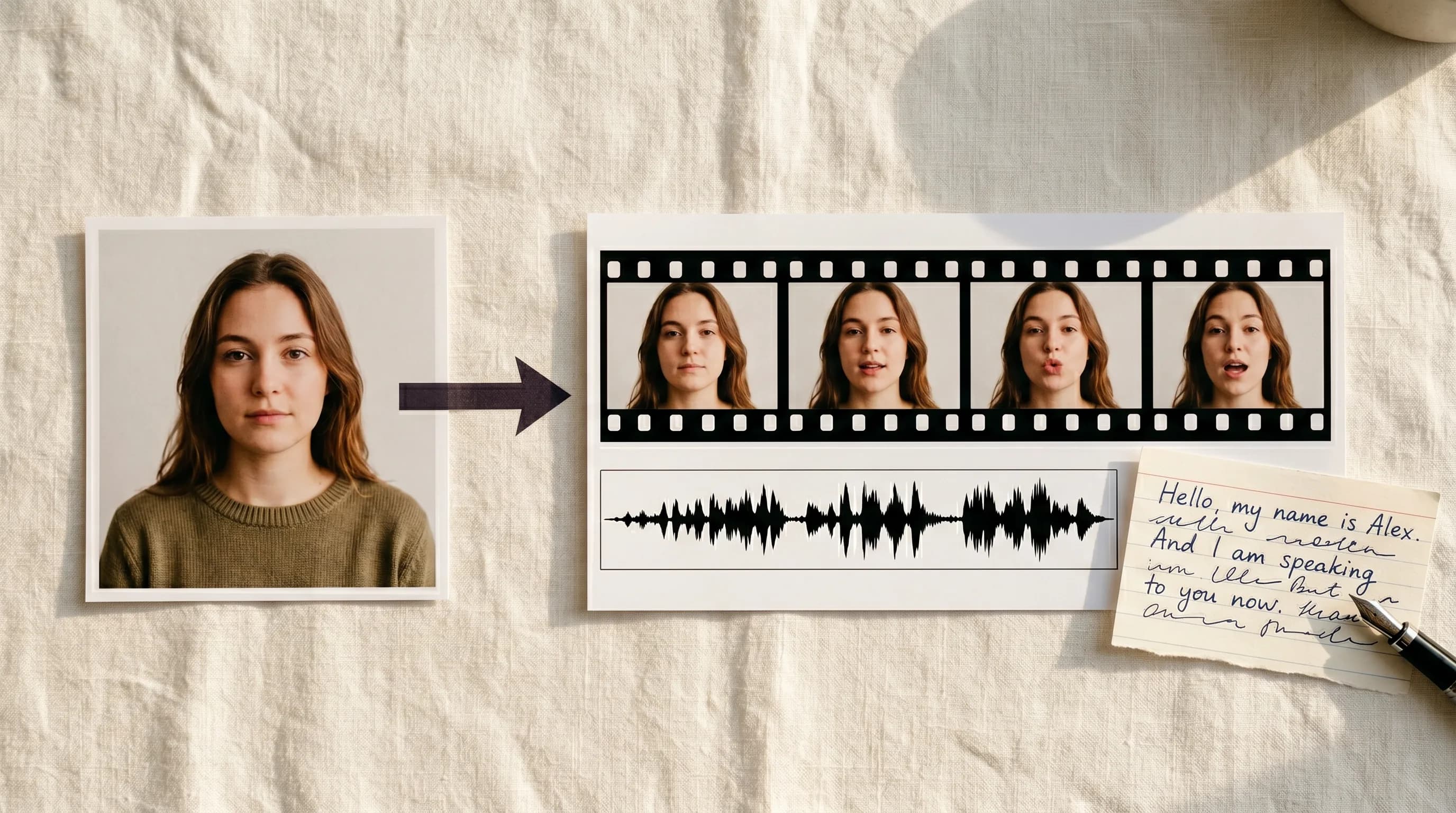
Getting a character to speak on screen used to be a production problem.
You needed a voice actor. A recording session. A video editor to sync the audio to the visuals. If you wanted the same character speaking in five languages, you needed five separate sessions. If you wanted an NPC to greet your players at the start of a game, you were looking at a real budget line item before a single line of dialogue was recorded.
That pipeline still exists for productions that need it. For everyone else, P-Video Avatar by Pruna AI just landed on Scenario and it changes the math entirely.
Upload a portrait. Add a script or your own audio. Get a lip-synced talking avatar video back in seconds. That is the whole workflow and it is exactly as powerful as it sounds.
What P-Video Avatar Actually Does
It makes any still portrait speak with accurate lip sync.
Real photos, illustrated game characters, stylized avatars: it works equally well with all of them. You give it a face and some words and it gives you back a video where that face delivers those words with mouth movements that match the audio precisely.
Thirty built-in voices. Fourteen female, sixteen male. Ten languages.
The range of what this covers is wide. Game character introductions. NPC dialogue. Product walkthrough videos. Multilingual marketing content. Onboarding videos. Social media avatars. Any situation where you need a face to deliver a message and you do not have a voice actor or a studio on standby.
Two Ways to Give Your Character a Voice
Voice Script: the fast path
Write your script directly in the voice script box. Choose a voice from the thirty built-in options. Set the language to match your script. Hit generate.
The Voice Prompt controls how the script is delivered: tone and emotion. The Video Prompt controls the face motion during the generation. Use both together to shape how your character sounds and how it moves while speaking.
Custom Audio: full control
Upload your own recorded voiceover and the model syncs the lip movements to it. Use this when you need a specific voice that is not in the built-in library or a pre-recorded narration. Do not have a voiceover yet? You can generate one directly on Scenario using any of the audio generation models in the library, then upload it straight into P-Video Avatar without leaving the platform.
One important note: when a custom audio file is uploaded it takes full priority. The Voice Script and Voice Prompt are both ignored. There is no way to blend the two, so decide which path you are on before you start.
What This Looks Like in Practice
Game character dialogue
Generate a character portrait using GPT Image 2 or any image model in the library. Write the dialogue, choose a voice that fits the character's personality, set the tone through the Voice Prompt, and generate. Repeat for every character in your game without having to manage a single audio file externally.
Multilingual localization
Use the same portrait across multiple generations with the script translated into different languages. Same character, same visual style, different language and voice. Ten languages supported out of the box, which means your character can speak to a Japanese audience, a Spanish-speaking market, and a German player base from a single portrait image.
Tips for Getting the Best Results
Write your script to be spoken, not read. Short sentences. Punctuation used deliberately to control pacing. If you would stumble reading it aloud, simplify it before generating.
Test with a short 5 to 10 second script before running a full generation. Verify the voice, tone, and lip sync quality on a short clip first. It is much cheaper to adjust before scaling up.
Always match the language setting to your script language. A mismatch produces broken pronunciation.
For custom audio, use a clean voice-only recording with no background music or noise.
And if you want to run this entire workflow without touching the browser, Scenario's MCP Server lets you trigger P-Video Avatar (or any other model) generations directly from your AI assistant. Portrait in, lip-synced video out, fully automated inside your existing pipeline.
Try P-Video Avatar on Scenario
FAQ
What kind of portrait works best? A clean, well-lit image where the face is clearly visible and facing roughly toward the camera. Cropped headshots and bust shots work best. Extreme side angles or heavy shadows reduce lip sync quality.
Does it work with illustrated or stylized game characters? Yes. P-Video Avatar works equally well with photorealistic photos, illustrated game characters, and stylized avatars.
What languages are supported? English US, English UK, Spanish, French, German, Italian, Portuguese Brazil, Japanese, Korean, and Hindi. Always set the language to match your script.
Can I use my own voice recording? Yes. Upload a custom audio file and the model syncs the lip movements to it. Use a clean, voice-only recording with no background music. When custom audio is uploaded the Voice Script and Voice Prompt are both ignored.
What resolution does it output? 720p or 1080p. Generate at 720p while iterating and switch to 1080p for finals. For higher resolution, run the 1080p output through Scenario's video upscaler as a separate step.
How many built-in voices are available? Thirty: fourteen female and sixteen male across ten languages.
Can I control tone and delivery? Yes, through the Voice Prompt field when using built-in voice synthesis. This has no effect when using custom audio.