
You Will Never Resize an Asset the Same Way Again: Meet Smart Reframe on Scenario
Resizing an image has always meant cropping something out or stretching something that should not be stretched. Smart Reframe on Scenario does neither. It recreates the image in the new format while keeping everything that matters intact.
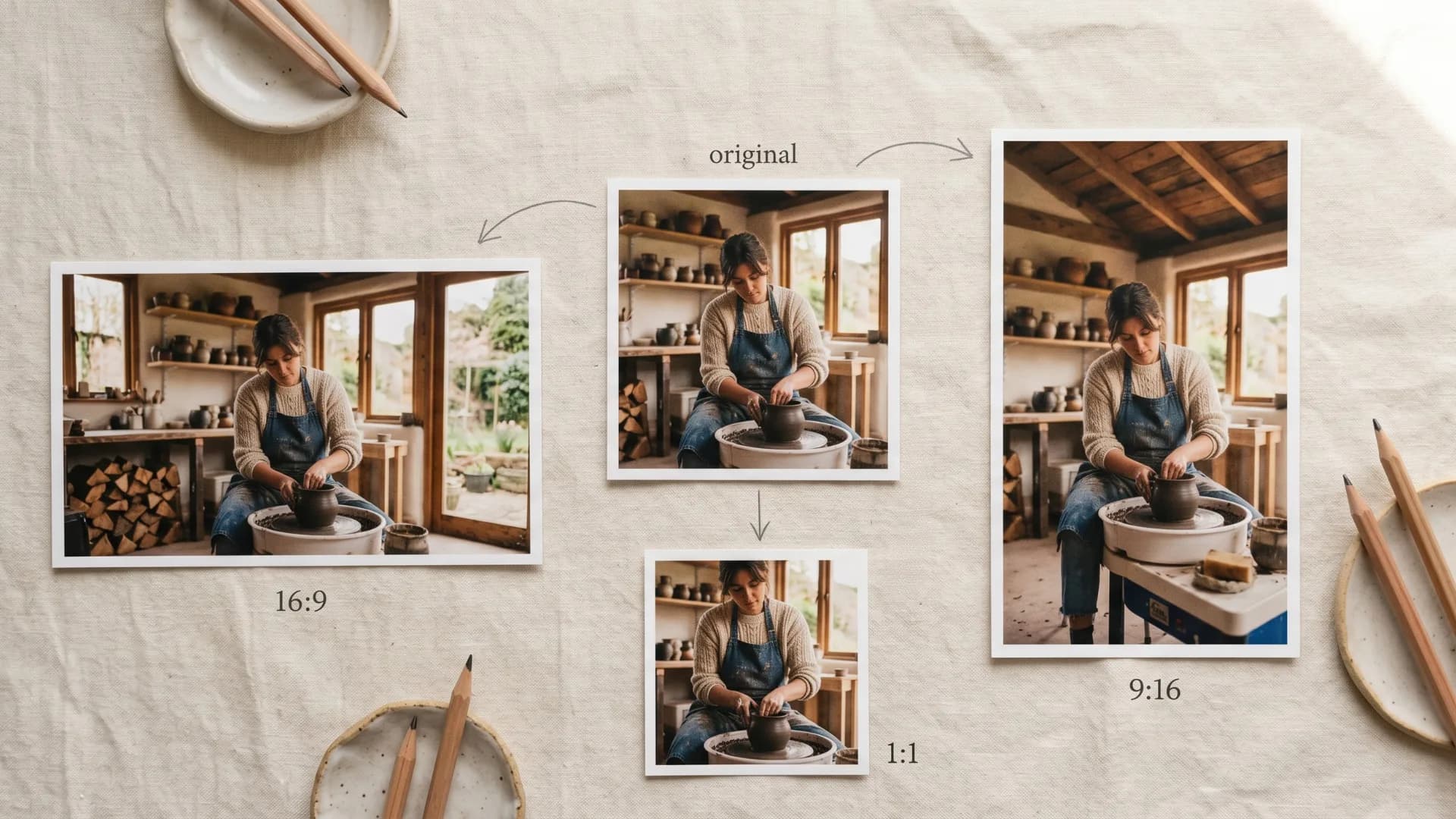
Resizing an image for a different format has always been a compromise.
Crop it and you lose part of the composition. Stretch it and everything looks wrong. Export it at the wrong ratio and the subject ends up in the corner, the text gets cut off, or the whole thing just falls apart. For game developers adapting assets across platforms, and for marketing teams adapting creatives across channels, this is a constant low-level friction that compounds across hundreds of assets.
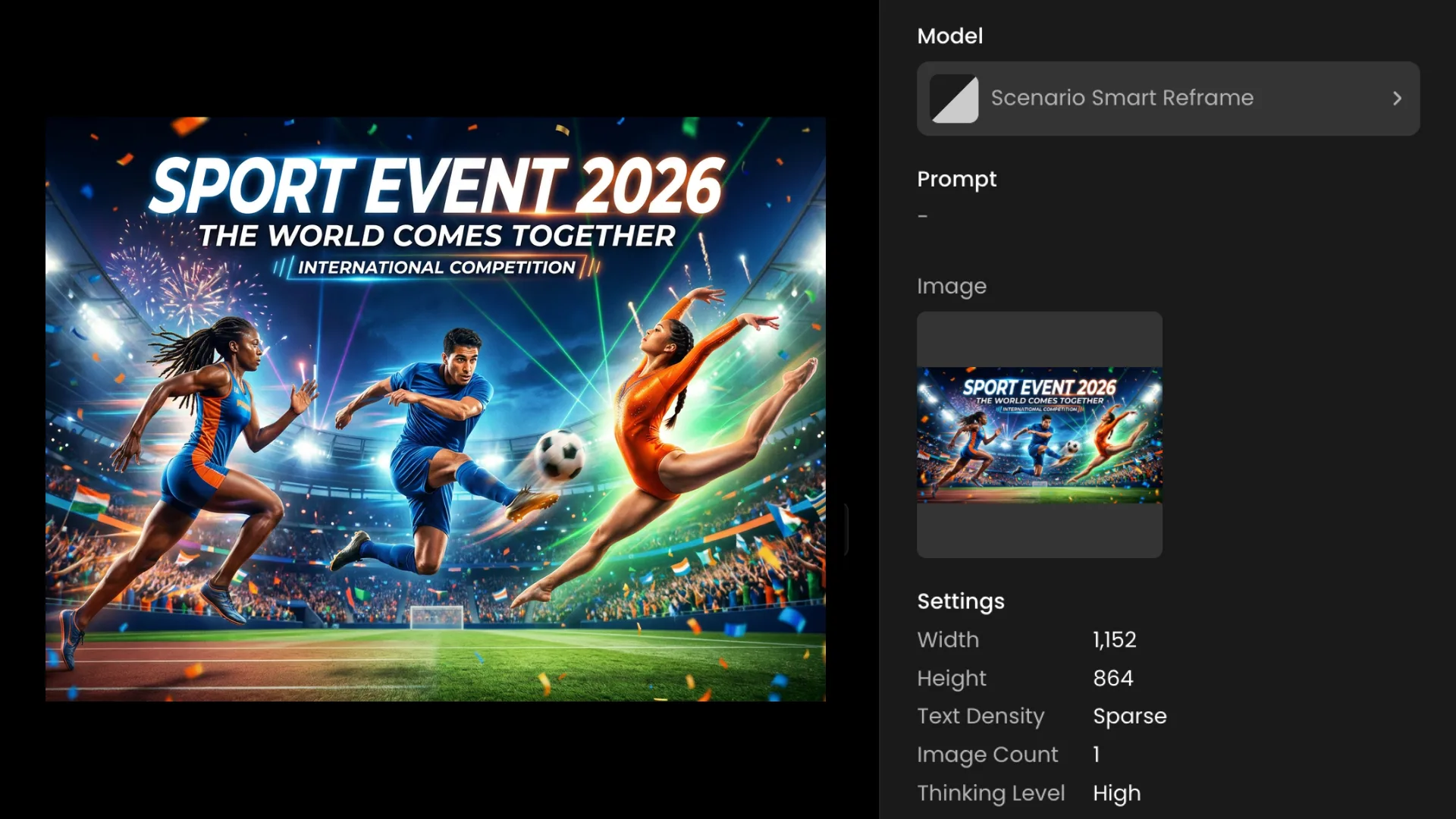
Scenario Smart Reframe solves this differently. Upload any image, choose your output dimensions, and the model recreates the image in the new format. The subject stays intact. The art style holds. On-image text, brand elements, and color palette all carry through to the new format.
One upload. Any ratio. Exact output dimensions from 1K to 4K.
How It Works
The workflow is three steps: upload your source image, set your target dimensions, generate.
Output width and height are set independently, which means you can hit any exact pixel dimension you need rather than being limited to preset ratios. The pixel budget supports up to 4K capacity across any aspect ratio. Generate up to 8 variants per request, all sharing the same art direction pass, which makes it efficient to compare multiple recomposition options before committing.
An optional prompt field lets you add art direction guidance to influence how the new space is filled: "extend the forest environment," "keep the sky minimal," "add depth to the background." The model folds this into the recomposition. Leave it empty and the model infers the extension from the original image context.
Gaming: What This Actually Solves
Game banners and key art across platforms
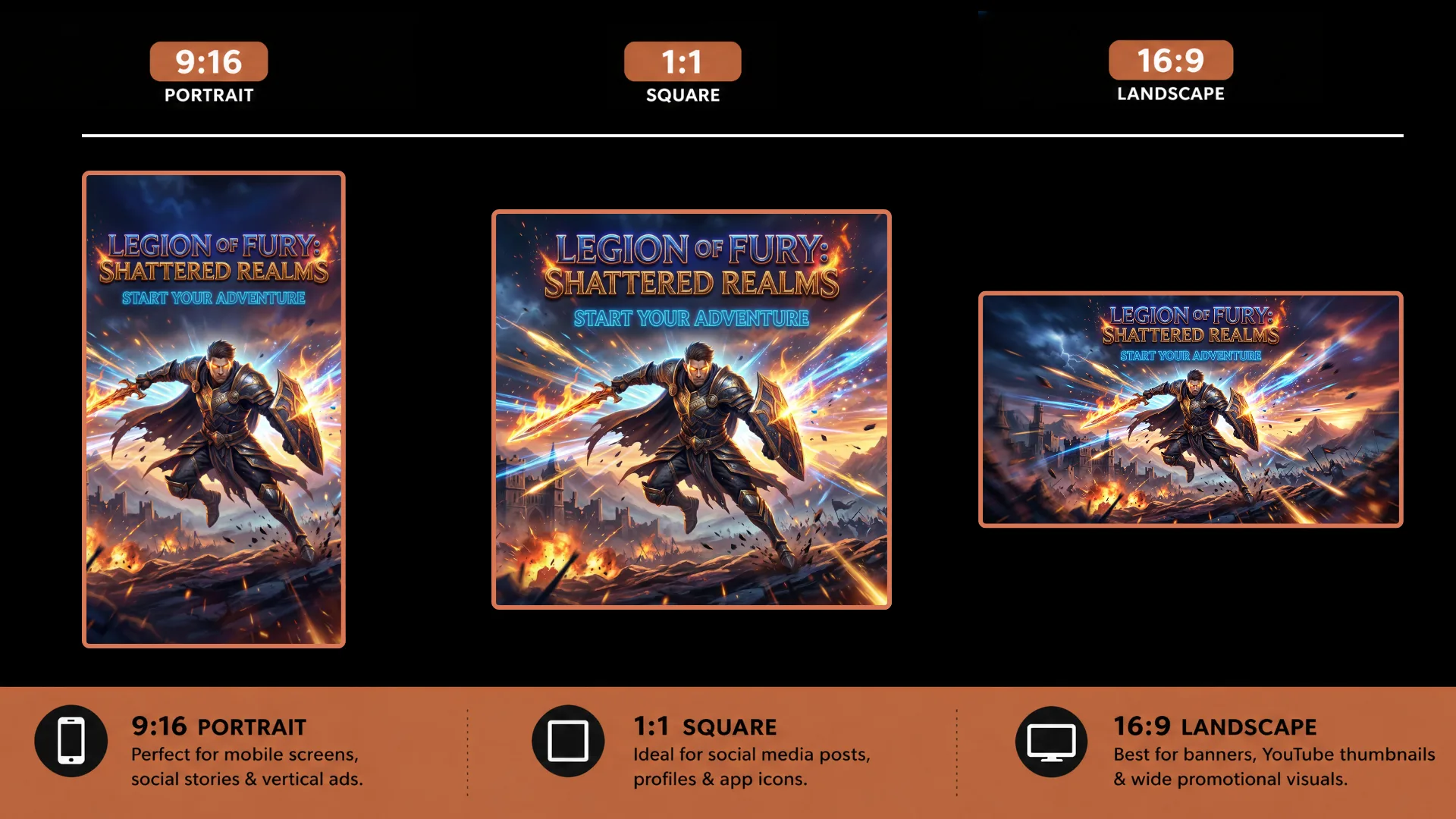
A piece of key art designed for a 16:9 PC banner needs to work as a 9:16 mobile splash screen, a 1:1 app store thumbnail, and a 21:9 ultrawide header. Each format requires a different composition. Traditionally this means either a designer recomposing each version manually or a series of compromised crops.
Smart Reframe produces each version from the same source asset. The character stays centered and readable in the 9:16. The environment extends naturally in the 21:9. The key elements survive the crop into 1:1. Each output is a genuine recomposition rather than a resize that breaks the original intent.
Splash screens and loading screens
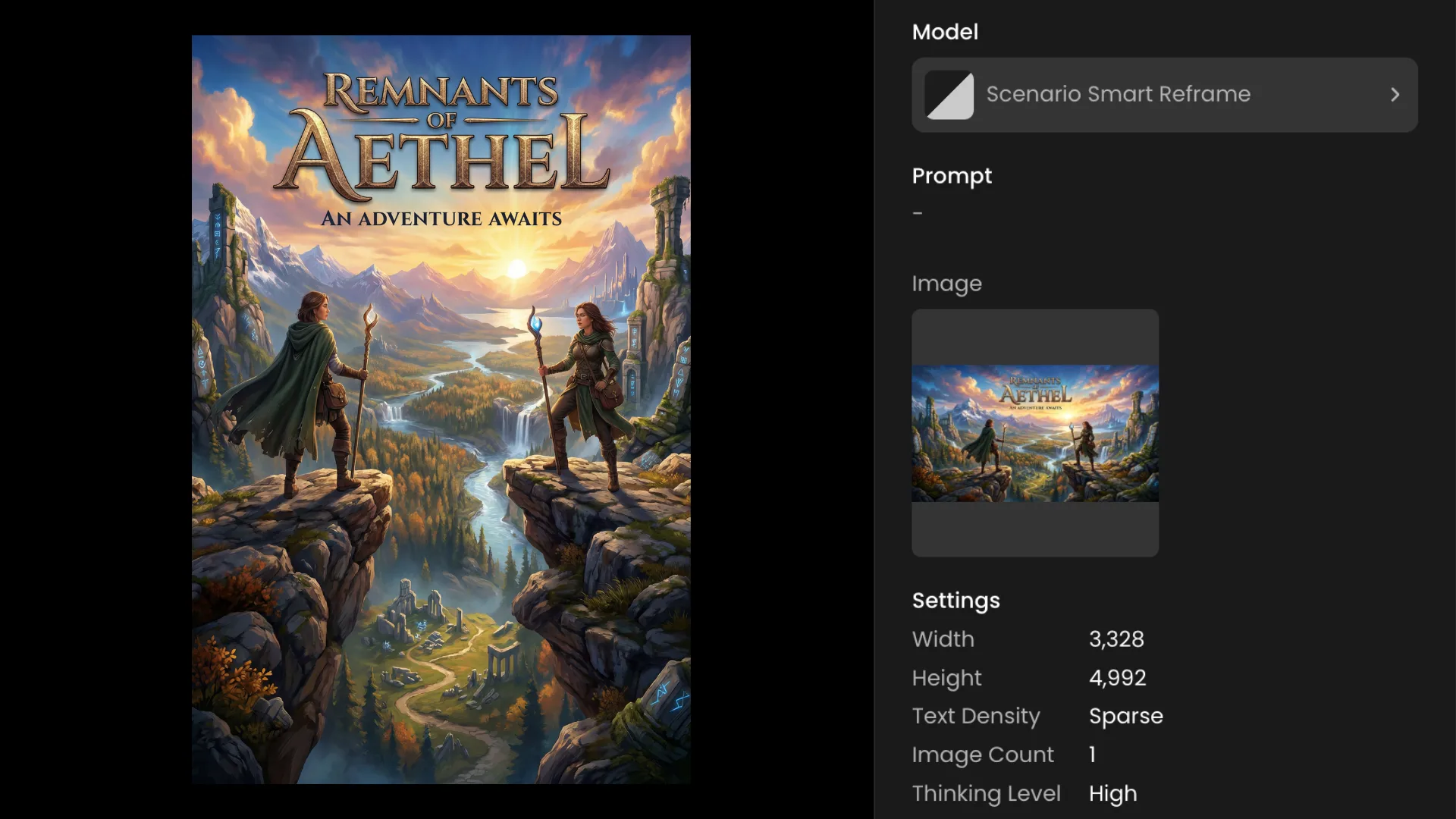
Portrait and landscape orientations require fundamentally different compositions. A loading screen designed for landscape does not just rotate into a good portrait. Smart Reframe recreates the composition for the target orientation, extending or rebalancing the scene to work in the new format.
Beyond Gaming: Where Smart Reframe Applies
Product and e-commerce
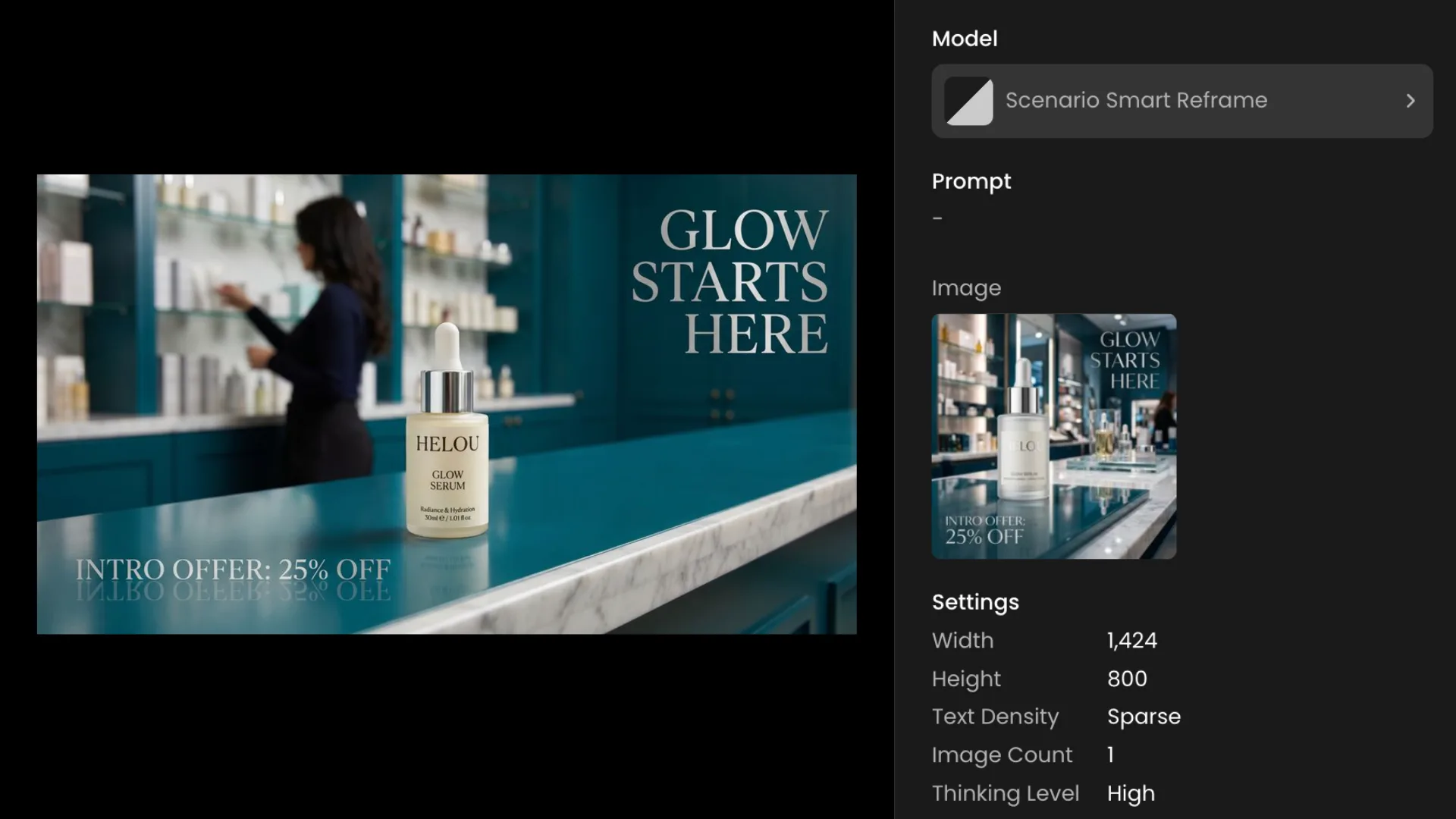
A product photo shot in portrait for a catalog page needs to work as a square for Instagram, a widescreen banner for a homepage header, and a portrait for a mobile product page. Smart Reframe adapts each version while keeping the product, its lighting, and any surrounding context intact.
Marketing creative
Campaign visuals, event banners, editorial images: anything designed for one format that needs to work across multiple channels. Smart Reframe preserves brand elements, logos, taglines, and color palette through every recomposition, which matters most for teams running brand-consistent campaigns across diverse placements.
What Smart Reframe Preserves
The key distinction between Smart Reframe and a standard resize or crop is what it keeps intact through the recomposition: art style, subject positioning and scale, on-image text, brand elements, and color palette.
For game assets this means a character stays on-model through the reframe. For marketing assets it means a logo stays correctly positioned, a tagline stays readable, and the visual identity of the original piece carries through to every output format.
Smart Reframe is also available as a model in Scenario Workflows, making it easy to chain into any automated pipeline: generate an asset, reframe it to every required format in the same run, output all versions without a manual step. For teams building at scale, it is also accessible through the Scenario API and via the MCP Server for anyone triggering generations directly from their AI assistant or external tools.
FAQ
What is the difference between Smart Reframe and a standard image resize? A standard resize crops or stretches the existing image. Smart Reframe recreates the image in the new format, recomposing the scene to fit the target dimensions while preserving the subject, art style, on-image text, brand elements, and color palette.
What output dimensions does it support? Any width from 64 to 6336 pixels and any height from 64 to 5504 pixels, up to a combined 4K pixel budget. Set width and height independently to hit any exact dimension you need.
When should I use DENSE text density instead of SPARSE? Use DENSE when the source image has complex text layouts: product infographics, dashboards, multi-zone banners with multiple text blocks. SPARSE handles most standard use cases: hero shots, character art, simple banners with a logo and tagline.
Can I add prompt guidance to influence how the reframe is composed? Yes. An optional prompt field accepts art direction hints that the model folds into the recomposition: "extend the forest environment," "keep the background minimal," "add atmospheric depth." Leave it empty and the model infers the extension from the source image context.
How many output variants can I generate per request? Up to 8 variants per request. The art direction stage runs once and only the render stage repeats per variant, which makes multi-variant generation efficient for comparing recomposition options.
Does it preserve on-image text through the reframe? Yes. On-image text is explicitly preserved through the recomposition. Use DENSE mode for images with complex or multi-zone text layouts to ensure accurate text preservation.
What is the Thinking Level setting for? HIGH gives the model more reasoning capacity for art direction decisions. MINIMAL is faster and cheaper. HIGH is worth it for precision work. MINIMAL suits high-volume batch reframing where speed and cost matter more than per-image precision.