The Compositing Step Your AI Image Workflow Has Been Missing
Generating AI images is fast, but compositing them into finished assets remains a manual bottleneck. Image Studio automates the missing step between generation and delivery, letting you define composition rules once and apply them automatically across every workflow run.
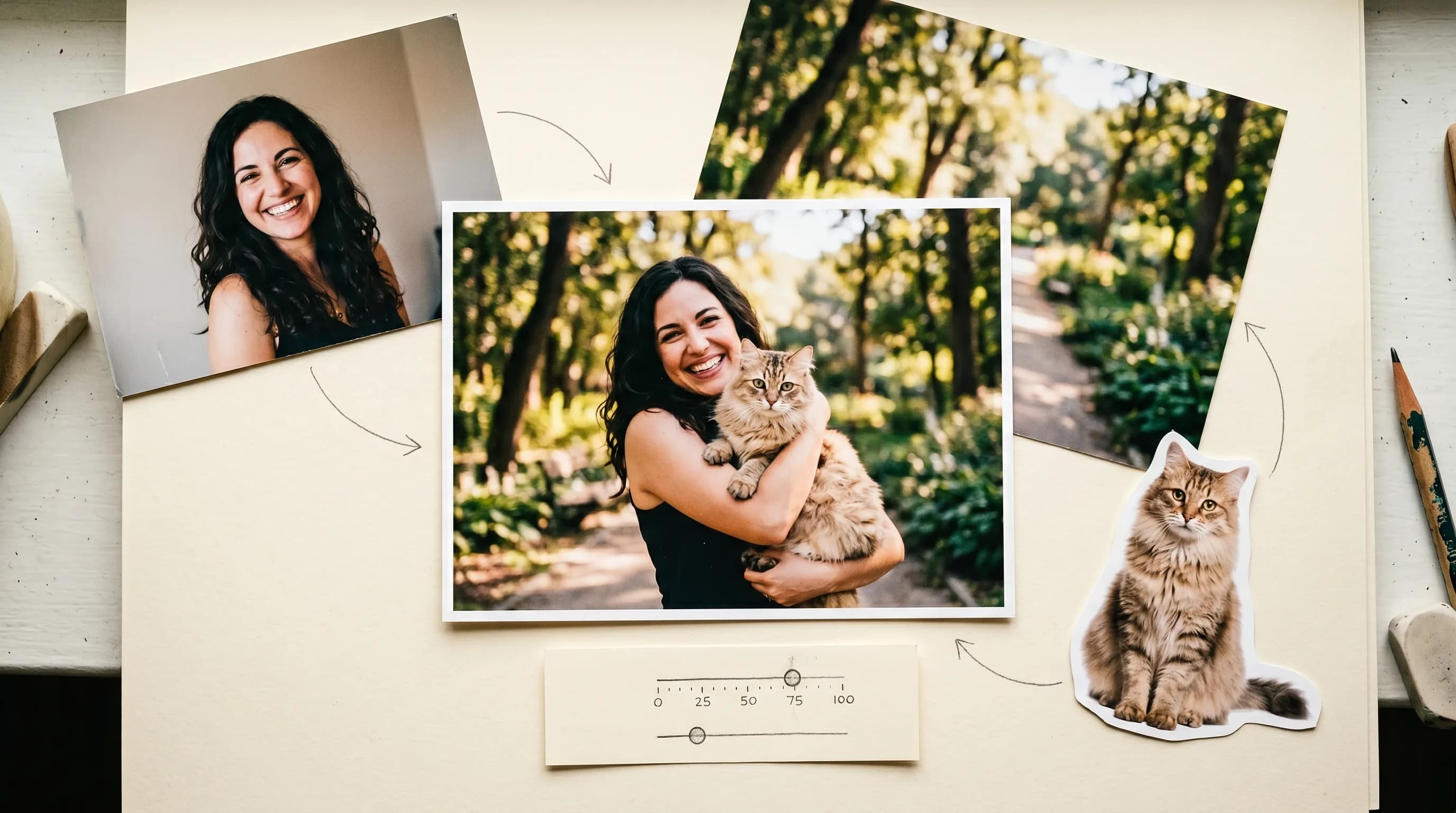
Generating images is the easy part nowadays. The annoying part is everything that comes after.
You know the routine. You generate something great, download it, open another tool, place the character, add a text, blur the background, adjust opacity, export. Then you do it again for the next one. And the one after that. It's not hard work exactly, but it adds up. At some point it starts to feel like the most expensive part of the whole process isn't the generation. It's the assembly.
Image Studio is our answer to that. A compositing editor that lives right inside Scenario Workflows, so the gap between "generated images" and "finished assets" isn't a gap anymore. It's just another automated step in your pipeline.
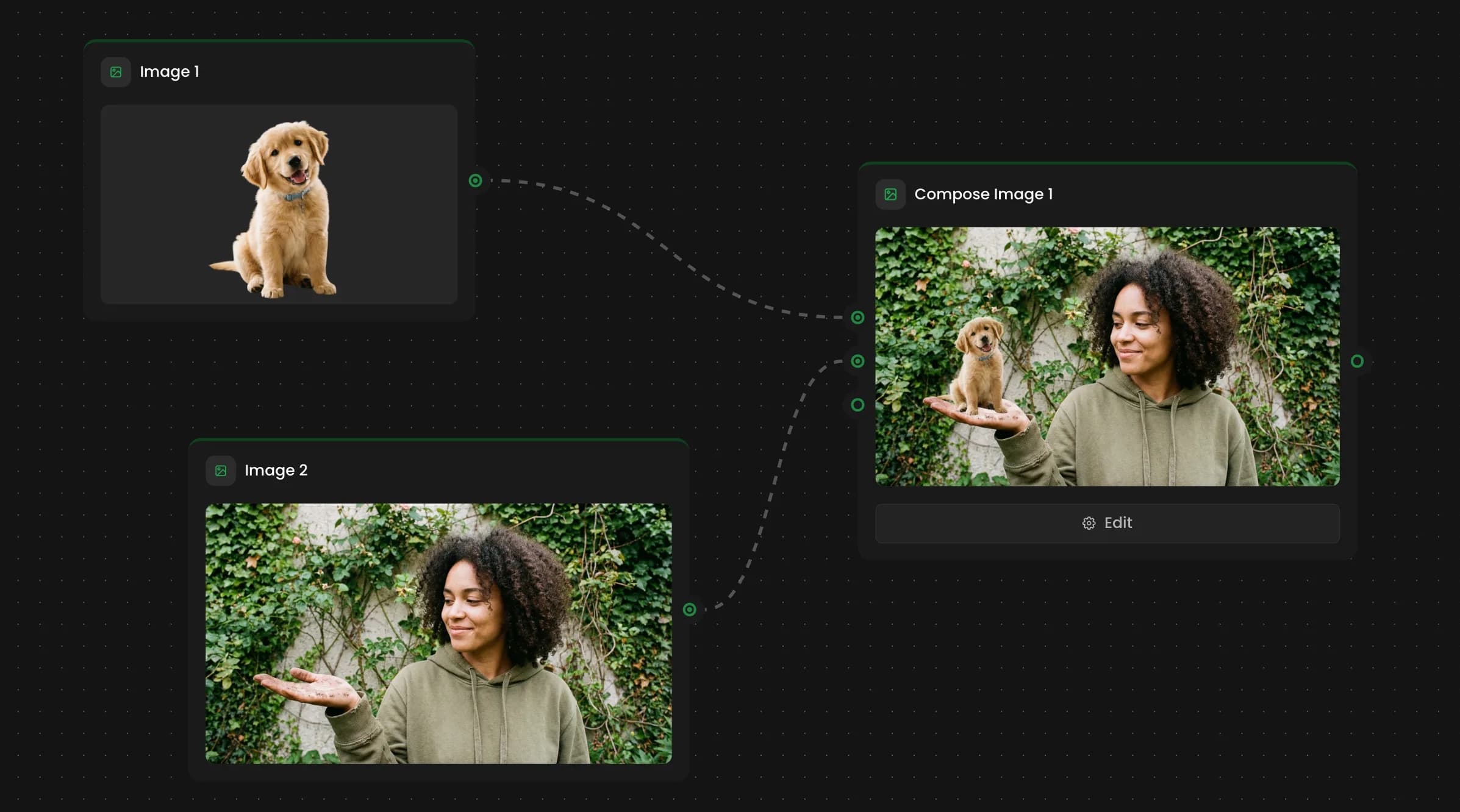
You design the composition. Image Studio runs it.
Every project is different. Maybe you want the character centered on a blurred background. Maybe you want a logo at 30% opacity in the corner. Maybe you want four generated portraits arranged in a grid with a grayscale treatment on all of them. Image Studio doesn't have opinions about that. You set it up however makes sense for what you're building.
What changes is what happens after. Once you've made those decisions and saved the composition, it runs exactly that way every time the Workflow runs. New generated inputs, same compositional logic you defined. You're not locked into anything. If the project changes, you open the editor and change it. But you only have to make the call once per brief, not once per image.
What you're actually working with
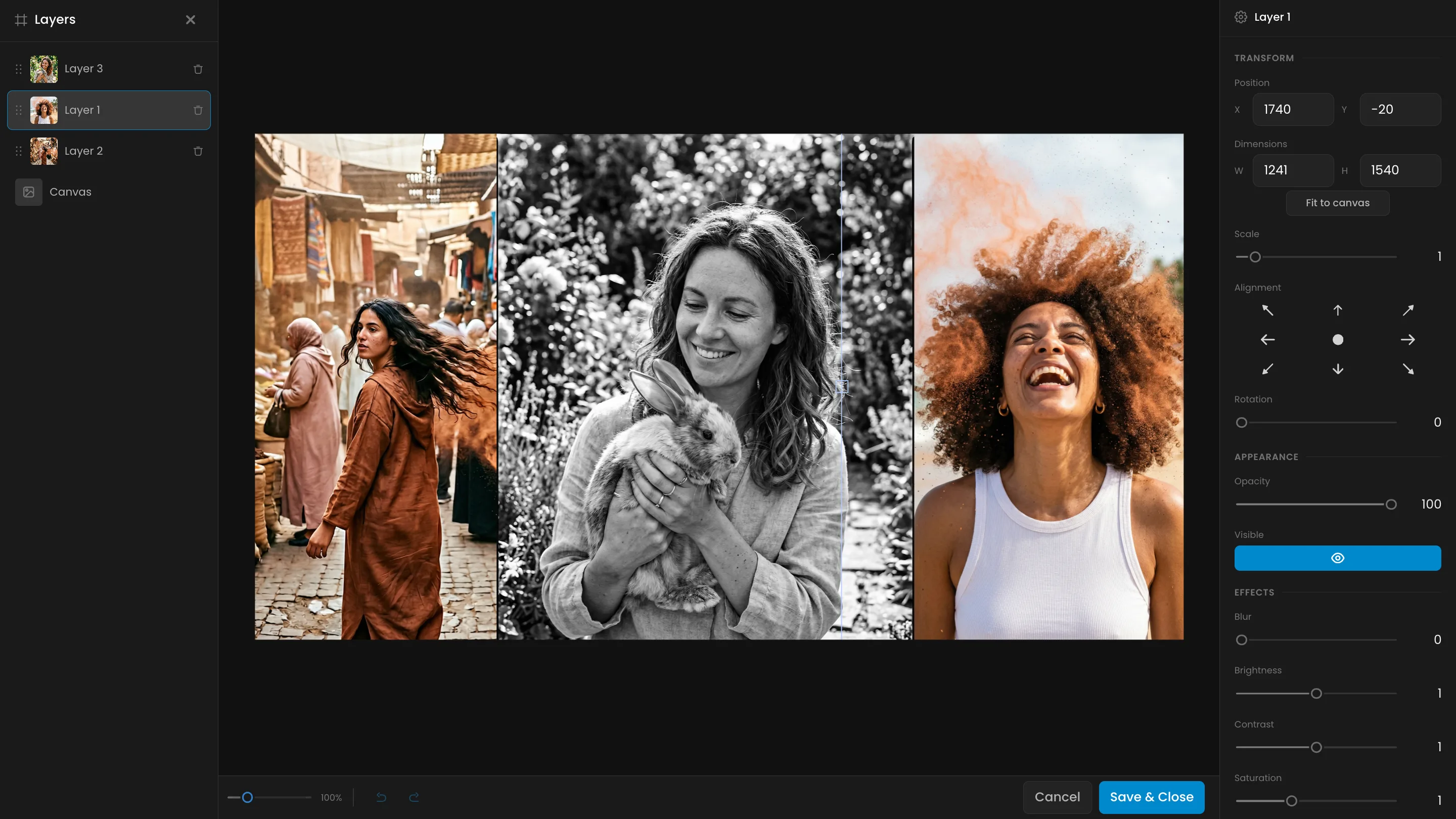
The editor itself is clean. Three panels: layers on the left, canvas in the center, controls on the right. You can drag layers directly on the canvas to position them, grab the handles to resize, or enter exact pixel values if you want precision. A nine-point alignment grid snaps layers to any position quickly - especially useful for anything that needs to land in the same spot every time, like a watermark or a badge.
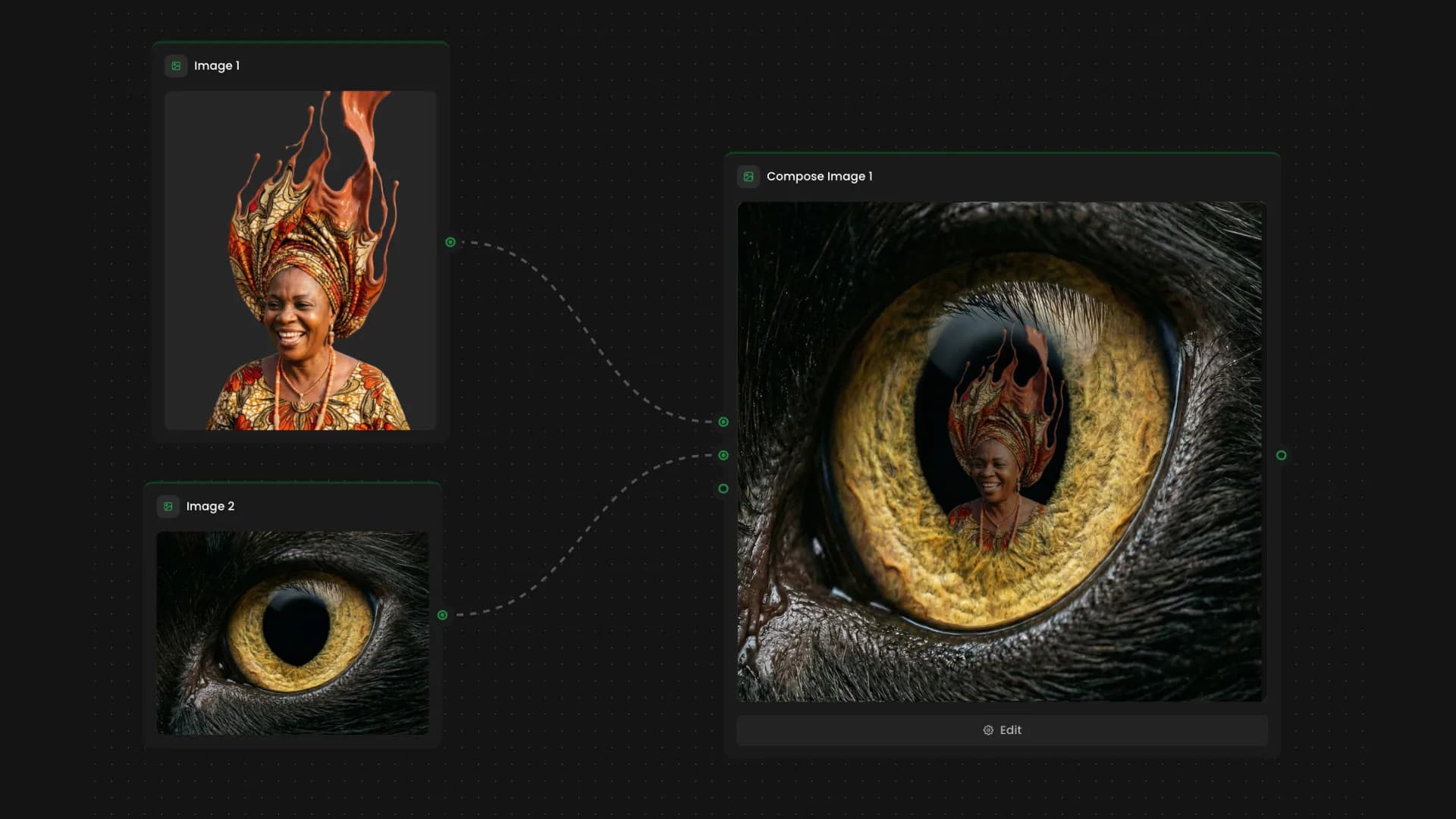
The order you connect inputs to the node determines the stacking: first connected input at the bottom, each one after that on top. Simple to set up, easy to adjust if you change your mind.
The effects suite is where things get interesting. Blur, Brightness, Contrast, Saturation, a Grayscale toggle, and Border Radius are all available per layer. There's also a Blending Mode per layer - Normal, Multiply, Screen, Overlay, and more - which controls how each layer interacts with everything beneath it. More useful than it sounds once you start doing anything beyond basic stacking.
When you want to set your output size, click Canvas at the bottom of the layer list. It's not a layer. It's where you configure the dimensions of your final composed image.
The part that actually changes your workflow
The thing that makes Image Studio different from just having a good image editor isn't any single feature. It's the fact that it's a node.
Because Image Studio lives inside a Workflow, the composition you build doesn't just apply to one image. It applies to every image that flows through that pipeline. You can generate ten images or ten thousand and the finishing step is exactly the same: automatic.
For game studios generating asset variations, that means every character can be composited onto a background, watermarked, and formatted in one run. For marketing teams generating ad creative, it means consistent branding across every variant without a single person touching it manually. The repetition is handled. The creative work is what's left.
And because Image Studio is a node in a Workflow, the composed image it produces doesn't have to be the end of the line. You can pipe that output directly into the next node, feeding it into a Video Generator, a style transfer, another compositor, whatever the pipeline calls for next. The finished image becomes the starting point for something else.
It's yours to try out on Scenario.
FAQ
Do I need design experience to use Image Studio? No. The editor is visual. Drag layers to position, resize with handles, snap to the alignment grid. You can enter exact pixel values if you need precision, but most compositions come together without typing a single number.
Can I use Image Studio without Workflows? Image Studio is a node inside Scenario Workflows, so you do need a Workflow to use it. The introduction to Workflows in the help center is a good starting point if you haven't built one before.
What assets can I bring into Image Studio? Any Image Generator node or static Image input node connected to your Image Studio node will appear as a layer inside the editor. Assets need to come in through the Workflow. You can't import files directly into the editor itself.
Is there a timeline? No. Image Studio is purely spatial, for still images only. If you need to composite video clips or add audio, that's what Compose Video is for.
Can I undo changes? Yes, undo and redo are both available while you're inside the editor. If you want to throw everything out, just hit Cancel instead of Save & Close.