train
Custom Model Training
Train on your art bible, characters, or visual library. Consistent output in your style, from 10-50+ reference images.
Key benefits
Brand and style consistency on every generation
Fine-tune a model on your own images so every output matches your established art direction, character design, or visual identity, without re-prompting from scratch each time.
Seven base models to match any training goal
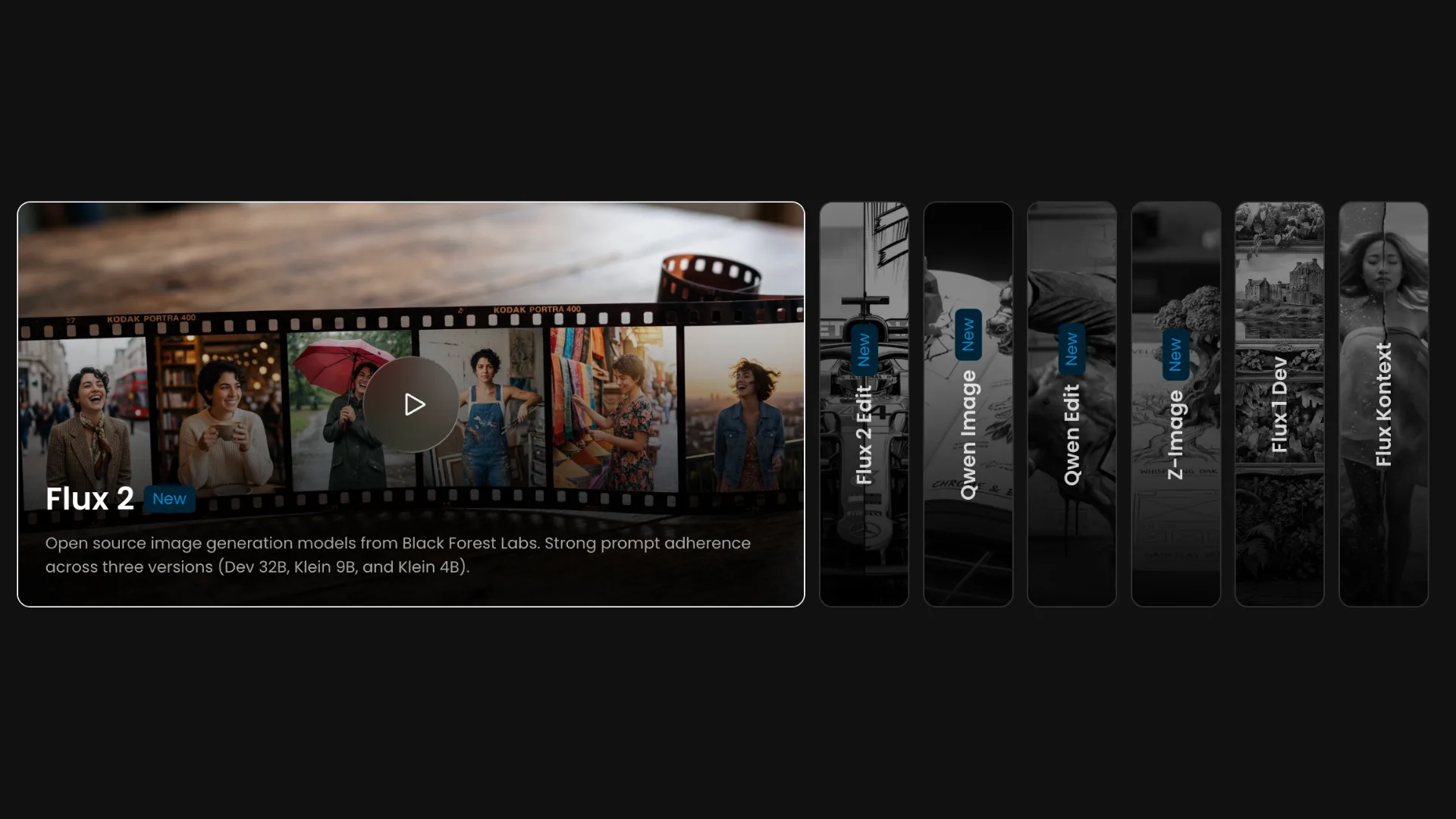
Choose from generative models like Flux 2, Z-Image, and Qwen Image for style and character training, or editing models like Flux 2 Edit and Qwen Edit for transformation-based workflows.
Fast training with as few as 10 images
Most models perform well with 10 to 20 high-resolution images. Training typically completes in 30 minutes to one hour, with email and in-app notification when your model is ready.
Epoch comparison built in
Compare every training epoch side by side using test prompts to identify the exact checkpoint that delivers the best results before committing to a final model version.
Merge models for unique styles
Combine two or more custom-trained models into a single merged model to blend aesthetics, mix character traits, or create entirely new visual directions.
Retrainable and refinable at any time
Retrain any model with an updated dataset, adjusted captions, or new parameters in one click. Your original images and settings are duplicated automatically so you never have to start from scratch.
How it works
- 1
Build Your Dataset
Put together 10–15+ high-resolution images (1024px+). For character models: ensure consistent features like hair, eye color, and skin tone across varied poses and expressions. For style models: maintain consistent visual aesthetics across diverse subjects and compositions.
- 2
Select a base model
Pick the right engine for your goal. For generative training, choose Flux 2 for strong prompt adherence and versatility, Z-Image for high-fidelity outputs and strong training consistency, or Qwen Image for diverse style support and close text-prompt following. For editing-based training, choose Flux 2 Edit for targeted style changes and object swaps using before and after pairs, or Qwen Edit for prompt-driven edits that maintain character and scene consistency. Flux 1 Dev and Flux Kontext remain available for compatibility with existing workflows.
- 3
Upload your training images
Upload your images via drag and drop. All images must be at least 1024x1024. Low-resolution images can be upscaled 2x directly in the interface before training begins.
- 4
Caption your images
Scenario auto-captions every image in your dataset. Review and refine captions as needed, prioritizing the most defining visual elements at the start of each description. Editing model training requires instructional captions that describe the transformation between the before and after images.
- 5
Set test prompts and configure settings
Add up to four test prompts to monitor training progress at each epoch. Adjust epochs, learning rate, and advanced parameters as needed. The default of 10 epochs works well for most datasets.
- 6
Train and compare epochs
Click Start Training. As training runs, Scenario generates test prompt results at each epoch so you can track improvement in real time. Once complete, compare epochs side by side and select the best performing checkpoint as your model default.
- 7
Publish and integrate
Add a description, thumbnail, and tags, then make the model available to your team. Use it directly in image generation, drop it into a Workflow node, or call it via the API for automated production pipelines. Retrain and refine as needed If results need improvement, access Retrain from the three-dot menu. Adjust your dataset, tighten captions, or tune parameters and retrain without losing your original setup.
Use cases
Game character consistency
Train a Character Model on your hero or NPC to reproduce them reliably across different poses, expressions, environments, and in-game scenarios without manual corrections.
Brand and art style lock-in
Train a Style Model on your game's or brand's visual identity so every generated asset automatically matches your established color palette, lighting, and aesthetic.
Texture and material generation
Train a Texture Model on a specific surface type, stone, metal, fabric, or organic, to generate unlimited seamless tile variations that fit directly into your production pipeline.
Custom editing transformations
Train an editing model on before and after image pairs to teach the AI a specific transformation, such as applying a lighting style, changing proportions, or converting renders to a hand-drawn look.
Avatar & Portrait Creation
Team-wide model sharing Publish trained models to your project so every team member generates on-brand assets using the same custom model, without needing to manage prompts or settings individually.
Rapid variant and skin production
Use a trained character or style model as the foundation for batch-generating costume variants, seasonal skins, or rarity tiers that all share a consistent visual base.