
AI Video Generation Without the Post-Production Headache
Most teams waste hours manually compositing AI-generated videos in external tools. An AI video compositing pipeline built directly into your workflow eliminates handoffs - composition, effects, and finishing happen automatically with every generation run.
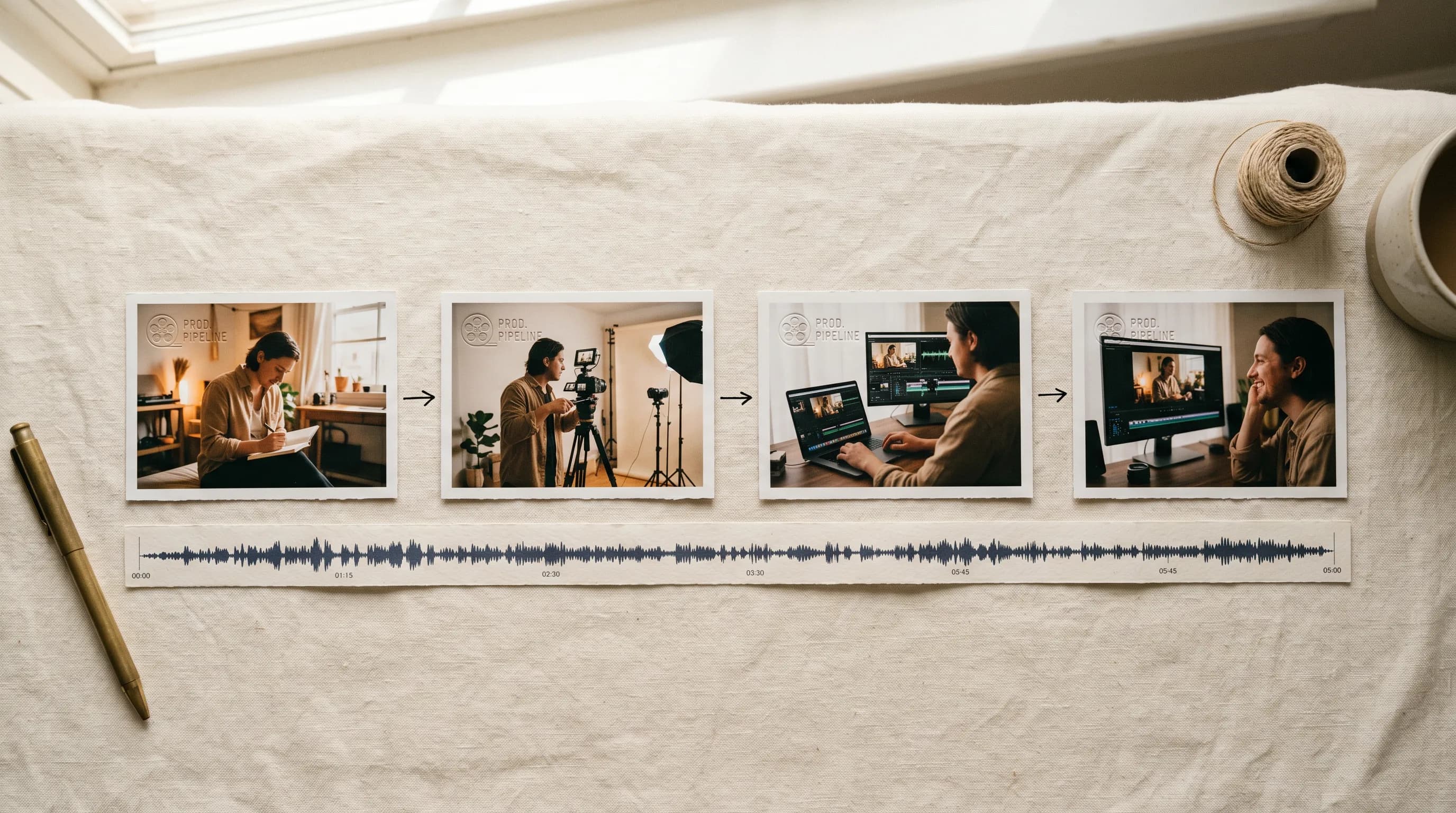
Most teams treat video generation like it ends at the clip. Generate it, download it, open another tool, add the logo, drop in the music, adjust the fade, export. Then start over for the next variant. It's the same couple minutes of work every single time, and none of it needs to happen outside of Scenario.
Video Studio is a full compositing editor built directly into Scenario, and it means generation and finishing happen in the same run.
When the pipeline actually finishes the job
The thing that makes Video Studio click is that it's a node in your Workflow. You connect your Video Generator, Audio Generator, Image inputs, whatever you're working with, directly into the Video Studio node. The compositing happens as part of the pipeline. And if anything is off, you just double-click the node (or hit the gear icon) to open the editor, adjust what you need, and close it. It works automatically, but it's never out of reach.
The other thing worth knowing: once you've set up your composition, you can swap out any input - a different generated video, a new image, a different audio track - and your layout and settings carry over automatically. You don't have to rebuild anything. The composition is already there waiting for the new content.
In practice the use cases are pretty satisfying to think about.
Watermarking every generated video automatically is the easy one. Connect your logo as an Image input, set the opacity to around 50%, pin it to a corner with the alignment grid, and you're done.
The audio pairing is more exciting. Run a Video Generator and an Audio Generator (or inputs) in parallel. Scenario supports Google Lyria, Beatoven and many more audio models directly in Workflows. Feed both into the Video Studio node, set your audio fade in and fade out, and voilà.
You can also use Video Studio to concatenate multiple clips into a single video, with transitions between each one. Stack your generated scenes as layers in the timeline, set your Transition in and Transition out on each, adjust the duration, and the output is one continuous video with everything stitched together. Useful for anything that needs a sequence: a product ad that moves through multiple shots, a character reel, a scene-by-scene story. No external editing tool needed.
What's inside the editor
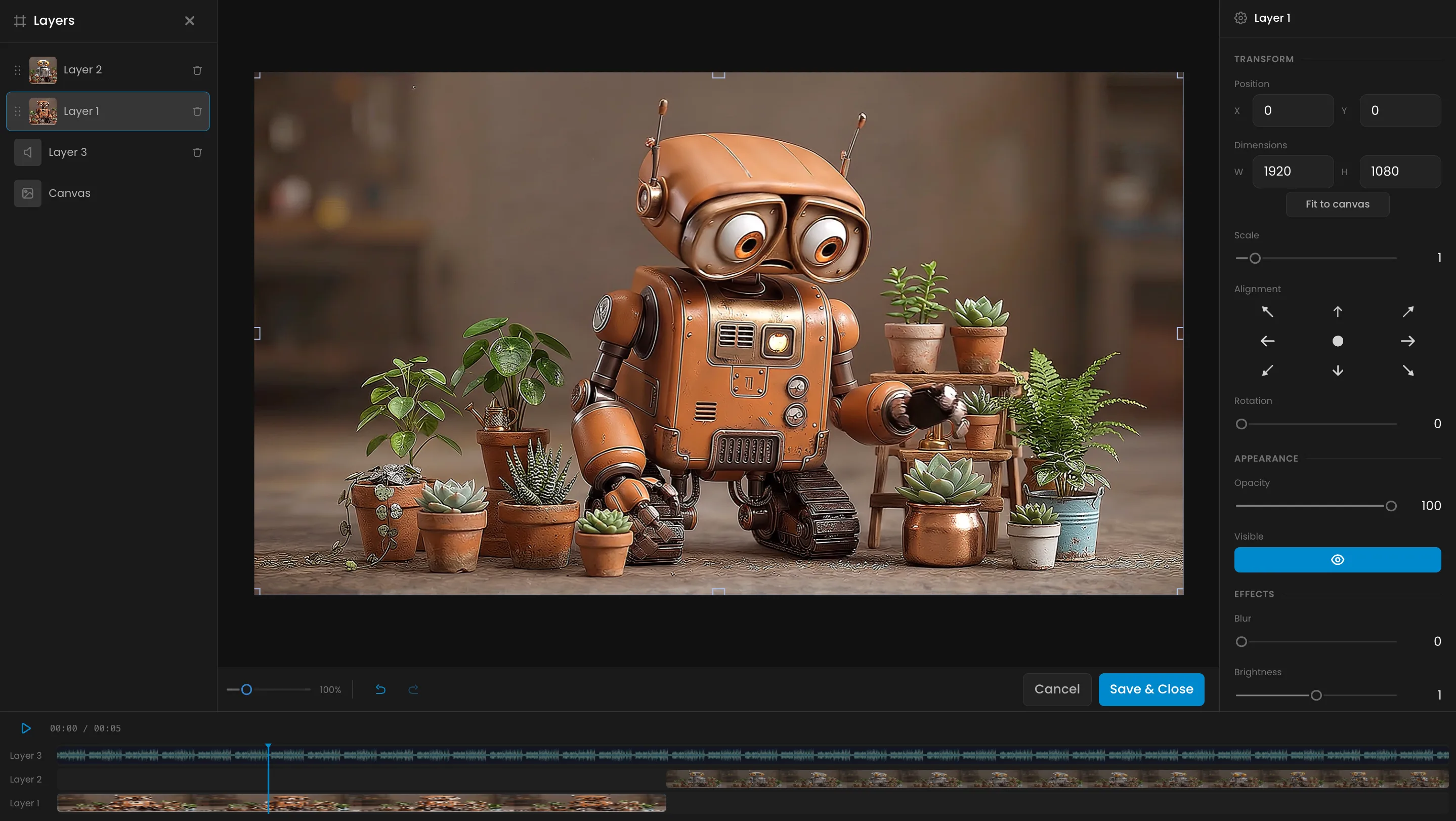
You get a four-panel compositor: layers on the left, a live canvas in the center, controls on the right, and a timeline across the bottom.
The canvas is fully interactive. Drag layers around, resize with handles, use the nine-point alignment grid for anything that needs to land precisely. The properties panel handles the numbers: position, dimensions, scale, rotation, opacity.
Where it gets more interesting is the controls below that. Each layer has a Transitions section with Fade in and Fade out timing, Transition in and Transition out options, a Transition duration field that defaults to 0.5 seconds, and an Easing setting. There's also an Audio section with a Mute toggle, Volume slider, and Audio fade in and fade out fields.
The timeline at the bottom shows everything as tracks, with frame thumbnails for video and waveforms for audio. Drag the playhead to scrub through, zoom in for precision trimming.
When you select Canvas in the layer list, the properties panel shifts to output settings: dimensions, frame rate (defaults to 30fps), format (MP4), and compression. This is where you configure what the final composed file actually looks like.
The part that makes it worth using at scale
Video Studio is a compositor, a timeline editor, an audio mixer, and a finishing pipeline all in one node. You set up your composition once, and every generated video that flows through it comes out the other side polished and ready to go. No extra tools, no extra steps.
It's available now in Scenario Workflows.
FAQ
Do I need video editing experience to use Video Studio? Not really. The editor is built for direct manipulation. Drag layers, resize with handles, scrub the timeline. The properties panel handles anything that needs a precise value. If you've used any layer-based tool before, it'll feel familiar quickly.
Can Video Studio add music to generated videos automatically? Yes. Connect an Audio Generator node (ElevenLabs or Beatoven are both available in Scenario Workflows) to your Video Studio node, set your audio fade in and fade out, and every video the Workflow produces gets a composed audio track automatically.
Are effects like blur available on video layers? Not yet. Blur, Brightness, Contrast, Saturation, and Grayscale currently apply to image layers inside Video Studio. Border Radius works on both. Video layer effects support is on the way.
Can I generate multiple variants in one run? Yes. Branch your Workflow into multiple Video Studio nodes with different configurations, different audio tracks, different watermarks, with and without effects, and all variants are generated and composed in a single run.
What's the difference between Video Studio and Image Studio? Video Studio handles video, image, and audio layers with a full timeline, transitions, audio controls, and output format settings. Image Studio handles image layers only with no timeline, but with a fully stable effects suite. Still images go to Image Studio. Anything involving video or audio goes to Video Studio.
Related models
Gemini 3.8 Flash TTS
Studio-grade Gemini text-to-speech for acting and dialogue: 30 voices, 24 languages, inline vocal tags for laughs, sighs, gasps and pauses, plus two-speaker scenes.
Gemini 3.8 Flash-Lite TTS
Fast, lightweight Gemini text-to-speech for high-volume voiceover, voice agents and read-aloud: 30 voices, 24 languages, inline vocal tags and two-speaker dialogue.
Gemini Omni 1.1 Flash
Gemini Omni 1.1 Flash generates video with native audio from a text prompt, an optional first and last frame, and up to 7 reference images, all combinable in the same generation, at 360p through 4K.