Scenario Node Based Workflows: One Canvas, End-to-End Creation
Tired of bouncing between creative tools, re-uploading files, and losing track of your settings? Scenario node-based workflows keep your entire production pipeline - prompts, models, edits, and outputs - in one visual canvas, so you build once, reuse always, and stay consistent.
If you have ever spent an hour exporting files from one tool, uploading them into another, and redoing the same settings just to get a usable output, you already understand the problem
Scenario Workflows is built to keep creative production moving. It is a visual, node-based editor where prompts, models, tools, and outputs live inside one connected pipeline. That means fewer handoffs, more consistency, and a process you can run again tomorrow with the same intent.
What are Scenario Workflows?
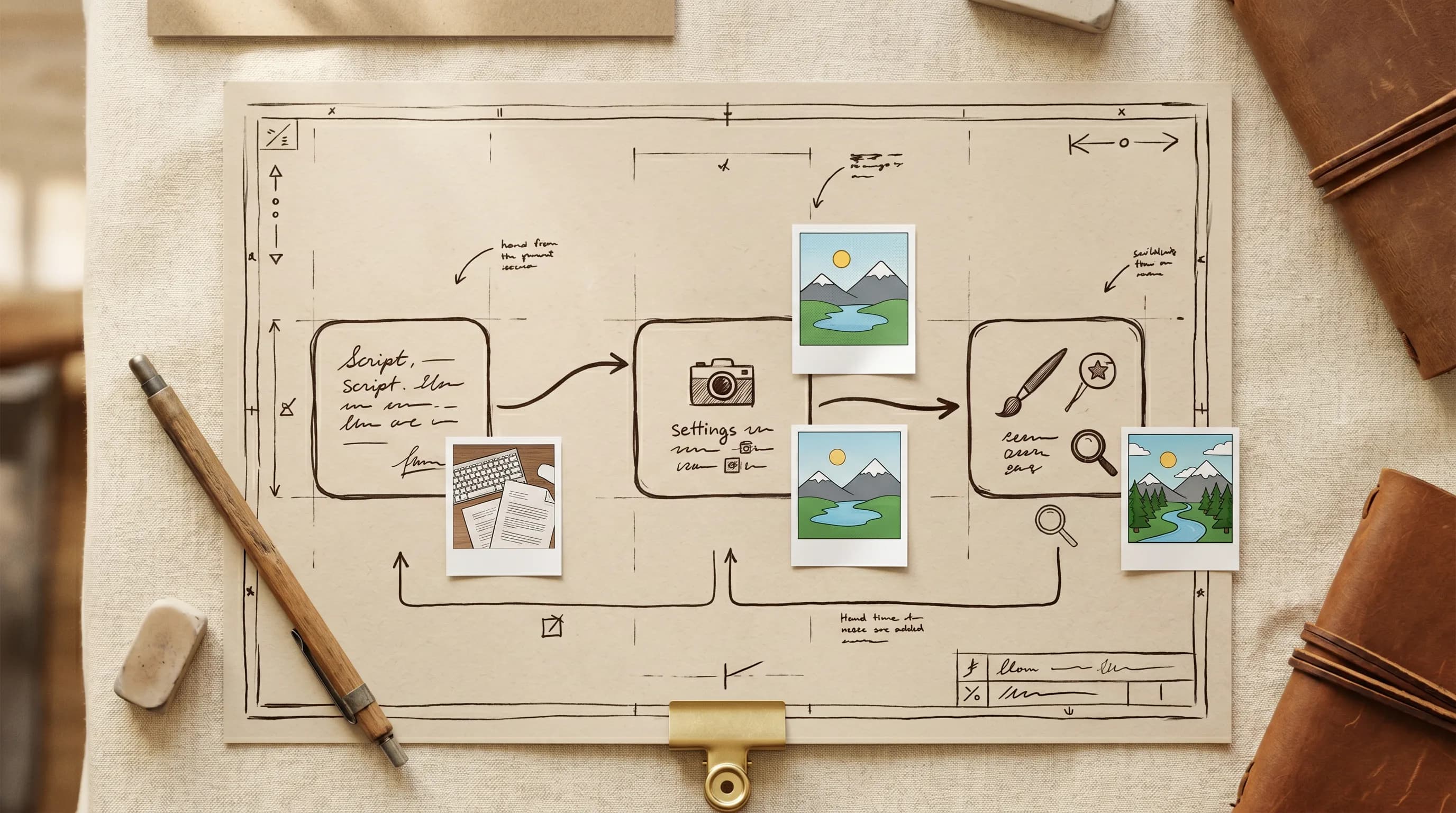
Scenario Workflows is a canvas where each node represents a step in your process, like an input, a generation, an edit, or an output.
Instead of doing creative work as a chain of disconnected tasks, you build a pipeline once and reuse it. Your settings stay attached to the work. Your team knows what happened, in what order, and why.
Why use workflows?
‘Workflows’ is not just a new interface. It is a way to standardize how assets get produced, so speed does not come at the cost of quality.
When a pipeline is visual and repeatable, teams spend less time redoing the same “middle steps.” They also spend less time guessing which model was used, which settings got the best result, or how a final output was actually produced. That is what makes a creative workflow scalable.
How a workflow works in practice
The interface is designed to feel intuitive the first time you open it, but it is deep enough to support production-grade systems.
A node has inputs on the left, outputs on the right, and detailed settings in the side panel. You connect nodes to define the flow of data through your pipeline.
When you are iterating, you can run a single node to test one step. When you are ready, you can run the full workflow end to end.
The core building blocks
Workflows is organized around the way real creative pipelines are built: you start with inputs, you generate, and you refine.
Inputs can be text, images, video, 3D models, or audio, depending on what you are making.
Generators turn those inputs into new assets. Scenario supports image, video, 3D, and audio generation inside workflows.
Utilities are where workflows become production-ready. This is where you refine outputs with tools like upscaling, background removal, and post-processing, and where you add structure with components like Prompt Builder, Group Assets, and if-else logic for branching.
The fastest way to get value: start with Platform Workflows
If you want results quickly, Platform Workflows are the best entry point. They are pre-built pipelines designed by Scenario that you can run immediately, then duplicate and customize when you want to go deeper.
In practice, adoption is simple. Pick a workflow that matches your goal, drop in your inputs, run it, then duplicate it so you can adjust only what matters to your team.
Platform Workflows are organized by complexity and category, so it is easy to find quick wins or advanced pipelines depending on your needs.
When to build Custom Workflows
Once your team knows what it wants to create, that is the moment to build a Custom Workflow.
Custom Workflows are ideal when you want a pipeline that matches your studio or brand, when you want to combine multiple models and tools into a single system, or when you want teammates to be able to produce consistent results without reinventing steps every time.
If you are new to building, a great first workflow is a simple Text node feeding an Image Generator node. From there, you expand with the steps you already do manually today, such as upscaling, background removal, or converting an image into video.
Learn more about how to build custom workflows in our Knowledge Base.
How Workflows becomes one-click production: Workflows to Apps
Once a workflow is stable, you can package it into an App so others can run it without touching nodes.
Workflows to Apps lets you mark which nodes should become user-facing inputs, then publishes a simplified interface built on top of your workflow.
This is the shift from “a powerful pipeline only one person understands” to “a production tool the whole team can use.”
You can read more about the Apps in our dedicated blog article here.
Conclusion
Scenario Workflows helps creative teams move from one-off generations to repeatable systems.
Start with Platform Workflows to build momentum. Build Custom Workflows when you want a pipeline you can own. Turn the best workflows into Apps when you want one-click scale across a team.
Build your own workflows on Scenario.
Frequently Asked Questions (FAQ)
What is Scenario Workflows?
Scenario Workflows is a visual, node-based editor that lets you connect steps like inputs, generation, editing tools, and outputs into a single pipeline.
Do I need to be technical to use Workflows?
No. Workflows is designed to be approachable. Many teams start by running Platform Workflows, then duplicate them and make small changes over time.
What is the difference between Platform Workflows and Custom Workflows?
Platform Workflows are pre-built and ready to run. Custom Workflows are the workflows you build and tailor to your specific pipeline, models, and quality bar.
How do I scale a workflow so the team can use it without editing nodes?
Turn it into an App. Workflows to Apps lets you mark the right inputs and publish a simple interface that runs the underlying workflow.