AI Sprite Generator for 2D Games: The Fastest Way to Build Game-Ready Assets
Building a 2D game sprite library used to mean weeks of frame-by-frame animation work. On Scenario it takes minutes. Here are the three methods, from fastest to most precise.

Sprite production is where a lot of 2D game projects quietly stall.
Not because the designs are bad. Because turning one character design into a full animation library is a volume problem. Walk, run, idle, attack, hurt, death: six animation states, each needing 8 to 16 frames, all of which have to be visually consistent. Proportions, palette, line weight: if any of those drift between states, the character looks like a different person mid-game and no amount of polish fixes it.
AI sprite generators have changed that math. Here is what the workflow looks like, why consistency is the part most tutorials skip, and how to do it properly on Scenario.
Why the Sprite Pipeline Is Still a Bottleneck
Traditional workflow: concept sketch, clean lineart, flat color, shading, frame-by-frame animation. Each step compounds the one before it. A character that took two hours to design can take two weeks to fully animate. Multiply by ten enemy types and you have months of art production before you can test core mechanics.
AI does not eliminate that work. It removes the volume problem so you can spend your real budget on polish instead of repetition. A solo dev or small team can now produce an asset library that would have required a full animation department three years ago.
Three Ways to Generate Sprite Sheets on Scenario
There are fast methods and a precise method. All are useful. Which one you use depends on how much control you need and how quickly you need to ship.
Method 1: The Fast Way - Direct Sprite Sheet Generation
If you want a sprite sheet in minutes without touching a video timeline, this is the approach. You give the model a reference image of your character and a prompt describing the animation, and it generates the full sprite sheet as a single 16:9 image with all frames laid out in a grid.
This works because models like GPT Image 2 and Gemini 3.1 understand sprite sheet layouts natively when prompted correctly. The output is a single wide image you can slice directly in your engine.
How to do it:
Go to GPT Image 2 or Gemini 3.1 in Scenario. Set your output to 16:9. This gives you a wide canvas that fits a full row of sprite frames cleanly.
Upload your character reference image. If you have a side-view or action pose already, that works best as the anchor.
Then write a prompt along these lines:
Create a sprite sheet of the character running, 8 frames in 2 rows on grey background, side view, consistent proportions.
The model's image reference system lets it read your character's visual properties from the uploaded image and apply them across all frames.

If writing prompts is not your thing, Scenario has you covered. The Scenario Apps include one-click image transformations that handle the heavy lifting for you. Instead of crafting a sprite sheet prompt from scratch, you select the relevant app, upload your character image and hit generate.
The app applies the transformation and returns a sprite sheet layout ready to slice. It is the fastest path from a character design to a working sprite sheet on the platform, and a solid starting point before moving into the more detailed pipeline if you need tighter control over individual frames.

Method 2: The Detailed Way - Video Generation and Frame Extraction
This is the production method. More steps, more control, significantly better frame-by-frame consistency.
Step 1: Generate your base character image
Start with a clean side-view image of your character in a clear action pose. Use any of the image models available in Scenario's library: GPT Image 2, Flux 2 (Pro), Gemini 3.1, or a custom-trained character model if you need tight visual consistency locked in from the start. If you already have a design, upload it directly.
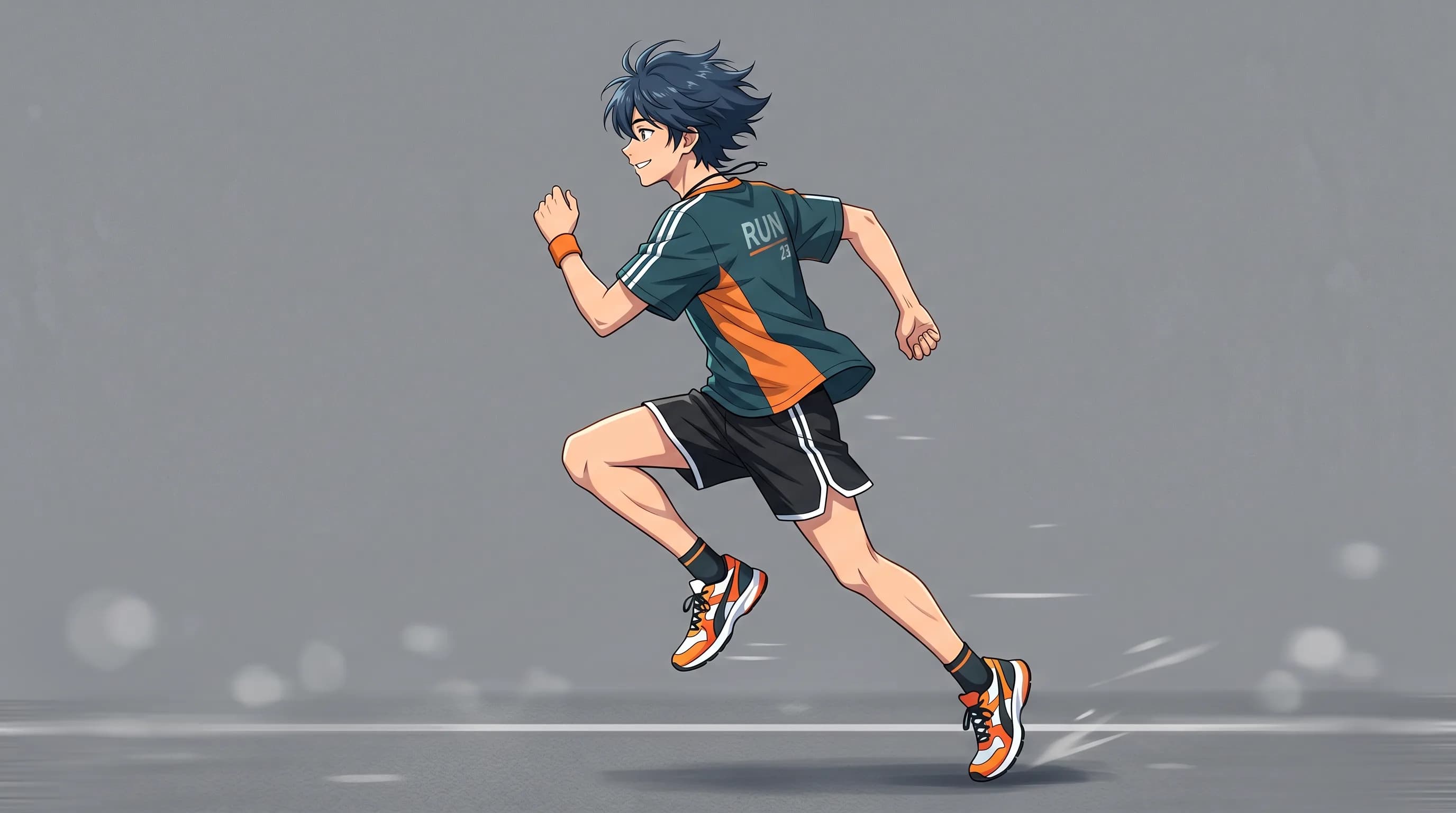
Step 2: Convert to video
Open the three-dot menu on your image and select "Convert to Video." Your image loads as the first frame in Scenario's video generation interface.
Select a video model from the dropdown. Seedance 2.0 produces physics-aware motion with strong character consistency and is the most capable option for animation sequences. Veo 3.1 is another strong option for fluid, natural motion. Both use your reference image as the first frame to guide the animation.
Write a short motion prompt: "character running," "character attacking," "character idle with subtle breathing motion." Hit Prompt Spark to have Scenario optimize it for the model.
Step 3: Extract key poses
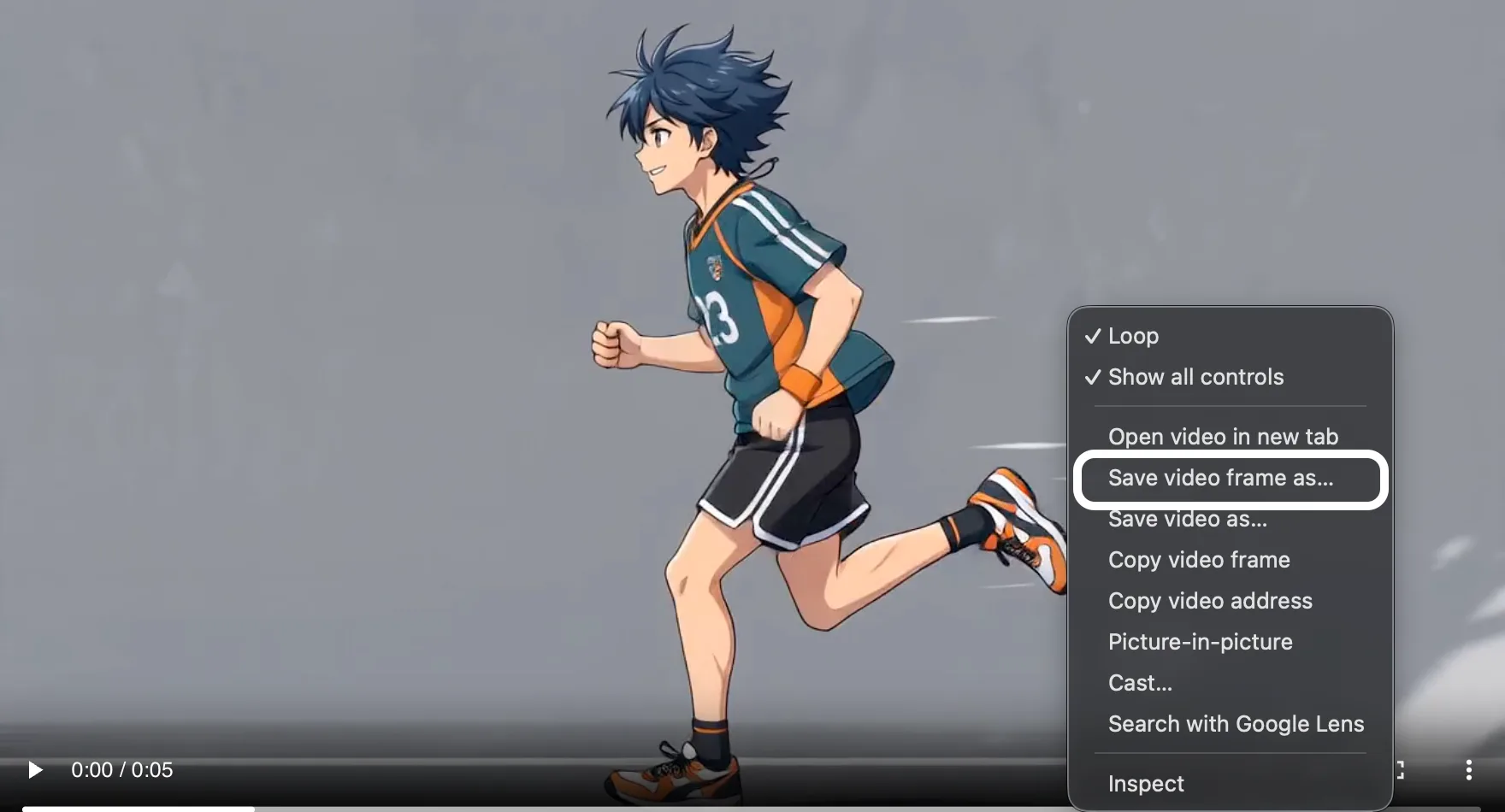
Scrub through the rendered video and identify the frames representing the essential stages of the motion. A clean run cycle needs contact, lift-off, mid-stride, and the in-between transitions. Eight frames covers a full loop. Screenshot each key pose or pull frames directly from the Scenario viewer or with a video editor. Keep resolution and format consistent across every frame.
Step 4: Assemble the sprite sheet
Arrange extracted frames into a single sprite sheet. Frames need to be evenly spaced and grid-aligned so your engine slices them correctly. Test the completed sheet in your engine to confirm the loop plays cleanly.

The Consistency Problem Most Guides Skip
Generating frames is not the hard part. Keeping them consistent across 80 or more poses is.
Generate each animation state independently and your character's proportions will shift, colors will drift, and the face will look different between the idle and attack animations. Train a custom character model on 5 to 15 reference images. Once trained, every generation inherits the visual DNA of your training set.
Training takes 30 to 60 minutes and the consistency payoff across a full animation library is significant.
Getting Started
You do not need to commit to a full pipeline on day one. Start with Method 1 and a single character doing a single animation. See what the model returns with your reference image. Nine times out of ten that first result tells you exactly how much control you actually need, and either the fast method is enough or you move to Method 2 with a clear picture of what you are building toward. Either way you are an hour in with something to show.
Start building your sprite sheet on Scenario
FAQ
What is an AI sprite generator? An AI sprite generator creates 2D game sprites from text prompts or reference images. On Scenario the workflow combines image generation and video generation to produce animation-ready frame sequences you can assemble into sprite sheets.
How do I keep sprites consistent across multiple animation states? Train a custom character model on 5 to 15 reference images before starting production. Every generation from that model inherits consistent proportions, palette, and style.
What game engines support Scenario sprite sheets? Unity, Unreal Engine, Godot, and any engine that supports standard sprite sheet slicing.
How many frames do I need for a basic animation loop? A clean 8-frame cycle covers most basic loops. Complex sequences like attacks typically use 12 to 16 frames.
Related models
Gemini 3.8 Flash TTS
Studio-grade Gemini text-to-speech for acting and dialogue: 30 voices, 24 languages, inline vocal tags for laughs, sighs, gasps and pauses, plus two-speaker scenes.
Gemini 3.8 Flash-Lite TTS
Fast, lightweight Gemini text-to-speech for high-volume voiceover, voice agents and read-aloud: 30 voices, 24 languages, inline vocal tags and two-speaker dialogue.
Gemini Omni 1.1 Flash
Gemini Omni 1.1 Flash generates video with native audio from a text prompt, an optional first and last frame, and up to 7 reference images, all combinable in the same generation, at 360p through 4K.