Edit with Prompts: A Faster, Smarter Way to Transform Images in Scenario
Edit with Prompts lets you modify or generate images with natural language across models like Seedream 4, Nano Banana, GPT‑Image, Flux Kontext, or Runway Gen‑4 so you can iterate faster, keep style consistent, and streamline creative workflows.
Edit with Prompts: A Faster, Smarter Way to Transform Images in Scenario
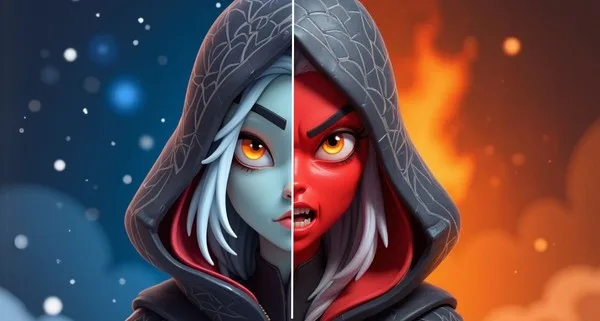
Edit with Prompts turns simple text instructions into precise image edits or brand new visuals, no complex pipelines required. With support for models like Seedream 4, Gemini 2.5 (Nano Banana), GPT Image, Flux Kontext, and Runway Gen 4, you can move from idea to iteration in minutes while keeping style or character highly consistent across generations.
Why this tool matters
If you want to restyle or change a character’s pose, build entirely new scenes, generate multiple product variations, or refine details without jumping between layers and apps, this is for you. Just write what you want, let the AI carry the heavy lift, and keep control over the outputs.
Quick Setup and Discovery
- Prepare clean inputs. Use a clear subject with visible details. Keep lighting even and avoid heavy filters.
- Open Edit with Prompts. Access from an image, from gallery, or select 'Create', then 'Edit with Prompts'. Or you can use this direct link: https://app.scenario.com/edit-with-prompts
- Interface at a glance. The left panel is your command center where you can select your preferred model, add reference images, write detailed instructions, and adjust parameters. The right panel functions as your workspace where you can review generated results, compare different options, and easily drag results back into the editor to build upon them for further refinements.
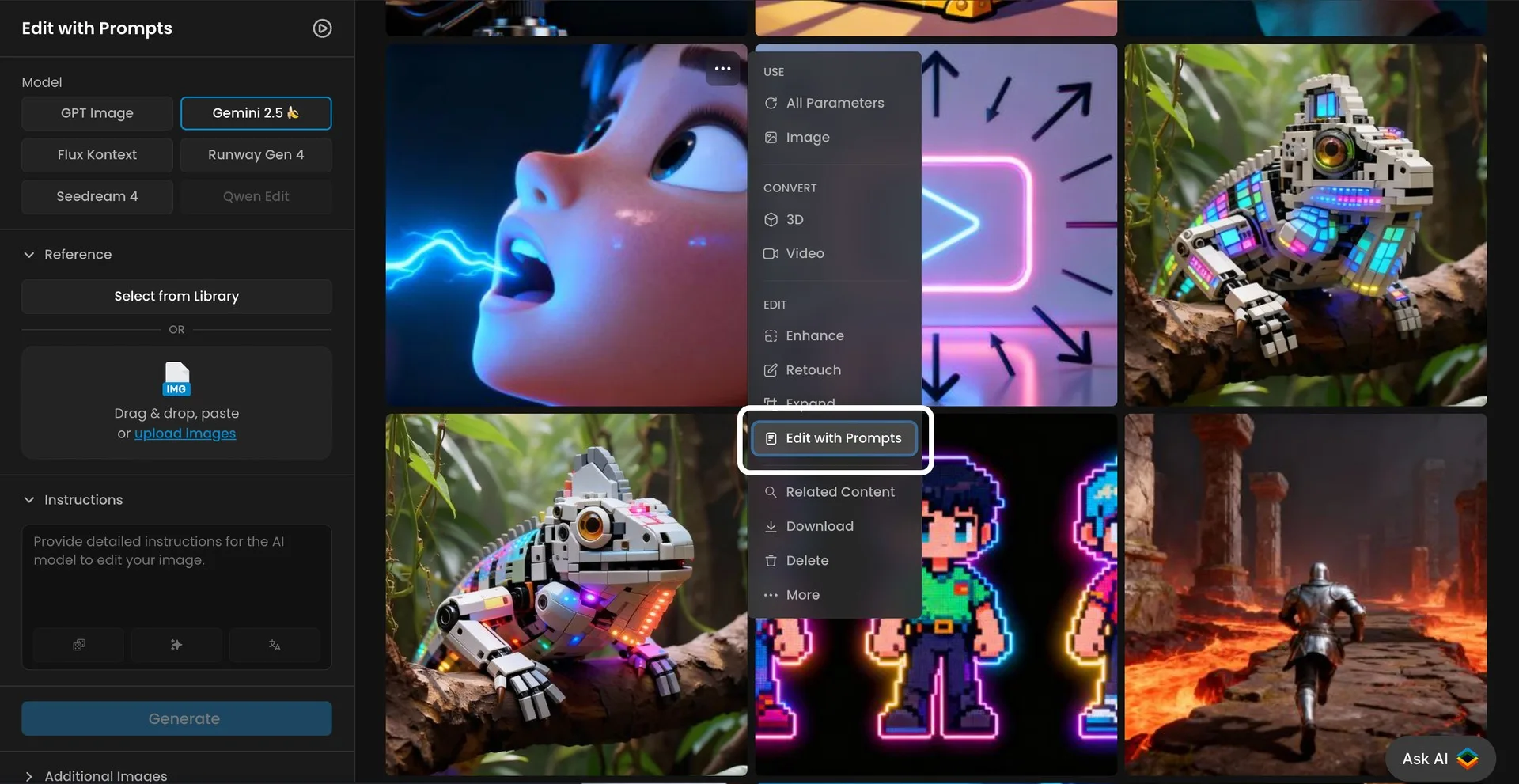
Scenario interface highlighting where to access Edit with Prompts.
Simple steps workflow
The workflow is simple: pick a model, add references, write a clear prompt, generate, review, and iterate to refine your results by adjusting the model, rewriting the prompt, or updating input images..
Try these examples today on Scenario
- Change the outfit of a character (stylized or realistic) with GPT-Image. Upload two images and add an instruction like "change the outfit to the medieval outfit shown in the reference"
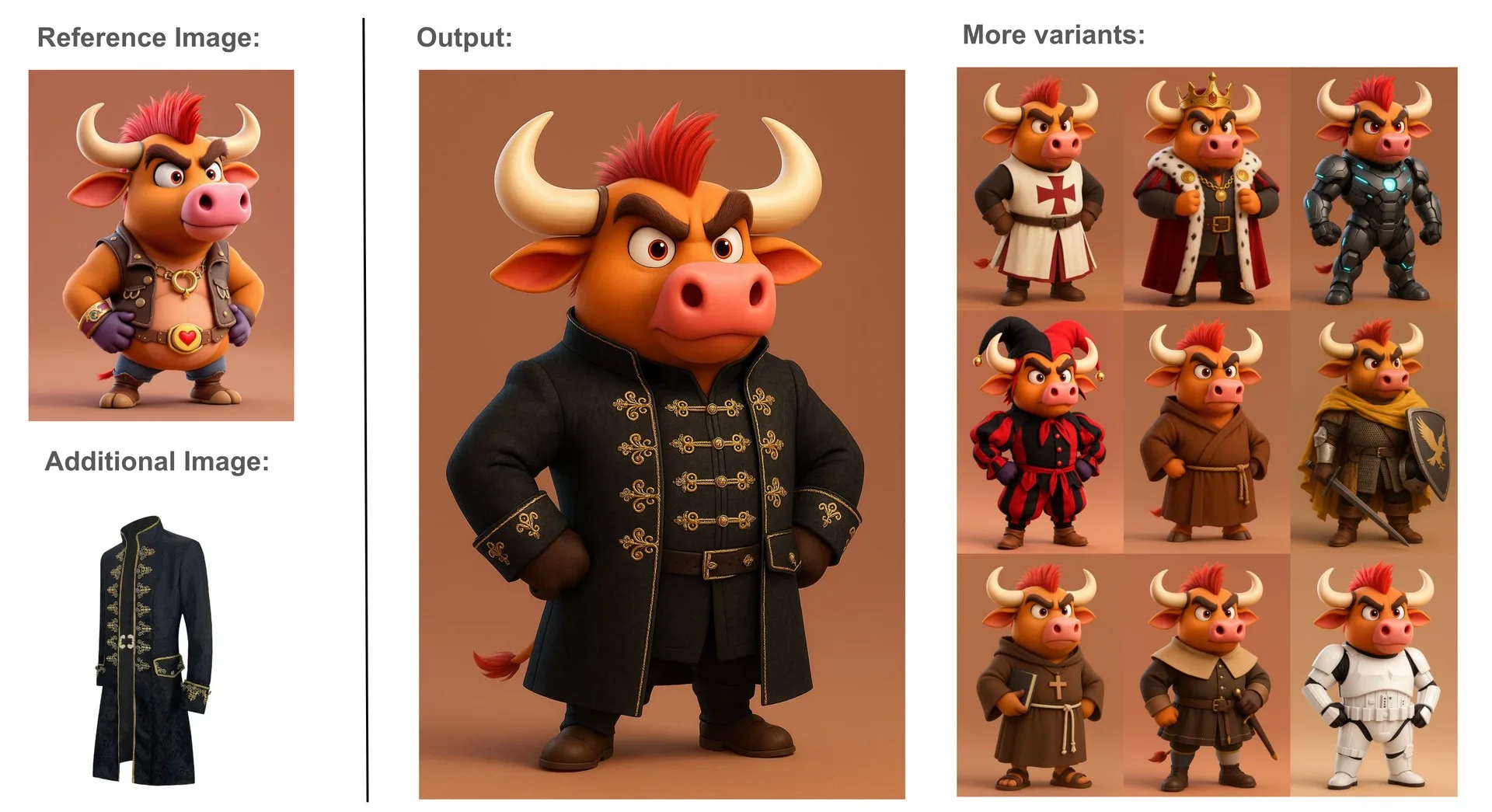
Cartoon bull character in different themed costumes.
- Adjust character posture with Gemini 2.5. Instruction: “Transform the seated character to a standing position while maintaining identity and style“.
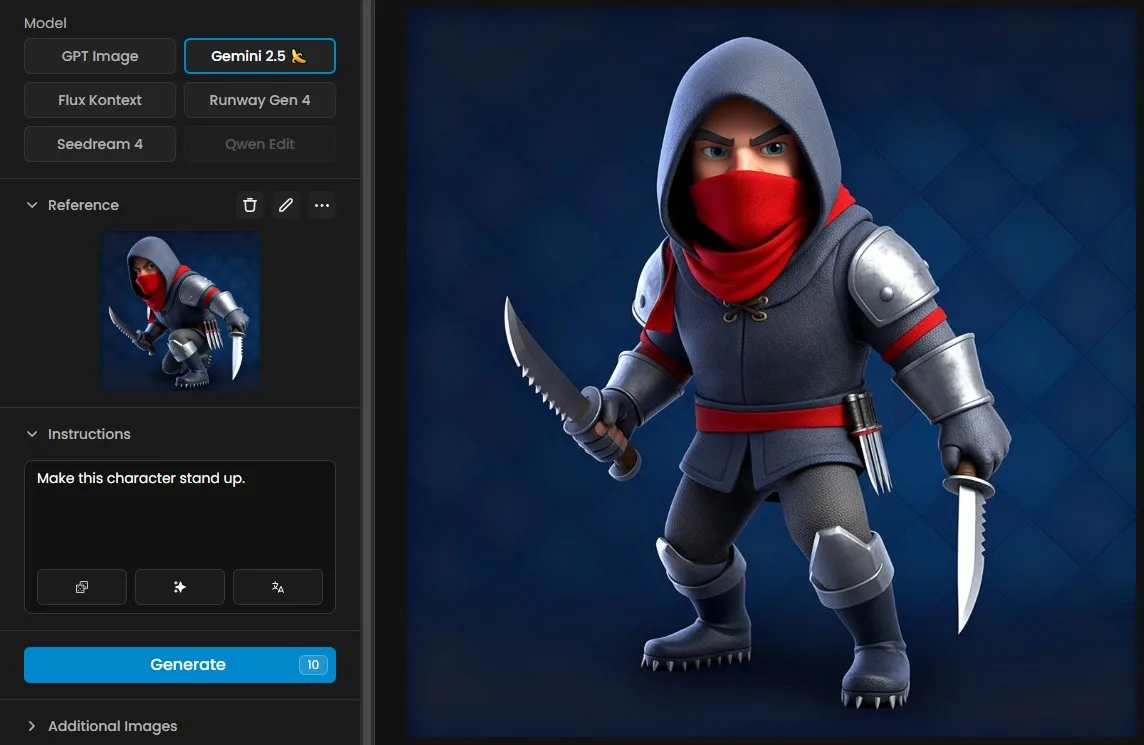
3D ninja character standing ready with knives.
- Add a background with Seedream Edit. Instruction: “Place the doctor in the hospital corridor similar to the provided background, match lighting and clarity”

Nurse using a tablet in a hospital hallway.
- Combine elements with GPT-Image. Instruction: “create an image of this character wearing the exact armor shown and holding the same weapon from the references.”
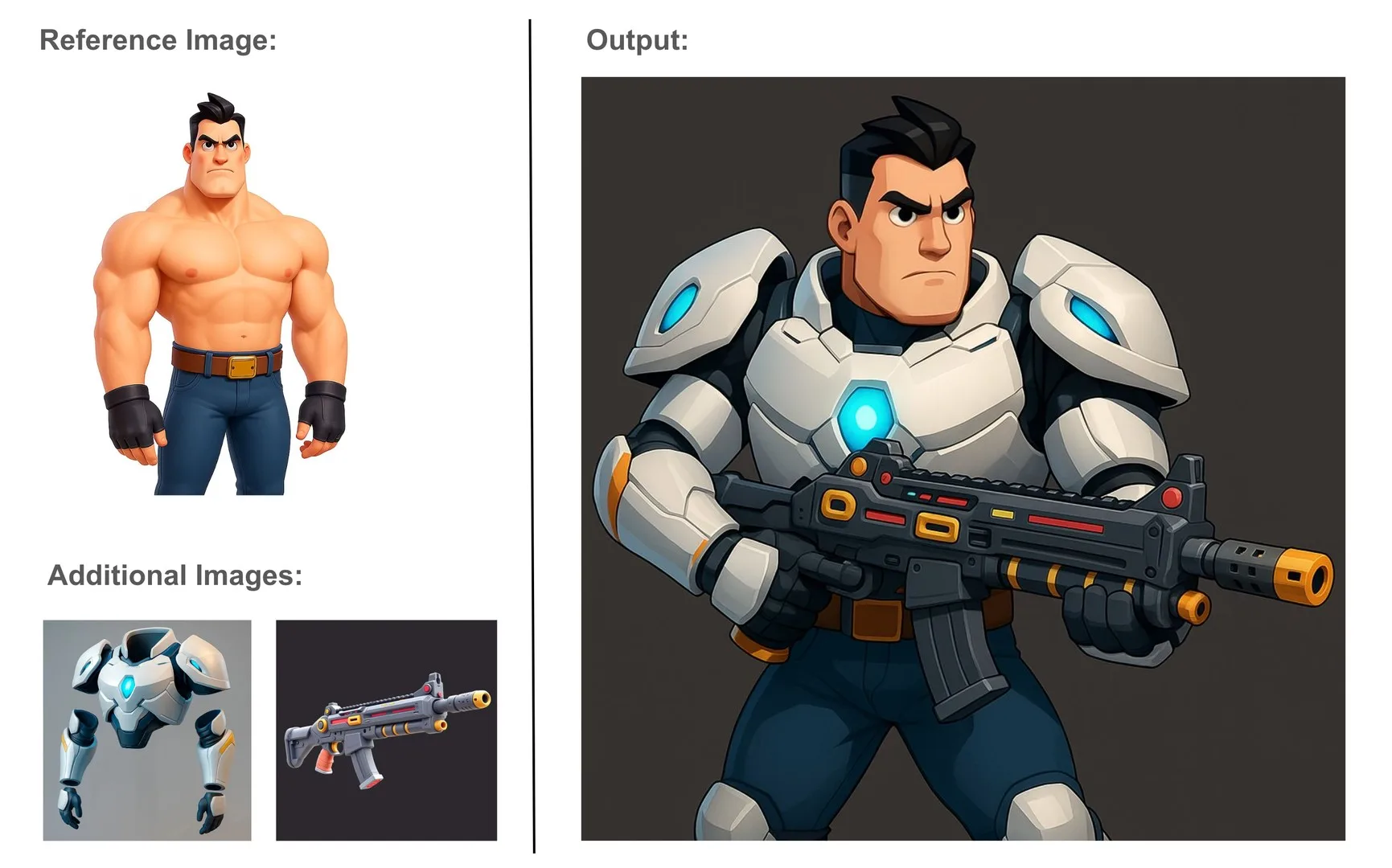
Cartoon hero in high-tech armor with weapon
- Explore facial expressions with GPT-Image. Instruction: “generate a six expression sheet from the headshot and the provided sketch sheet, keep likeness and style, add one hand written word under each expression”.
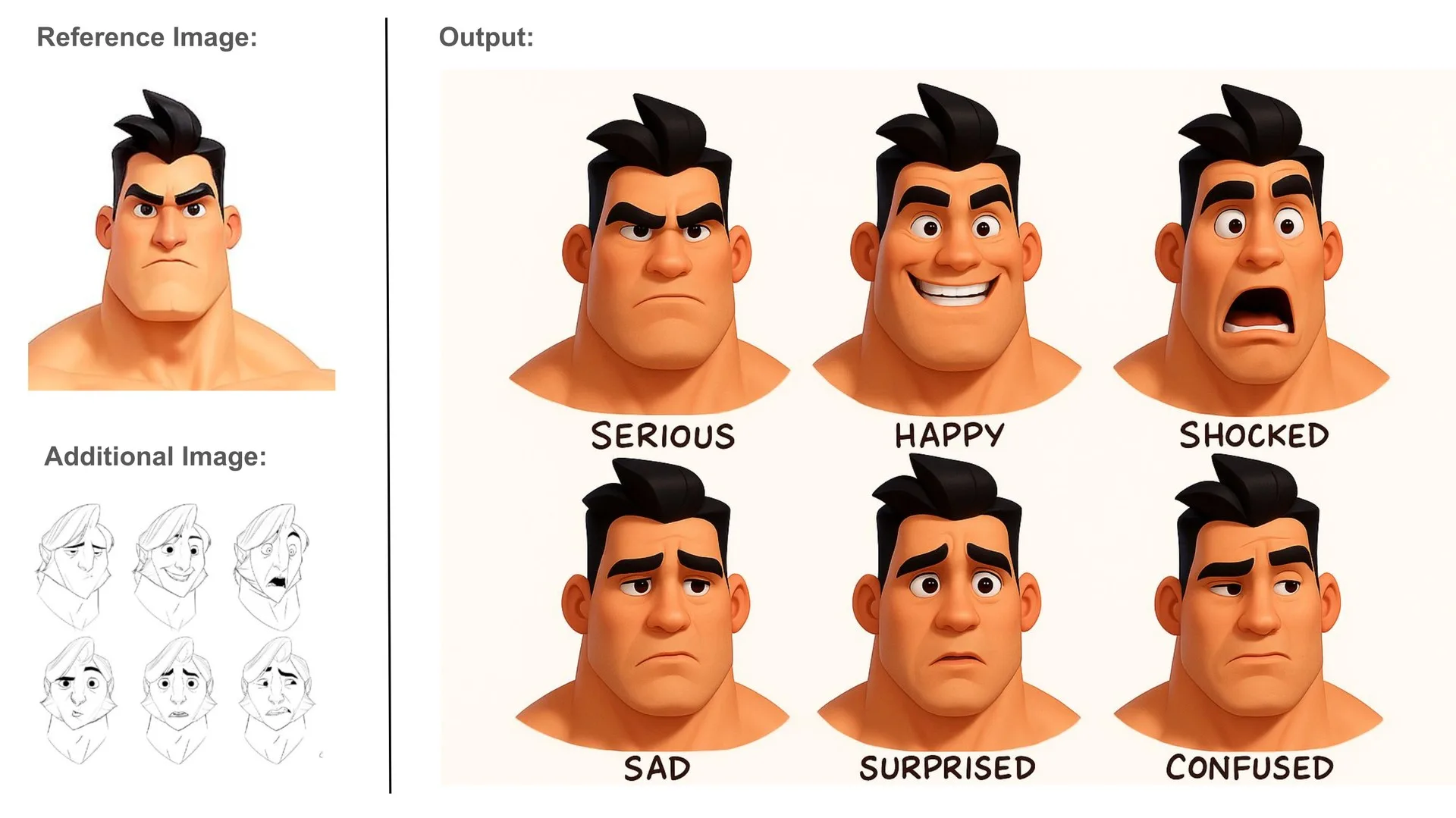
Cartoon character showing six different facial expressions.
- Explore hairstyles with Gemini 2.5 (Stylized or Realistic). Instruction: Generate six hairstyle variations for the boy. The boy's face and expression should remain unchanged. Only his hairstyle varies. Give me a green mohawk, an afro hairstyle, tied, white - Brad Pitt-like, military, and original. I want 2 rows, 3 columns.
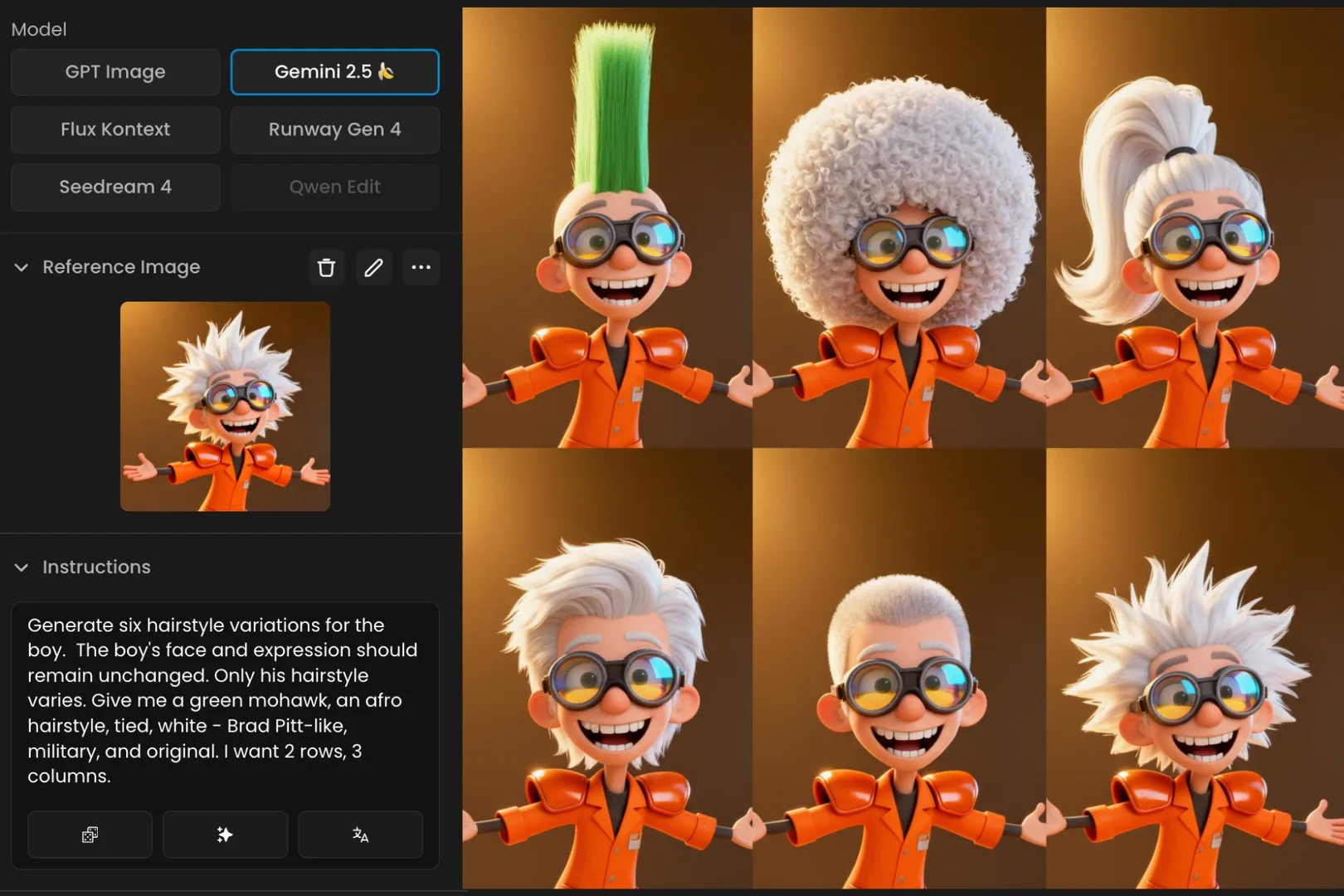
Six fun hairstyle variations for animated boy character.
- Render a sketch with Seedance or Gemini 2.5. Instruction: Reposition the woman to match the dynamic martial art pose in the line art sketch, align limbs and body exactly.
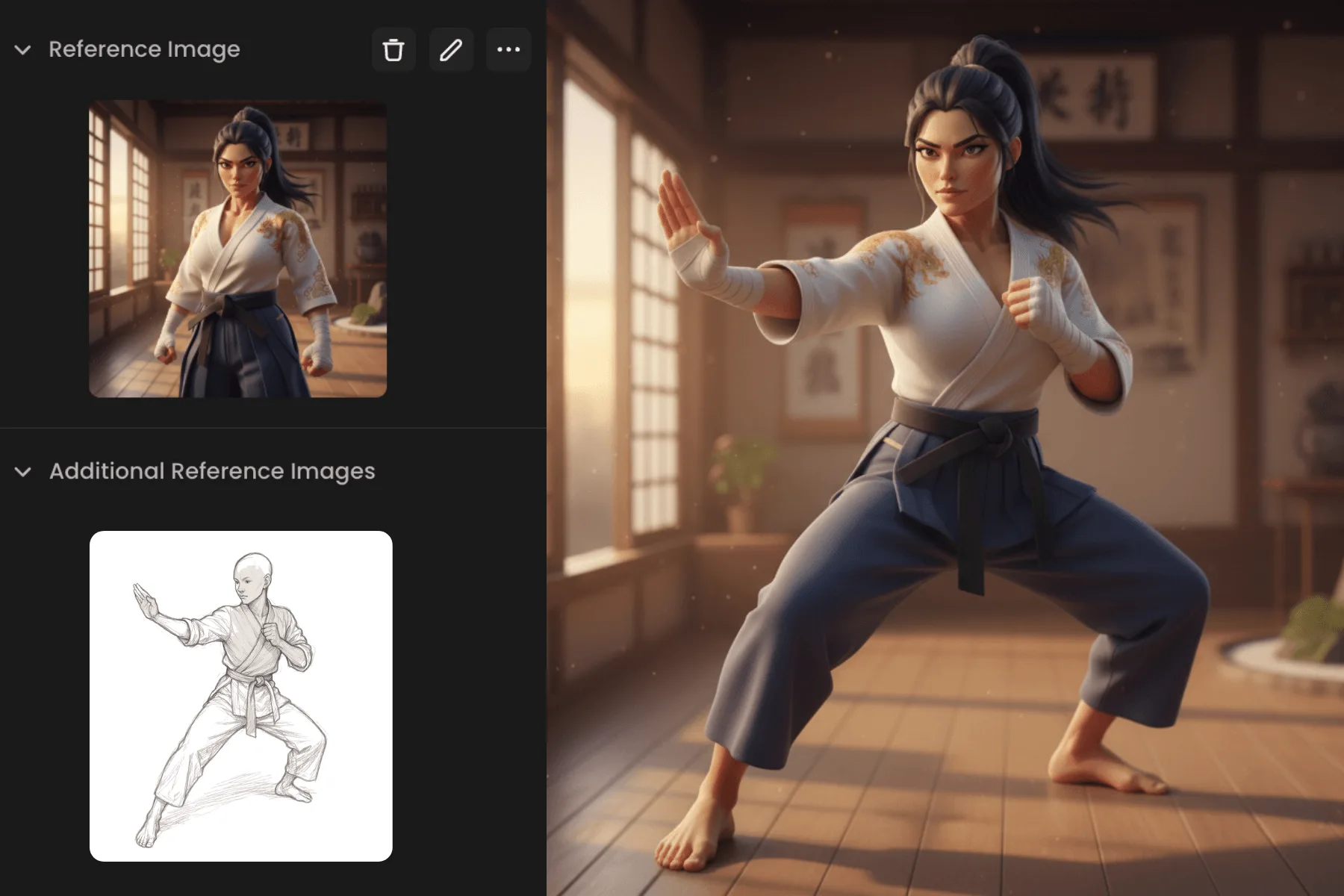
Applying a martial art pose to a woman.
- Add a product to and image with Gemini 2.5. Instruction: “Add yellow construction hard hat on the woman, matching size and angle”.
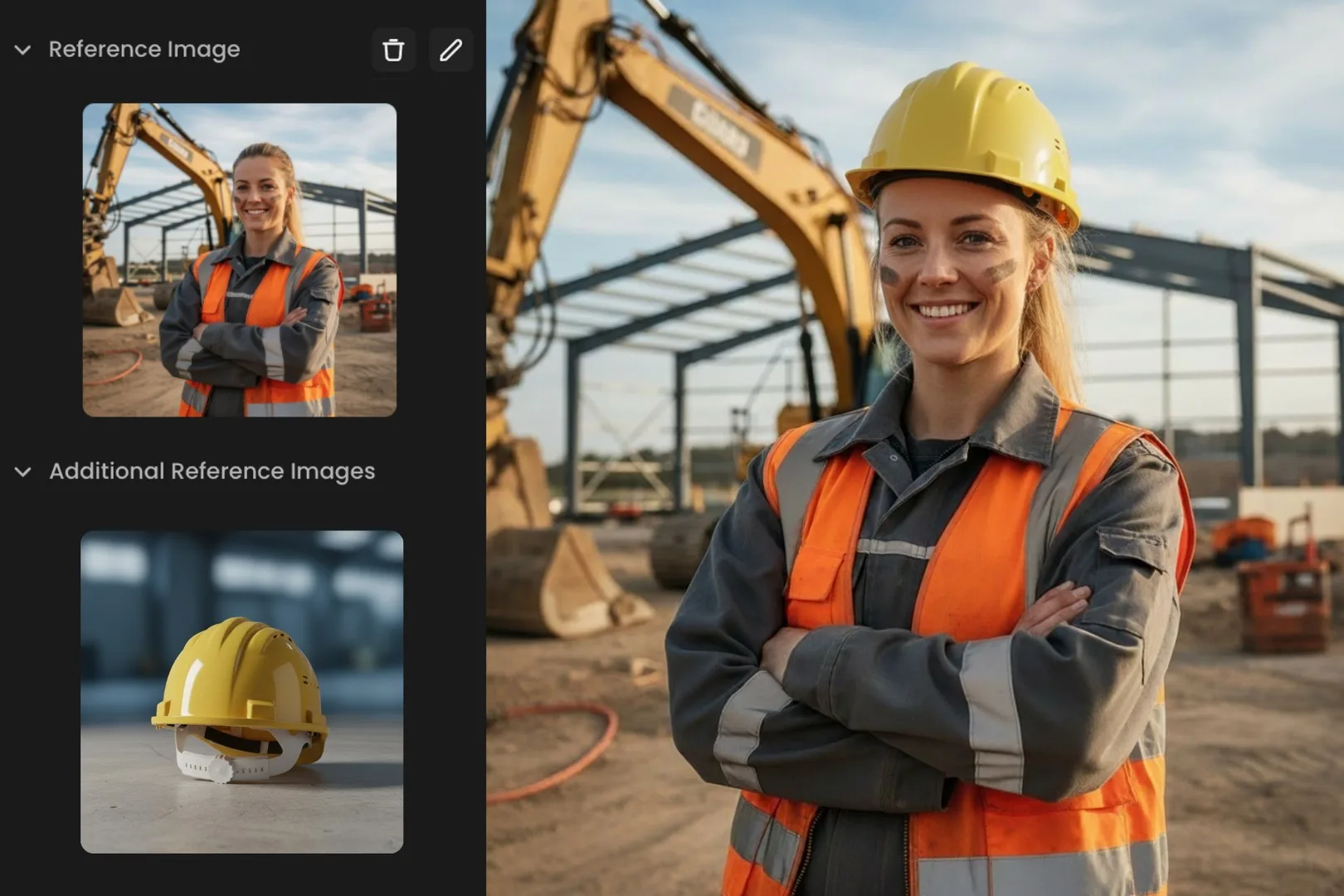
Female construction worker smiling at job site.
And there's more to explore! Feel free to experiment with your own creative ideas. For additional resources, check out our comprehensive guides in the Knowledge Base, or explore use cases for Nano Banana and Seedream Sequence Mode. The possibilities are virtually limitless!
Conclusion
Edit with Prompts brings powerful, model agnostic editing into a single, intuitive flow. Whether you are refining a hero image, assembling a scene, or generating consistent variations, Seedream 4, Nano Banana, GPT Image, Flux Kontext, Runway Gen 4, and soon Qwen Edit, give you speed and control without sacrificing quality.
Start your next iteration now. Try Edit with Prompts.
Frequently Asked Questions (FAQ)
1) What is “Edit with Prompts”?
It is a natural‑language tool that edits or generates images using models like Seedream 4, Gemini 2.5 (Nano Banana), GPT‑Image, Flux Kontext, and Runway Gen‑4, available across the web app and the API.
2) How do I access it?
Open it from an image’s three‑dot menu, from a gallery thumbnail’s three‑dot menu, via Create → Edit with Prompts, or directly at https://app.scenario.com/edit-with-prompts.
3) What can it do?
It can add, remove, or blend elements, change backgrounds and lighting, restyle while keeping identity consistent, support multi‑reference and batch or sequence generation, perform precise masked edits, and enhance resolution and quality.
4) How do I get the best results?
Follow a tight loop: pick a model, add references, write a clear prompt, generate, review, and iterate. Iterate by adjusting the model, tightening the prompt, or updating input images. Choose the model that fits the task (Gemini 2.5 for precise edits, Seedream 4 for versatile multi‑reference and Sequence Mode, Flux Kontext for low style drift, GPT‑Image for broader creative changes, Runway Gen‑4 for multi‑input compositions), provide references within each model’s limits, and set image count and aspect ratio.